 Posted by

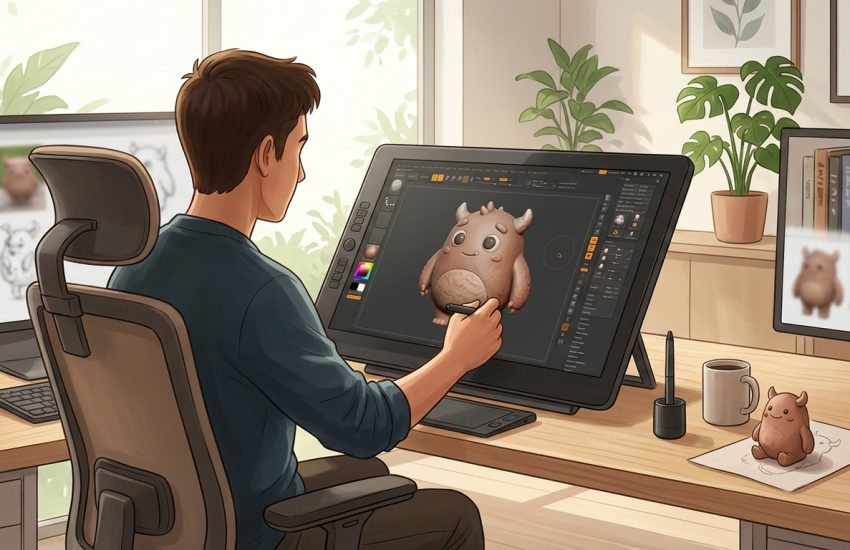
Sculptris is one of those small programs that many beginners remember fondly, even years after they first tried it. It was a free digital sculpting tool from Pixologic, the company behind ZBrush, and it was created by Tomas Pettersson. Its idea was simple and appealing: open the program, pick a ball of virtual clay, and start pushing, pulling, smoothing, and shaping it with the mouse, just as you might shape real clay with your hands. There were no long menus to learn first, no complex modelling workflow to master, and no large download to wait for. For students, hobbyists, and curious artists, that simplicity made 3D sculpting feel possible for the first time.
Before you go any further, there is an important fact you need to know. Sculptris is discontinued and is no longer in active development. The last version was Alpha 6, and Pixologic has not released a newer version or continued to update it. That means the official download may no longer be available, and you should not expect new features, bug fixes, or official support. This guide explains what Sculptris was, what made it useful, what kind of computer it needed, and how the official download process worked, so you can make an informed decision. It does not promise a working download, and it does not point you to unofficial copies, repacks, or cracked versions, because those are not safe or legitimate ways to get software.
If you already have a copy of Sculptris Alpha 6, or if you are studying digital sculpting, this guide will still help you. It covers the main features, practical system guidance, the installation steps people used, and a first-use walkthrough. If you cannot get Sculptris, the ideas here still apply to other free sculpting tools, because shaping, smoothing, detailing, and exporting are similar across programs. Read the download section carefully first, so your expectations are realistic.
What Is Sculptris?
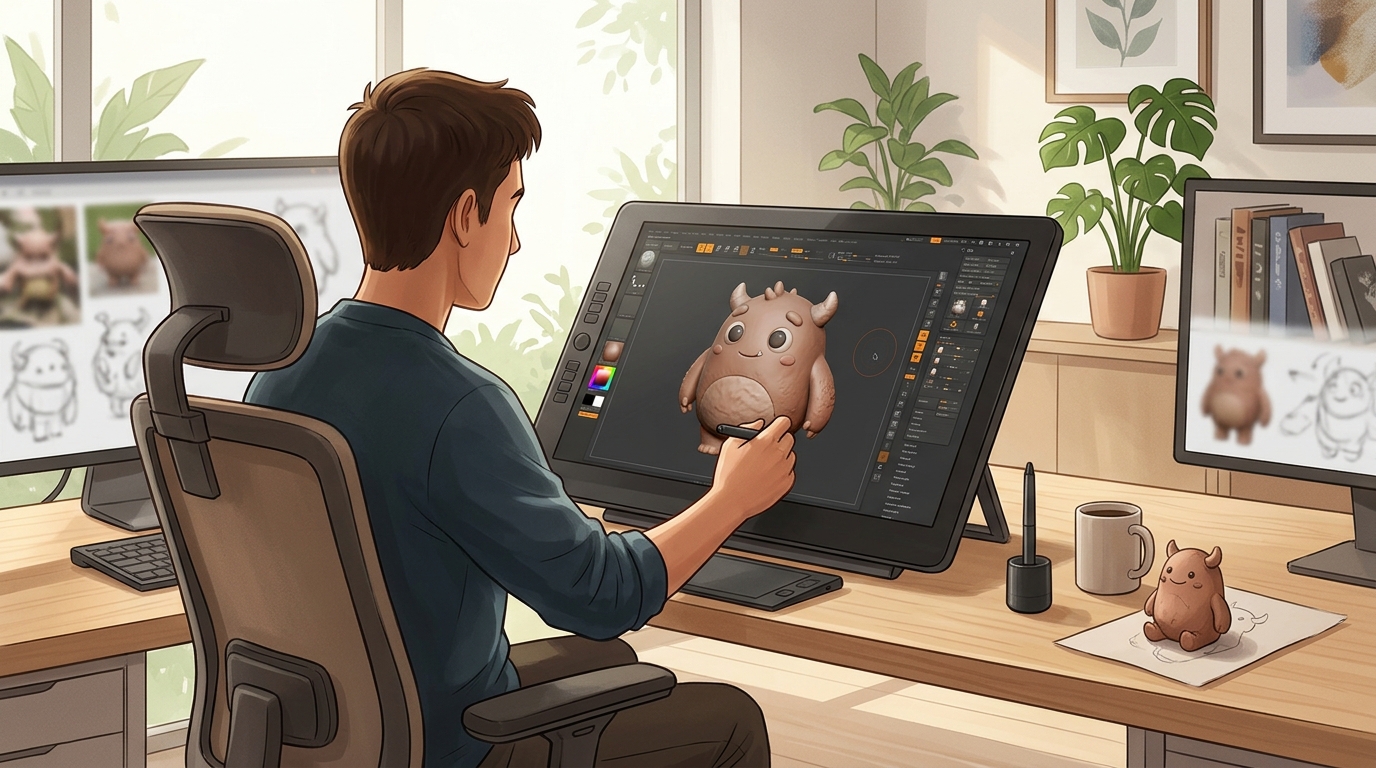
Sculptris was a free digital sculpting program for Windows and Mac that focused on one task: letting you sculpt a 3D model as if it were clay. It was originally developed independently by Tomas Pettersson and later taken on by Pixologic, the makers of ZBrush. Unlike a full 3D modelling suite, Sculptris did not try to do animation, rendering, rigging, or complex scene building. It did one thing well, and that focus was its greatest strength for beginners.
When you opened Sculptris, you started with a simple sphere. You could grab a brush, click and drag on the surface, and watch the shape change immediately. Pulling outward created a bump or a horn, pushing inward created a hollow or a dent, and smoothing softened the edges. The program used a feature called dynamic tessellation, which means it added more detail automatically where you were working. If you sculpted a small area again and again, the surface gained more polygons there, so you could add fine detail without changing the whole model at once. This made the workflow feel natural, because you did not need to decide in advance how detailed the model should be.
Sculptris was also very small and light compared with most 3D software. The download was tiny, it started quickly, and it ran well on modest computers of its time. That made it popular in schools, on older laptops, and with people who wanted to try sculpting without installing a huge program. It supported OBJ export, so a model made in Sculptris could be opened in other 3D programs for rendering, printing, or further work. Many artists used it as a sketching tool: they blocked out a creature, a face, or a character quickly in Sculptris, exported it, and continued in a larger program such as ZBrush or Blender.
Key Features
- Dynamic tessellation: Sculptris added detail automatically where you sculpted, so you could work on a small area without subdividing the whole model by hand.
- Simple clay-like sculpting: Push, pull, pinch, smooth, flatten, and inflate the surface with the mouse, in a way that feels close to working with real clay.
- Beginner-friendly interface: The workspace was clean and uncluttered, with a small set of brushes and controls, so new users could start sculpting within minutes.
- Symmetry sculpting: You could sculpt both sides of a model at the same time, which was very useful for faces, creatures, animals, and other symmetrical shapes.
- Painting and materials: Sculptris let you paint colour directly onto the model and preview it with simple materials, helping you plan the look of a character or object.
- OBJ export: Finished or in-progress models could be exported in OBJ format, so they could be opened in other 3D software for rendering, editing, or 3D printing preparation.
- Tiny and lightweight: The program was very small compared with full 3D suites, started quickly, and did not demand a powerful workstation for basic sculpting.
System Requirements
Sculptris was designed for the computers of its time, and its official requirements were modest. The figures below are practical modern Windows guidance, because the original official specification is old and no longer maintained, and exact modern compatibility is not guaranteed for a discontinued program. Use them as a sensible baseline, not as a promise that Alpha 6 will run perfectly on every current version of Windows.
For practical use on a modern Windows PC, aim for Windows 10 or Windows 11, a dual-core processor or better, at least 4 GB of RAM, and at least 200 MB of free disk space for the program and a few saved projects. A mouse is strongly recommended, because sculpting with a trackpad is much harder to control. A graphics card that supports OpenGL is helpful for a smooth viewport, although Sculptris did not need a high-end gaming card for basic work.
How to Download Sculptris (Official Method)
The only official source for Sculptris was the Pixologic website. The official link is:
https://www.pixologic.com/sculptris/
Please read this part carefully, because it is the most important part of this guide. Sculptris is discontinued, and the last version was Alpha 6. The official download may no longer be available from that page, and Pixologic may no longer offer the installer. Do not assume that visiting the link will give you a download button, and do not search for unofficial mirrors, torrent copies, or repacked installers if the official file is gone. Those sources can contain malware, unwanted software, or modified files, and they are not a legitimate way to obtain a discontinued program.
If the official page still lists a download, use only that file, check that it came from the official domain, and scan it with your antivirus software before opening it. If the page no longer offers a download, or if it only describes the program without a working link, accept that the program is no longer distributed. In that case, the best next step is to learn sculpting in a current free tool that is still supported, rather than risking an unsafe copy of Sculptris. This guide does not provide any other download link, and it does not recommend any third-party download site.
Step-by-Step Installation
The steps below describe how Sculptris Alpha 6 was installed when the official download was available. They are included so you understand the process, not as a promise that the download still works today. If the official download is no longer available, stop at step two and do not look for an unofficial installer.
- Open your web browser and go to the official Pixologic Sculptris page given in the download section above.
- Look for the official Sculptris download for Windows and check whether a download is still offered. If there is no download, do not continue to unofficial sites.
- If a download is offered, save the official installer file to your Downloads folder and wait for it to finish completely.
- Right-click the installer, choose Run as administrator if that option appears, and allow Windows to proceed if it asks for permission.
- Follow the small setup window, choose the install location if asked, and let the installer copy the program files to your computer.
- When setup finishes, open Sculptris from the Start menu or desktop shortcut and check that the main sculpting window opens correctly.
- Before you start a serious project, save a small test sculpt to confirm that saving and exporting work on your system.
Tip: Keep your first projects very small and save often. Sculptris was an Alpha release, so testing with a short sculpt first will tell you quickly whether it runs stably on your computer, without risking a long piece of work.
Getting Started with Sculptris: Your First Project
Start Sculptris and look at the default sphere in the centre of the window. This is your block of clay. On the side you will see the brush list, including Draw, Smooth, Flatten, Inflate, Pinch, and Crease. Choose the Draw brush first, make sure symmetry is turned on if you want a balanced shape, and drag slowly across the sphere. You will see the surface rise where you drag. Try a short stroke, release the mouse, and look at the result from different angles by dragging with the right mouse button or using the navigation controls.
Next, switch to the Smooth brush and gently pass over any rough edges. Smoothing is one of the most important habits in sculpting, because it lets you clean up a shape before you add the next detail. Then try the Inflate brush on a small area to create a rounded bump, and the Pinch brush along an edge to sharpen it. Work slowly and in layers: first shape the large forms, then the medium forms, and only then the small details. Many beginners make the mistake of adding fine detail too early, before the overall shape is right.
When you want more detail in one place, let dynamic tessellation add polygons where you are working. Zoom in, sculpt a small feature such as an eye ridge or a nose, smooth the surroundings, and zoom out again to check the whole shape. Try painting a little colour onto the surface to see how the model might look when finished. When you are happy, save the project, then export it as an OBJ file if you want to open it in another program. Keep the first project simple, such as a creature head, and finish it before you start a larger one.
Is Sculptris Free?
Yes, Sculptris was free. Pixologic offered Sculptris Alpha 6 as a free download, with no purchase needed to use its sculpting tools. It was not a trial with a time limit, and it did not ask you to buy a licence to sculpt or export a model. That free price was one of the reasons it became so popular with students and beginners.
Because the program is discontinued, there is no current paid version, no subscription, and no upgrade path to buy. You should not pay anyone for a copy of Sculptris, and you should not trust a site that asks you to pay for a download, a key, or an activator for it. Any such offer is not official. If you need a supported sculpting tool today, look for a current free program from its official site instead, and check its own licence terms before you install it.
Frequently Asked Questions
Is Sculptris safe to download?
Sculptris itself was a legitimate program from Pixologic when it was officially distributed. Today, the risk comes from unofficial copies. Only use the official Pixologic page, and do not download Sculptris from random mirror sites, torrents, or repacks. If the official download is no longer available, do not download it from anywhere else.
Is Sculptris still being updated?
No. Sculptris is discontinued and is no longer in active development. The last version was Alpha 6, and there are no new updates, fixes, or official support releases to expect.
Can I use Sculptris on Windows 11?
It may run on some Windows 11 computers, but compatibility is not guaranteed because it is an old Alpha program. Test it with a small project first, save often, and be prepared to use a current sculpting program if it does not run well.
Can I export my Sculptris models to other software?
Yes, Sculptris supported OBJ export. That allowed models to be opened in other 3D programs for further editing, rendering, or preparation for 3D printing, subject to the limits of the exported mesh.
Conclusion
Sculptris was a small, free, and friendly introduction to digital sculpting. Its clay-like brushes, dynamic tessellation, symmetry tools, and OBJ export made it easy for beginners to start shaping 3D models without learning a large and complex program first. It remains a good example of how simple design can make a creative skill feel accessible.
The honest position today is clear: Sculptris is discontinued, the last version was Alpha 6, and the official download may no longer be available. If you can still get it from the official page, treat it as a learning tool and save your work often. If you cannot, do not turn to unsafe copies. Instead, carry the sculpting skills you have learned here into a current free tool that is still supported and still receiving updates. For the official information, visit:
https://www.pixologic.com/sculptris/
Related Guides
- Blender for PC: How to Download & Install on Windows
- LuxCoreRender for PC: How to Download & Install on Windows