 Posted by

CopperCube for PC: How to Download & Install on Windows
Introduction
If you want to make a 3D game or an interactive 3D website but you have never written a line of code, CopperCube is the free engine that lets you click it together instead. It is a complete 3D authoring tool from Ambiera with a visual editor, ready-made game behaviours, physics and terrain tools, and it exports Windows apps, macOS apps and tiny WebGL websites. There is no payment for the free edition, and the download from the official Ambiera site is the complete editor.
This guide explains what CopperCube is, what it can and cannot do, what your PC needs to run it, and how to download and install it from the official website only. You will also get a first-use walkthrough that takes you from installation to a working result in a few minutes. By the end, you should be able to install CopperCube on Windows and use it in a real project.
CopperCube is best for beginner game development, interactive 3D websites, and no-code 3D apps. Because it is free and legitimate, you do not need a cracked copy or an unknown download site. The official website provides the installer, and the free version is a real, permanent tool, not a short trial.
What Is CopperCube?
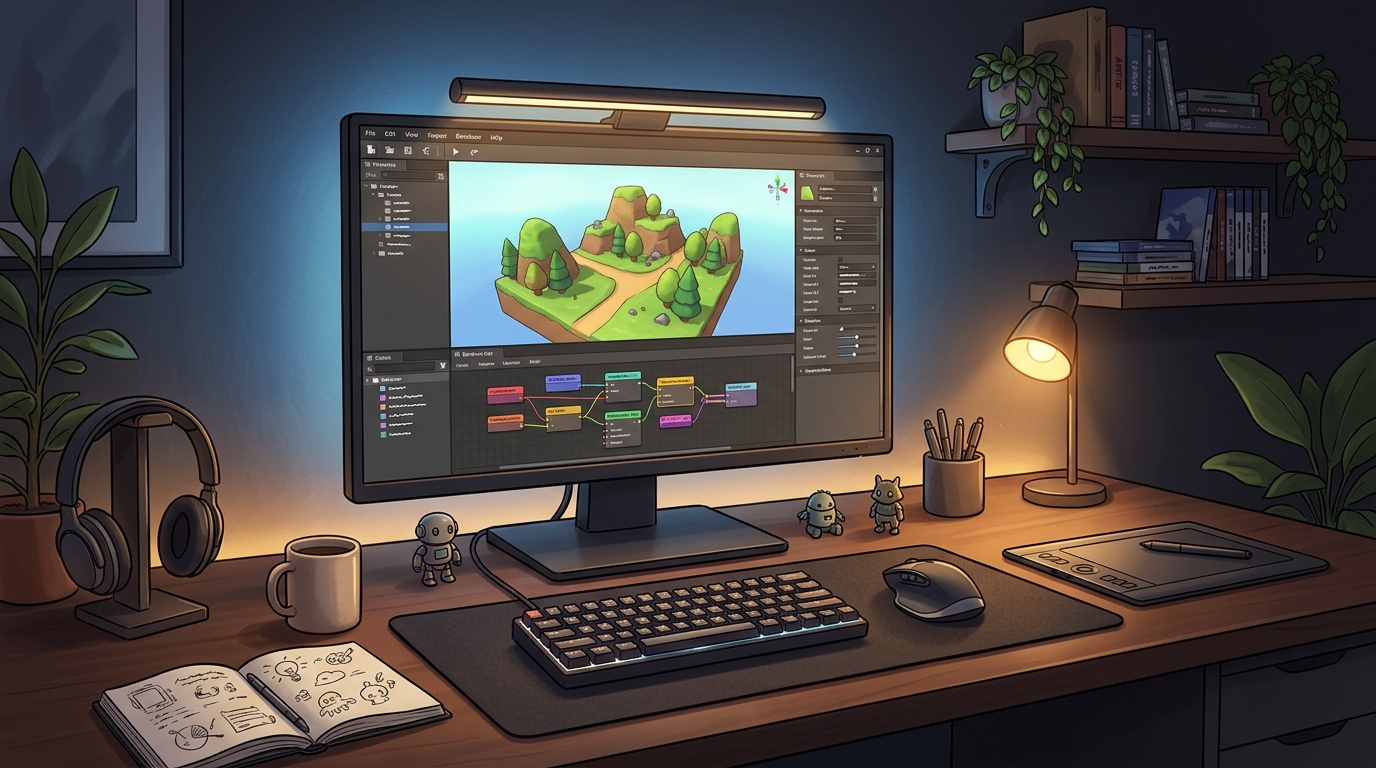
CopperCube is a free desktop application for creating interactive 3D scenes, games and apps. In simple terms, it is a program where you build a scene from 3D models, lights and terrain, add behaviours such as first-person controls, enemy AI and collectables by clicking instead of coding, and publish the result as a single Windows .exe file, a macOS .app, or a small WebGL website. You can also import 3D models in many formats and add your own textures and sounds.
What makes CopperCube useful is its lightness and its honesty about price. The whole editor needs only about 70 MB, a finished WebGL game is a JavaScript file of about 200 KB, and games created with CopperCube can be sold freely, on Steam or anywhere else, even with the free edition. The WebGL code is open source. Two honest notes: the free edition lacks the post-processing effects, video playback, command-line interface and custom startup logo of the Professional edition, which costs 37 euros, and the Studio edition, which costs 126 euros, adds the game source code; and the Android export is deprecated, so target Windows, macOS or WebGL for new projects.
Key Features
- No-code game editor: Build games by clicking behaviours together, with no programming needed.
- Ready-made behaviours: Precreated game AI, first-person controls and actions cover most common game mechanics.
- Physics engine: A built-in physics engine handles collisions, gravity and moving objects.
- Terrain editor: A terrain editor builds hills, valleys and landscapes for outdoor scenes.
- Tiny WebGL export: WebGL export produces a JavaScript file of about 200 KB, so web games load fast.
- Windows and macOS export: Publish a finished game as a single Windows .exe or a macOS .app file.
- Steam integration: Games created as Windows .exe files have Steam integration built in.
- Free edition to start: The free edition costs nothing and lets you create and sell games without paying.
System Requirements
- Operating System: Windows 10 or Windows 11, 64-bit
- Processor: A modern dual-core processor or better
- RAM: At least 4 GB of RAM for basic use
- Storage: Around 200 MB of free disk space for the editor and your projects
- Graphics: A graphics card with DirectX or OpenGL support, which almost every modern PC has
- Other: A stable internet connection for the download, and a mouse for working in 3D
These are practical, modern Windows guidelines, not a word-for-word copy of an official specification table. The most important point is simple: CopperCube is designed for normal Windows PCs, and a modest modern computer is enough to start.
How to Download CopperCube (Official Method)
The only safe place to download CopperCube is the official website. Do not download it from random file mirrors or “free download” portals, because those copies may be outdated or bundled with unwanted software. The official site is the source of truth for the current version.
Official download link: https://www.ambiera.com/coppercube/
On the official Ambiera CopperCube page, download the free edition for Windows to your Downloads folder. CopperCube is also available on Steam. There is no payment for the free edition. If a site asks you to pay for CopperCube, or offers a cracked version of it, leave that site and return to the official Ambiera page.
Step-by-Step Installation
Follow these steps in order. Take your time with the install location and component choices, because those are the steps that most often cause problems later.
- Download the installer from the official site — Open https://www.ambiera.com/coppercube/ in your browser and download the free edition installer for Windows.
- Run the installer — Double-click the downloaded installer file and follow the on-screen prompts on your Windows PC.
- Choose the install location — Keep the default install folder unless you have a reason to change it, then note the folder for later.
- Finish the installation — Wait for the installer to finish, then close it.
- Launch CopperCube — Double-click the CopperCube shortcut to open the editor and confirm it starts without an error.
- Open a sample scene — Open one of the sample scenes from the CopperCube website to see a finished game setup.
- Create your first scene — Create a new empty scene and confirm the editor, the object list and the 3D view all open.
Tip: The free edition of CopperCube lets you create and sell games, but post-processing effects, video playback and a custom startup logo need the Professional edition. Target Windows, macOS or WebGL for new projects, because the Android export is deprecated.
First-Use Walkthrough: Your First CopperCube Mini Game
This walkthrough is a simple first project. It is not a full course, but it will help you see CopperCube working on a real project and learn its main tools.
- Create a scene and add terrain — Create a new scene in CopperCube and add a terrain to walk on.
- Add a player character — Add a first-person camera behaviour, so you can walk around the scene.
- Place a few objects — Place a few boxes and spheres in the scene as obstacles and decorations.
- Add a collectable — Add a spinning coin with a collect behaviour, so the player has something to pick up.
- Add an enemy — Add a simple enemy with a patrol behaviour, so the scene has a challenge.
- Test the game in the editor — Press Play in the editor and walk around, collect the coin and dodge the enemy.
- Publish your game — Publish the finished scene as a Windows .exe file, ready to share or sell.
Is CopperCube Free?
CopperCube is free from Ambiera. You download it from the official Ambiera site, install it, and use it without paying and without a time limit. There is no paid version of the free edition itself, but the Professional edition, which costs 37 euros, adds post-processing effects, video playback, a command-line interface and a custom startup logo, and the Studio edition, which costs 126 euros, adds the game source code. Be aware of one more honest limit: the Android export is deprecated, so target Windows, macOS or WebGL for new projects.
That free status is important for this guide. All the steps here use the official download only, and they do not involve cracks, activators or licence keys. If you ever see a site offering a paid or cracked version of the free program, treat it as unsafe and return to the official site.
Frequently Asked Questions
Is CopperCube safe to download?
Yes, when you download it from the official website only. The official installer is the version made by the developer. Avoid third-party sites that bundle extra software or ask for payment for a free program.
Does CopperCube work on my Windows PC?
Yes, in most cases. CopperCube runs on Windows 10 and 11 (64-bit), and the system requirements above cover a normal modern PC. Check the official site for the exact current version if your PC is older.
Is CopperCube really free, or will it stop working?
The free version described in this guide is not a short trial. It stays usable after installation. The paid editions only add extra features.
Do I need a powerful PC to run CopperCube?
No, not for basic use. A modern Windows 10 or 11 PC with 4 GB of RAM or more can run it for simple projects. Larger projects with many objects and effects will benefit from more RAM and a faster processor, but you can start and learn on a normal home PC.
Conclusion
CopperCube is a useful, free addition to a Windows setup because it is a free 3D engine and editor for creating games, apps and interactive 3D websites without programming, and it can be downloaded safely from the official site. Start with a small first project, learn one tool at a time, and build from there.
To get started, download CopperCube from the official website here: https://www.ambiera.com/coppercube/ Install it with the steps above, test it once, and then use it in your next project. With a little practice, it can become a regular part of your workflow.
Official download link: https://www.ambiera.com/coppercube/
Related Guides
- Unity for PC: How to Download & Install on Windows
- Defold for PC: How to Download & Install on Windows