 Posted by

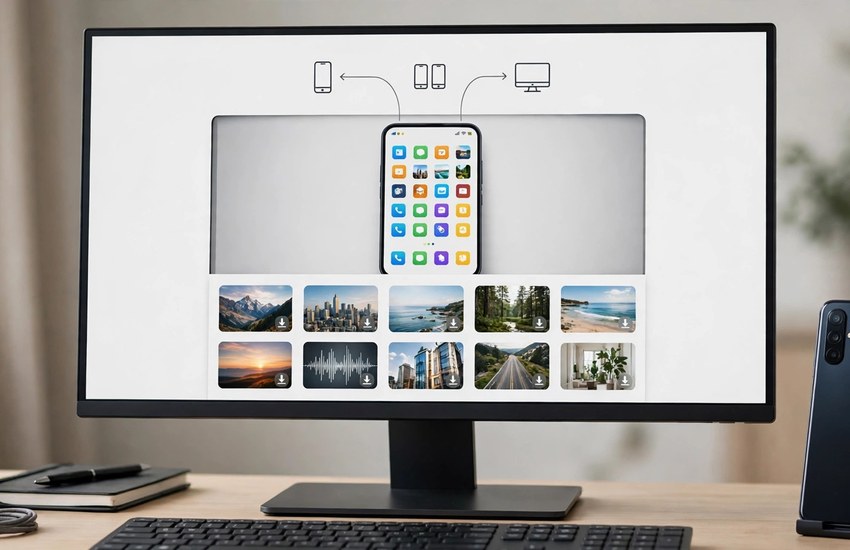
AirDroid connects your Android phone to your Windows PC without a cable. You can send photos and files, read and reply to messages, see notifications and even mirror your phone screen on your computer. It is handy for office workers, students and anyone who types faster on a real keyboard than on a phone screen. Once it is set up, your phone mostly stays in your pocket. This guide shows you how to download AirDroid for PC from the official source, install it safely on Windows 11 or Windows 10, and send your first file.
What Is AirDroid?
AirDroid is a phone-to-PC companion app made by Sand Studio. You install the AirDroid app on your Android phone and the desktop client on your PC, sign in with the same account, and the two devices talk to each other over Wi-Fi or the internet. It is popular with people who work on a PC all day and want their phone’s files and messages on the same screen, without picking the phone up every few minutes. It also works through a web browser at web.airdroid.com, so you can reach your phone from any computer without installing anything, though the desktop client is the most complete version.
Top Features of AirDroid
- Wireless file transfer — send photos, videos and documents between phone and PC without a cable.
- Screen mirroring — see and control your Android screen from your PC.
- SMS and messages — read and reply to phone messages from your computer keyboard.
- Notifications on PC — see calls and app notifications on your desktop.
- Remote camera — view your phone’s camera from your PC.
- Find my phone — locate a lost phone and lock or wipe it remotely.
- Nearby transfer — send files to a nearby device quickly, even without an account.
System Requirements for AirDroid on PC
- Operating system — Windows 11 or Windows 10, 64-bit.
- Processor — any modern dual-core CPU or better.
- RAM — 2 GB minimum is comfortable for the desktop client.
- Storage — around 300 MB for the app.
- Internet — a connection is needed to sign in and transfer files remotely.
- Display — 1024 × 768 or higher.
- Android phone — the AirDroid app installed on your phone, signed in to the same account.
How to Download and Install AirDroid on PC
- Open the official AirDroid website (airdroid.com) and go to the download page.
- Download the Windows desktop client from the official site — avoid third-party AirDroid installers.
- Run the downloaded installer file and approve the Windows permission prompt.
- Follow the short setup screens; the default settings are fine.
- Wait a few seconds while installation completes.
- Launch AirDroid from the desktop shortcut or the Start menu.
- Sign in with your free AirDroid account, or create one, and do the same on your phone.
Getting Started with AirDroid
- Make sure your phone and PC are signed in to the same AirDroid account.
- Open the Files tab on your PC and pick your phone to browse its storage.
- Drag a photo from your phone into a PC folder to copy it over.
- Open the Messages tab and reply to a text from your keyboard.
- Try screen mirroring to control your phone from the PC screen.
- Check the free plan limits in the account page before sending large files remotely.
Is AirDroid Free?
Yes, AirDroid has a free plan that covers local file transfer, notifications, SMS and basic remote features. The free plan has limits — remote file transfer has a monthly data quota and some advanced features, like remote camera and unlimited remote transfer, need the paid Premium plan. The remote data quota resets every month, and transfers on the same Wi-Fi network never use it. For moving files between a phone and a PC on the same Wi-Fi, the free plan is usually enough. Only download the app from the official AirDroid website so you know the installer is genuine and safe.
Frequently Asked Questions
Is AirDroid safe to download for PC?
Yes, when you download it from the official AirDroid website (airdroid.com). Unofficial “AirDroid Premium” installers on random download sites can be fake or bundled with unwanted software, so use only the official source and keep your antivirus on during setup.
Does AirDroid work without Wi-Fi?
Yes, for remote transfers it works over mobile data or any internet connection, but the free plan has a monthly remote data limit. Transfers on the same Wi-Fi network are local and do not count against that limit.
Can AirDroid transfer files to iPhone?
AirDroid works best with Android phones. The desktop client can also send files through the AirDroid web version, which works in a browser on any device, including iPhone, but the full feature set is Android-only.
Does AirDroid work on Windows 11?
Yes. The official desktop client installs and runs on Windows 11 as well as Windows 10 (64-bit), with the same features on both.
Related Guides
- AnyDesk for PC: How to Download and Install on Windows
- TeamViewer for PC: How to Download and Install on Windows