 Posted by

Adobe Photoshop for PC: How to Download and Install on Windows (2026 Guide)
Adobe Photoshop is the world’s best-known image editor, used by photographers, designers and digital artists for everything from simple photo fixes to complex artwork. If you want it on your Windows PC, the only safe and legal way to get it is directly from Adobe — and this guide walks you through exactly that.
Below you will find how to download Adobe Photoshop from the official Adobe website, install it on Windows step by step through the Creative Cloud desktop app, and create your first document. We also cover the system requirements and the honest pricing: Photoshop is a paid program with a short free trial, explained clearly below.
What Is Adobe Photoshop?
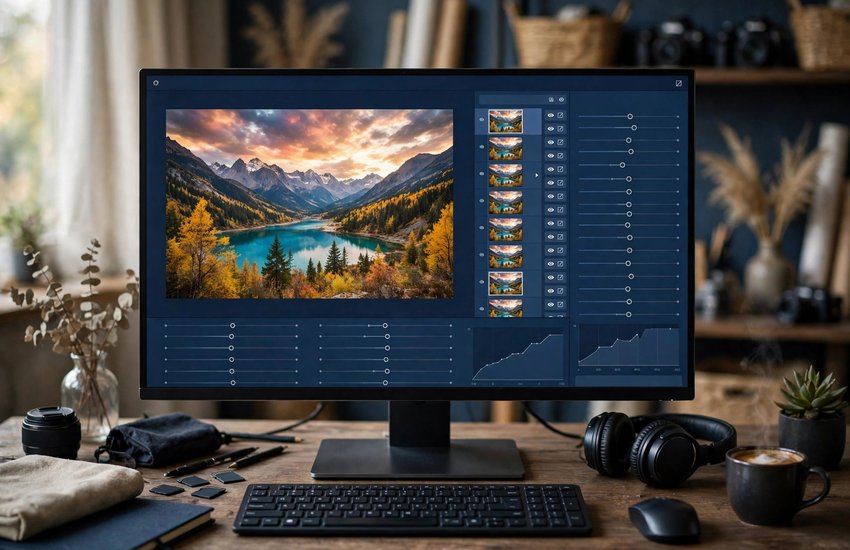
Adobe Photoshop is a raster image editor developed by Adobe for Windows and macOS. It works with pixels, which makes it ideal for photographs and detailed digital painting. You build images using layers — separate stacked elements for backgrounds, subjects, text and effects — so every part of a picture can be edited or removed without damaging the rest.
Photoshop handles the complete photo workflow: it opens RAW files from cameras through Adobe Camera Raw, corrects colour and exposure, removes unwanted objects, combines several photos into one scene, and prepares images for print, web and social media. It saves in its own PSD format, which keeps layers intact, and exports to JPG, PNG, TIFF and many other formats. Because it is part of Adobe Creative Cloud, your files can sync to cloud storage and open in companion apps such as Lightroom.
Key Features
- Layers and masking: Build images from stacked layers and hide or reveal parts of each layer with masks for non-destructive editing
- Generative Fill: Adobe Firefly AI lets you add, extend or replace parts of an image from a simple text prompt
- Neural Filters: One-click AI filters for skin smoothing, colourising black-and-white photos, restoring old pictures and more
- Adobe Camera Raw: Professional RAW photo processing with exposure, white balance, lens corrections and noise reduction
- Content-Aware tools: Remove unwanted objects, people or wires and let Photoshop fill the gap intelligently
- Selection tools: Select Subject and Object Selection pick out people, skies and objects automatically in seconds
- Brushes, pen and type tools: Thousands of brushes for digital painting plus full vector pen tools and professional text controls
System Requirements
- Operating System: Windows 10 or Windows 11 (64-bit), version 22H2 or later
- Processor: Intel or AMD multicore processor with SSE 4.2 support or later
- RAM: 8 GB minimum; 16 GB or more recommended for large files and AI features
- Graphics Card: GPU with DirectX 12 support and at least 1.5 GB of GPU memory; 4 GB recommended
- Storage: At least 4 GB of free disk space for installation; more needed for scratch disks and cloud cache
- Display: 1280 x 800 resolution minimum; 1920 x 1080 or higher recommended
- Internet Connection: Required to download the Creative Cloud app, activate your license and use cloud and AI features
How to Download Adobe Photoshop (Official Method)
Photoshop should only ever be downloaded from Adobe itself. Adobe distributes all of its current desktop apps through the free Creative Cloud desktop app, which downloads, installs and updates Photoshop for you and manages your license. There is no separate standalone installer from any other source that you should trust.
Official Website: Download Adobe Photoshop from the official Adobe website
Step-by-Step Installation
- Open the official Photoshop page linked above and click “Free trial” (or “Buy now” if you already plan to subscribe).
- Sign in with your Adobe account, or create a free Adobe ID with your email address when prompted.
- Adobe will offer the Creative Cloud desktop app — download the small setup file (Creative_Cloud_Set-Up.exe).
- Run the downloaded file and follow the prompts to install the Creative Cloud desktop app, then sign in again if asked.
- In the Creative Cloud app, open the “Apps” tab, find Photoshop in the list and click “Install” (or “Try”).
- Wait while Creative Cloud downloads and installs Photoshop — progress is shown in the app, and it may take a while on slower connections.
- When installation finishes, click “Open” next to Photoshop, sign in if prompted, and your trial or subscription will activate automatically.
Important: Keep the Creative Cloud app installed — Photoshop checks your license through it, and all updates, including new AI features, arrive through it as well.
How to Create Your First Image in Photoshop
- Open Photoshop and, on the Home screen, click “Create new” (or press Ctrl+N) to start a new document.
- Choose a preset size — for example a photo or web size — set the resolution, and click Create.
- To edit an existing photo instead, click “Open” and browse to your JPG or RAW file; it opens as the background layer.
- In the Layers panel, click the “+” icon to add a new layer before painting or pasting, so your original image stays untouched.
- Try a simple edit: pick the Crop tool to straighten and trim, or use Select > Subject and Generative Fill to change part of the picture.
- Save your work with File > Save As as a PSD to keep the layers, then export a copy as JPG or PNG with File > Export > Export As for sharing.
Is Adobe Photoshop Free? The Trial and Subscription Pricing Explained
Let us be straightforward: Adobe Photoshop is paid software. Adobe offers a free trial that gives you the full program for 7 days, which is enough time to test every feature on your own photos. After the trial ends, Photoshop continues only with a paid Creative Cloud subscription — there is no free full version and no one-time purchase option for the current release.
Photoshop is sold on its own single-app plan (around US$23 per month on an annual plan), as part of the Photography plan together with Lightroom at a lower combined price, or inside the Creative Cloud All Apps plan, which includes every Adobe desktop app. Prices differ by country and Adobe adjusts them from time to time, so always confirm the current price on the official plans page before you pay. Subscribe only through Adobe’s own website so your license and payment stay genuine and secure.
Frequently Asked Questions
Is Adobe Photoshop safe and legal to download?
Yes — when you download it from the official Adobe website linked in this guide. The Creative Cloud installer is Adobe’s genuine, signed software, and using Photoshop under its free trial or a paid subscription is completely legal.
Can I use Photoshop for free after the trial ends?
No. When the 7-day trial finishes, Photoshop stops working until you start a paid subscription. Adobe does offer the separate, simpler Photoshop Express app for basic edits, but the full desktop Photoshop is subscription-only.
Will Photoshop run on my Windows 10 PC?
Yes, as long as it is the 64-bit version 22H2 or later with at least 8 GB of RAM and a DirectX 12 graphics card. Older 32-bit systems and Windows 7 or 8 are not supported by current Photoshop releases.
Do I need an internet connection to use Photoshop?
You need the internet to download, install, activate and update Photoshop, and the AI features such as Generative Fill run in Adobe’s cloud. Everyday editing itself works offline, with the app checking your license online from time to time.
Conclusion
Photoshop remains the most capable photo and image editor you can put on a Windows PC, and getting it the official way takes only a few minutes: install the Creative Cloud app from Adobe, add Photoshop from the Apps tab, and start your free trial. Download it only from Adobe, follow the steps above, and you will have the genuine, fully updated program with all of its AI features working from day one.
Download Adobe Photoshop from the Official Adobe Website
Related Guides
- Adobe Illustrator for PC: How to Download and Install on Windows (2026 Guide)
- Adobe Lightroom Classic for PC: How to Download and Install on Windows (2026 Guide)