 Posted by

Introduction
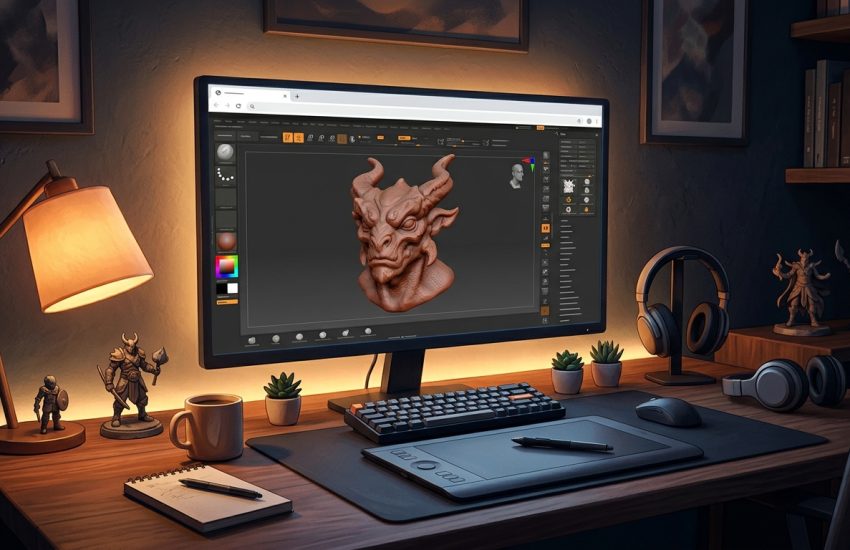
If you want to try digital sculpting right now, without downloading or installing anything, SculptGL is the fastest way to start. It is a free web-based 3D sculpting application by Stephane Ginier that runs entirely in your browser: you open the website and you are sculpting within seconds, with standard brushes, multiresolution subdivision, dynamic topology and even PBR vertex painting. There is no account, no payment and no installer, and the official website is the only place you need.
This guide explains what SculptGL is, what it can and cannot do, what your PC needs to run it, and how to open it from the official website only. You will also get a first-use walkthrough that takes you from opening the site to a finished sculpt in a few minutes. By the end, you should be able to sculpt on Windows and export your work for other programs.
SculptGL is best for trying digital sculpting in seconds, quick character sketches, and learning sculpting basics. Because it is free and legitimate, you do not need a cracked copy or an unknown download site. The official website runs the app in your browser, and the free version is a real, permanent tool, not a short trial.
What Is SculptGL?
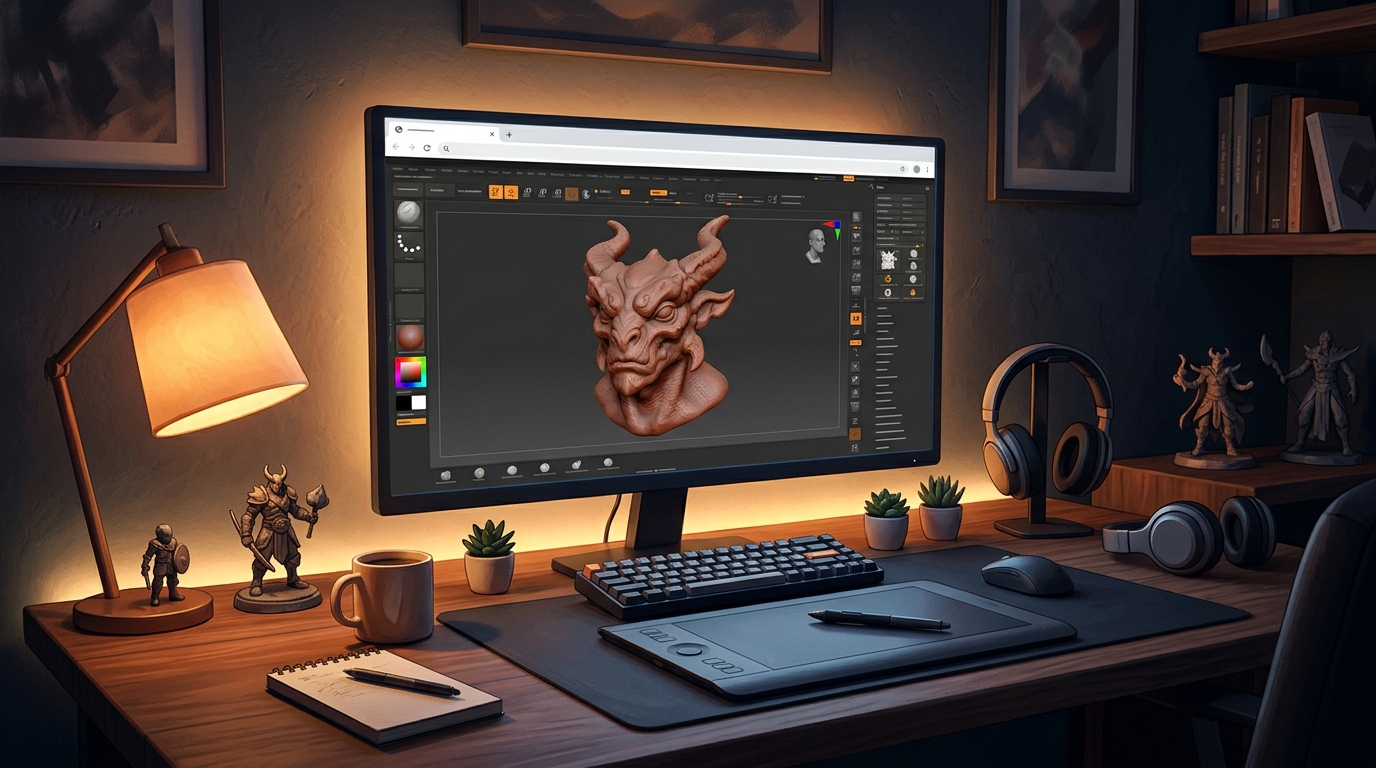
SculptGL is a free, browser-based 3D sculpting app. In simple terms, it is a program that lives on a website instead of on your computer: you open it in Chrome, Firefox or Edge, and you get a 3D viewport with a sphere you can push, pull, inflate, smooth, twist and drag into a character, creature or prop, just like working with digital clay. It includes standard sculpting brushes, multiresolution subdivision for adding detail, dynamic topology for adding polygons where you need them, and PBR vertex painting for colouring your sculpt directly on the surface.
What makes SculptGL useful is its speed and simplicity. There is no download, no account and no setup, so it is the quickest way to learn whether you enjoy sculpting, and it exports to OBJ, PLY and STL, so a sculpt can go straight into another 3D program or to a 3D printer. Two honest notes: SculptGL needs an internet connection, because it runs in the browser, and the original author no longer actively develops it beyond small fixes, so the interface shows its age. There is also no account system, so your work lives in the browser until you export it, and refreshing the page loses unsaved work.
Key Features
- No install, no account: Runs entirely in your browser, so you can start sculpting in seconds with no download or signup.
- Standard sculpting brushes: Brush, inflate, smooth, twist, drag and other standard brushes cover the core sculpting workflow.
- Multiresolution subdivision: Subdivide your model to add detail levels, and step back down when you want to change the big shapes.
- Dynamic topology: Dynamic topology adds polygons only where you sculpt, so detail goes exactly where you need it.
- PBR vertex painting: Paint colour and material directly onto the surface of your sculpt with PBR vertex painting.
- OBJ, PLY and STL export: Export your sculpt to OBJ, PLY or STL for other 3D programs or for 3D printing.
- Works on any system: As a web app it works on Windows, macOS and Linux, in any modern browser.
- Completely free: SculptGL is completely free to use, with no trial, no account and no payment needed.
System Requirements
- Operating System: Windows 10 or Windows 11, 64-bit (any system with a modern browser works)
- Browser: A modern browser such as Chrome, Firefox or Edge, with WebGL enabled
- Processor: A modern dual-core processor or better
- RAM: At least 4 GB of RAM for basic use, 8 GB or more recommended for detailed sculpts
- Internet: A stable internet connection, because SculptGL runs online in the browser
- Other: A mouse for sculpting, and a graphics tablet if you want pressure-sensitive brushes
These are practical, modern Windows guidelines, not a word-for-word copy of an official specification table. The most important point is simple: SculptGL is designed for normal Windows PCs, and a modest modern computer is enough to start.
How to Download SculptGL (Official Method)
SculptGL is a web app, so there is nothing to download or install. The only safe place to use it is the official website, in your browser. Do not download a SculptGL installer from random file mirrors or “free download” portals, because SculptGL has no installer, and those copies may be bundled with unwanted software. The official site is the source of truth.
Official download link: https://stephaneginier.com/sculptgl/
SculptGL is a web app, so there is nothing to download or install. Open the official SculptGL website in your browser and start sculpting. There is no account, no payment and no installer involved at any point.
Step-by-Step Installation
SculptGL has no installer, so these steps take you from opening the site to saving your first sculpt. Work carefully through them in order, and remember to export your work before you close the tab.
- Open SculptGL in your browser — Open https://stephaneginier.com/sculptgl/ in Chrome, Firefox or Edge and wait for the app to load.
- Wait for the default sphere — SculptGL opens with a sphere in the 3D viewport. Wait until it appears before you start.
- Learn the navigation — Drag with the mouse to orbit, scroll to zoom, and right-drag to pan, so you can move around your model.
- Try the brush tool — Select the brush tool and drag on the sphere to push and pull the surface, and watch how it changes.
- Try the smooth tool — Select the smooth tool and brush over a rough area to see how it softens the surface.
- Subdivide for more detail — Use the subdivision control to add more polygons, then sculpt finer details such as eyes or fingers.
- Export your sculpt — Export your finished sculpt as an OBJ, PLY or STL file to your Downloads folder, before you close the tab.
Tip: SculptGL does not save your work automatically, and refreshing the page loses an unsaved sculpt. Export your model as an OBJ or STL file often, especially before you close the tab or take a break.
First-Use Walkthrough: Your First Sculpted Creature
This walkthrough is a simple first project. It is not a full course, but it will help you see SculptGL working on a real project and learn its main tools.
- Open SculptGL and wait for the sphere — Open the official SculptGL site and wait for the default sphere to appear in the viewport.
- Pull out a head shape — Use the brush tool to pull the top of the sphere into a rough head shape.
- Inflate two bumps for eyes — Use the inflate brush to raise two small bumps where the eyes will go.
- Smooth the rough edges — Use the smooth tool to soften any sharp ridges left by the brushes.
- Subdivide and add details — Subdivide once, then add a nose and a mouth with small brush strokes.
- Paint some colour — Switch to vertex painting and add a base colour to your creature, with a darker colour for the eyes.
- Export your creature — Export the finished sculpt as an OBJ file to your Downloads folder, so you keep it after closing the tab.
Is SculptGL Free?
SculptGL is completely free to use. You open it on the official website and sculpt with no payment, no account and no time limit. There is no paid version of SculptGL itself. Be aware of two honest limits: it needs an internet connection, because it runs in the browser, and the author no longer actively develops it beyond small fixes.
That free status is important for this guide. All the steps here use the official website only, and they do not involve cracks, activators or licence keys. If you ever see a site offering a paid or cracked version of SculptGL, treat it as unsafe and return to the official site.
Frequently Asked Questions
Is SculptGL safe to download?
Yes, when you use it on the official website only. SculptGL runs in your browser, so there is nothing to download and nothing to install. Avoid copycat sites that ask you to download a SculptGL installer or pay for it.
Does SculptGL work on my Windows PC?
Yes, in most cases. SculptGL runs on Windows 10 and 11 (64-bit), and the system requirements above cover a normal modern PC. Check the official site for the exact current version if your PC is older.
Is SculptGL really free, or will it stop working?
The free version described in this guide is not a short trial. It stays usable on the official site. There is no paid edition of SculptGL itself.
Do I need a powerful PC to run SculptGL?
No, not for basic use. A modern Windows 10 or 11 PC with 4 GB of RAM or more can run it for simple projects. Larger projects with many objects and effects will benefit from more RAM and a faster processor, but you can start and learn on a normal home PC.
Conclusion
SculptGL is a useful, free addition to a Windows setup because it is a free web-based 3D sculpting app that runs in your browser with no install, and it can be used safely from the official site. Start with a small first project, learn one tool at a time, and build from there.
To get started, open SculptGL from the official website here: https://stephaneginier.com/sculptgl/ Try the walkthrough above, export your first sculpt, and then use it in your next project. With a little practice, it can become a regular part of your workflow.
Official download link: https://stephaneginier.com/sculptgl/
Related Guides
- Sculptris for PC: How to Download & Install on Windows
- Tinkercad for PC: How to Download & Install on Windows