 Posted by

You need to merge two PDFs, compress a large file, or split one long document into smaller parts, but you do not want to upload private files to a random website. This stirling-pdf download for pc guide shows you how to get the free open-source PDF toolkit, how to set it up on Windows 10 and Windows 11, and how to merge your first PDFs. Stirling-PDF runs on your own computer, so your files stay with you.
What Is Stirling-PDF?
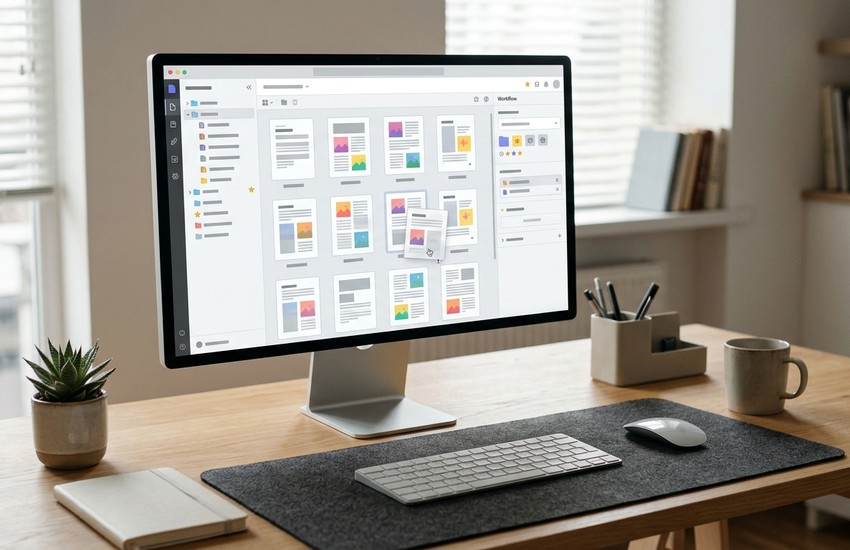
Stirling-PDF is a free and open-source set of PDF tools that runs locally on your computer. It covers the everyday jobs people need from a PDF app: merge, split, rotate, compress, convert, watermark, and sign documents. It started as a self-hosted web app, and it now also offers a desktop app for Windows.
Because it runs locally, nothing is sent to a cloud server. That makes it a good choice for work documents, forms, and files with personal details. The project is open source, so anyone can check how it works, and the community keeps adding new tools to it.
Key Features
- Merge and split: join several PDFs into one file, or split one PDF into separate pages.
- Compress PDFs: shrink large files so they are easier to email and share.
- Convert files: turn PDFs into images, and images or office files into PDFs.
- Rotate and reorder: fix page direction and move pages into the right order.
- Watermarks and signatures: add a watermark, or sign a document with a digital signature.
- OCR text recognition: make scanned pages searchable with built-in text recognition.
- Password tools: add or remove a password, and set permissions on a PDF.
System Requirements
- Operating system: Windows 10 or Windows 11 (64-bit)
- Processor: any modern dual-core CPU
- RAM: 4 GB minimum; 8 GB is better for large files
- Storage: around 500 MB of free space for the app
- Network: a local connection for the desktop app to open in your browser
- Internet: only needed to download Stirling-PDF
Stirling-PDF Download for PC: Official Method
Always get the program from the official source so you receive the genuine, untouched software. Follow these steps:
- Open your browser and go to the Download Stirling-PDF from the official website.
- On the official Stirling-PDF site, look for the download options and pick the desktop app for Windows.
- Choose the Windows download and save the file to your Downloads folder.
- Wait for the download to finish before you open it.
Avoid third-party download sites that bundle extra software. The official website above is the only source you need.
The whole stirling-pdf download for pc process usually takes only a few minutes on a normal broadband connection. Once the file is saved on your computer, you can install it whenever you are ready.
Step-by-Step Installation
- Open your Downloads folder and double-click the Stirling-PDF desktop app file.
- Follow the setup prompts and accept the licence shown on screen.
- Keep the default install location, unless you have a reason to change it.
- Wait for the setup to copy the files to your computer.
- Click Finish to close the installer when it is done.
- Launch Stirling-PDF from the Start menu or the desktop shortcut.
- The app opens its local interface in your default web browser.
- Leave the app running in the background while you use its tools.
stirling-pdf download for pc: How to Merge PDFs with Stirling-PDF
Merging is the most common job in Stirling-PDF, and it takes less than a minute. Open the app, pick the merge tool, and add the files you want to join. Then arrange them, and let the app build one clean PDF for you.
- Open Stirling-PDF and click the Merge PDFs tool on the home screen.
- Click Add Files and pick the PDFs you want to join.
- Drag the files into the order you want them to appear.
- Check the page count shown for each file before you continue.
- Click Merge PDFs and wait for the app to build the new file.
- Download the merged PDF when the download button appears.
- Open the result and check that every page is in the right place.
stirling-pdf download for pc: Is Stirling-PDF Free? The Price Explained
Yes, Stirling-PDF is completely free. It is open-source software, so there is no paid version, no trial, and no limit on how many files you can process. Every tool, including merge, compress, OCR, and signing, is free from the first launch. The project accepts donations, but no feature is locked behind a payment. There is no trial clock on this stirling-pdf download for pc, and no watermark added to your files unless you choose to add one yourself.
Frequently Asked Questions
Is Stirling-PDF safe to use?
Yes, when you download it from the official stirlingpdf.com website. It is a well-known open-source project, and it runs locally, so your files are not uploaded to a server.
Does Stirling-PDF work on Windows 11?
Yes. The desktop app runs on both Windows 10 and Windows 11 in 64-bit editions.
Do I need Docker to use Stirling-PDF?
No. Docker is one way to self-host it, but the desktop app works on its own for most Windows users.
Can Stirling-PDF compress a PDF?
Yes. The compress tool reduces file size, which helps when a PDF is too large to send by email.
Does Stirling-PDF add a watermark to my files?
No. It only adds a watermark if you choose that tool yourself.
stirling-pdf download for pc: Conclusion
Stirling-PDF is a free, open-source toolkit that handles the PDF jobs most people need every day, from merging and splitting to compressing and signing. It runs on your own computer, so your documents stay private. Get it only from the official website linked in this guide, follow the steps above, and your first merged PDF will be ready today. For a safe stirling-pdf download for pc, stick to the official link in this guide and ignore mirror sites that bundle extras.
Related Guides