 Posted by

Adobe Illustrator for PC: How to Download and Install on Windows (2026 Guide)
Adobe Illustrator is the industry-standard program for logos, icons, illustrations and print design — artwork that stays perfectly sharp at any size. If you want it on your Windows PC, the only safe and legal source is Adobe itself, and this guide shows you the complete official process from download to your first finished design.
Below you will find how to download Adobe Illustrator from the official Adobe website, install it on Windows through the Creative Cloud desktop app, and draw your first vector shape — plus system requirements and honest pricing, since it is a paid program with a short free trial.
What Is Adobe Illustrator?
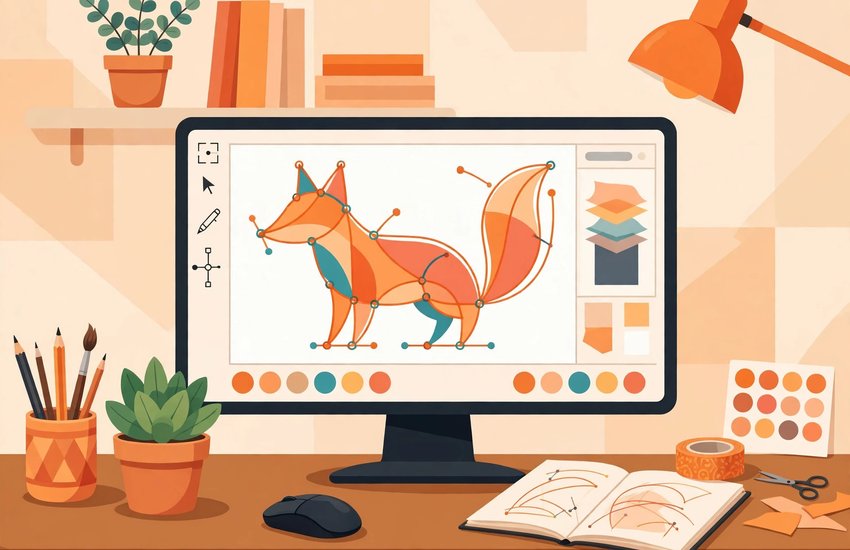
Adobe Illustrator is a vector graphics editor developed by Adobe for Windows and macOS. Unlike photos, which are made of pixels, vector artwork is built from mathematical paths — lines, curves and shapes that can be scaled from a business card to a billboard without ever going blurry. That is why Illustrator is the tool designers reach for when creating logos, icons, typography, packaging and illustrations.
Inside Illustrator you draw with the Pen and Shape tools, refine curves with anchor points, apply gradients and patterns, and set professional type. Work is organised on artboards, so one file can hold a whole set of designs — a logo sheet, an icon set or a leaflet. Illustrator saves in its own AI format and exports to SVG, PDF, EPS and PNG for web, print and other apps. As part of Creative Cloud, it shares libraries and assets with Photoshop and InDesign, so brand projects move smoothly between all three.
Key Features
- Precision vector tools: Pen, Curvature and Shape Builder tools draw and combine clean paths and shapes with total control
- Text to Vector Graphic: Adobe Firefly AI generates editable vector scenes, icons and patterns from a simple text prompt
- Professional typography: Full OpenType support, variable fonts, text on a path and glyph-level control for logos and headlines
- Gradients and meshes: Smooth freeform gradients and gradient meshes create realistic colour and shading in flat artwork
- Multiple artboards: Design up to 1,000 artboards in one document — ideal for icon sets, logo variations and multi-page work
- Recolor Artwork: Change an entire design’s colour palette in seconds and generate harmonious colour themes automatically
- Export for screens and print: One-click export of SVG, PNG, JPG and PDF files at any size, plus industry-standard EPS for print shops
System Requirements
- Operating System: Windows 10 or Windows 11 (64-bit), version 22H2 or later
- Processor: Intel or AMD multicore processor with 64-bit support
- RAM: 8 GB minimum; 16 GB or more recommended for large, complex artwork
- Graphics Card: GPU with at least 1 GB of video memory; 2–4 GB recommended for GPU performance features
- Storage: At least 2 GB of free disk space for installation; more recommended for scratch files and cloud libraries
- Display: 1024 x 768 resolution minimum; 1920 x 1080 or higher recommended
- Internet Connection: Required to download the Creative Cloud app, activate your license and use cloud and AI features
How to Download Adobe Illustrator (Official Method)
Illustrator should only ever be downloaded from Adobe itself. Adobe delivers all of its current desktop apps through the free Creative Cloud desktop app, which downloads, installs and updates Illustrator for you and manages your license. There is no separate standalone installer from any other source that you should trust.
Official Website: Download Adobe Illustrator from the official Adobe website
Step-by-Step Installation
- Open the official Illustrator page linked above and click “Free trial” (or “Buy now” if you already plan to subscribe).
- Sign in with your Adobe account, or create a free Adobe ID with your email address when prompted.
- Adobe will offer the Creative Cloud desktop app — download the small setup file (Creative_Cloud_Set-Up.exe).
- Run the downloaded file and follow the prompts to install the Creative Cloud desktop app, then sign in again if asked.
- In the Creative Cloud app, open the “Apps” tab, find Illustrator in the list and click “Install” (or “Try”).
- Wait while Creative Cloud downloads and installs Illustrator — progress is shown in the app.
- When installation finishes, click “Open” next to Illustrator, sign in if prompted, and your trial or subscription will activate automatically.
Important: Keep the Creative Cloud app installed — Illustrator checks your license through it, and all updates, including new AI features, arrive through it as well.
How to Draw Your First Vector Design in Illustrator
- Open Illustrator and click “Create new” on the Home screen; pick a preset such as A4 or a web size, then click Create.
- Select the Rectangle tool (M), drag on the artboard to draw a shape, and use the Properties panel to change its fill colour and remove the stroke.
- Try the Pen tool (P): click to place anchor points and drag to curve the lines, then close the path to make your own custom shape.
- Combine shapes with the Shape Builder tool (Shift+M) — drag across two overlapping shapes to merge them into one.
- Add text with the Type tool (T), type your words, and change the font, size and colour in the Properties panel.
- Save with File > Save as an AI file to keep everything editable, then export a copy with File > Export > Export As — SVG for web use or PNG at your chosen size.
Is Adobe Illustrator Free? The Trial and Subscription Pricing Explained
Let us be straightforward: Adobe Illustrator is paid software. Adobe offers a free trial that gives you the full program for 7 days, which is enough time to design a real logo and test it on your PC. After the trial ends, Illustrator continues only with a paid Creative Cloud subscription — there is no free full version and no one-time purchase option for the current release.
Illustrator is sold on its own single-app plan (around US$23 per month on an annual plan) or inside the Creative Cloud All Apps plan, which includes every Adobe desktop app and is better value if you also use Photoshop or InDesign. Prices differ by country and change from time to time, so confirm the current price on the official plans page, and subscribe only through Adobe’s website so your license stays genuine.
Frequently Asked Questions
Is Adobe Illustrator safe and legal to download?
Yes — when you download it from the official Adobe website linked in this guide. The Creative Cloud installer is Adobe’s genuine, signed software, and using it under a free trial or paid subscription is completely legal.
Can I use Illustrator for free after the trial ends?
No. When the 7-day trial finishes, Illustrator stops working until you start a paid subscription. Free vector editors exist for basic work, but the full desktop Illustrator — with its AI features, typography tools and print output — is subscription-only.
What is the difference between Illustrator and Photoshop?
Illustrator creates vector artwork — paths and shapes that scale to any size without losing quality, ideal for logos, icons and print. Photoshop edits pixel-based images such as photographs. Designers usually use both: Illustrator for the logo, Photoshop for the photos it sits alongside.
Which file formats can Illustrator export?
Illustrator saves natively as AI and exports to SVG, PDF, EPS, PNG, JPG and TIFF. SVG is standard for web icons, PDF and EPS are used by print shops, and PNG suits quick sharing with transparency.
Conclusion
Illustrator is the professional standard for vector design on Windows, and getting it the official way takes only a few minutes: install the Creative Cloud app from Adobe, add Illustrator from the Apps tab, and start your free trial. Download it only from Adobe, follow the steps above, and you will have the genuine, updated program — ready for logos, icons, illustrations and print work.
Download Adobe Illustrator from the Official Adobe Website
Related Guides
- Adobe Photoshop for PC: How to Download and Install on Windows (2026 Guide)
- Adobe InDesign for PC: How to Download and Install on Windows (2026 Guide)