 Posted by

How to Download Wondershare DemoCreator 8.0 on PC — Step-by-Step Install Guide
Do you want to record a tutorial, a game clip, or a work demo, but your current recorder gives you poor quality or no editing tools? A wondershare democreator download for pc fixes that, because DemoCreator 8.0 records your screen and webcam together and then lets you edit the result in the same app. This guide shows you how to download and install DemoCreator on Windows 10 and Windows 11 from the official Wondershare site.
1. What Is Wondershare DemoCreator?
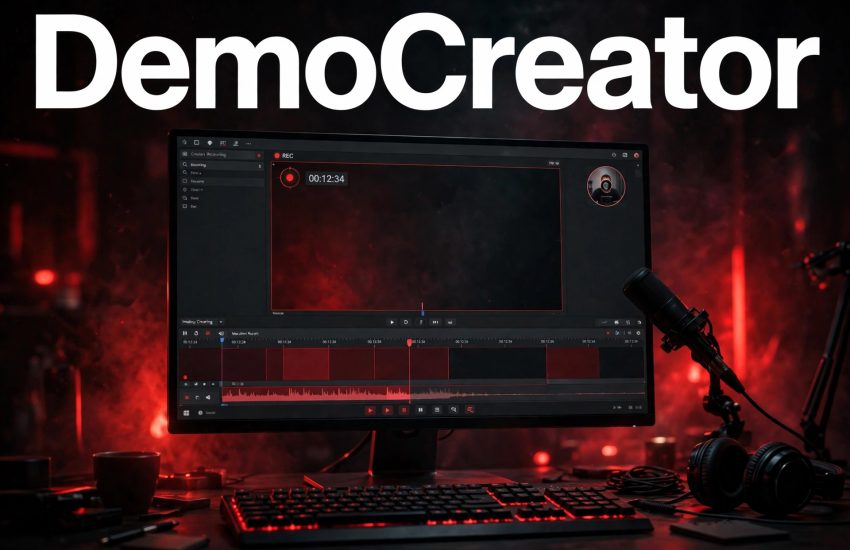
Wondershare DemoCreator is a smart screen recorder and video editor for Windows and Mac. The current version shown on the official site is DemoCreator V8.0, and the perpetual plan gives lifetime access to V8.X. It records your full screen, a selected window, or a custom region, and it can record your webcam and microphone at the same time.
After recording, you stay in the same app to trim clips, add text, annotations, transitions, and effects, and then export the finished video. That all-in-one flow suits teachers, trainers, gamers, and office workers who need to explain something on screen. You do not need a separate recorder and a separate editor to make a clean tutorial.
2. Key Features of Wondershare DemoCreator
DemoCreator covers recording, editing, and sharing in one place. First, it records the screen, webcam, system audio, and microphone together, so a tutorial can show both your screen and your face. Second, the built-in editor offers trimming, splitting, speed control, annotations, captions, stickers, transitions, and effects.
Third, AI tools help with tasks such as captions, background removal, and voice cleanup, depending on the plan you choose. Fourth, you can export in common video formats and share the result directly. Finally, the app supports scheduled recording and drawing tools for live explanations. Together, these features make it a strong choice for how-to videos and course lessons.
3. Why Choose Wondershare DemoCreator Download for PC?
A wondershare democreator download for pc is worth it when you record often and want a fast workflow. You press record, explain your screen, stop, edit, and export without moving files between three apps. The editor is simpler than a professional video suite, yet it has the tools a tutorial needs: cuts, text, zoom, highlights, and captions.
For US users, the pricing page is labelled for Windows, and the download button shows a Windows icon, so you get the right installer. DemoCreator also suits remote workers who record demos for clients and students who record presentations. If you only record once a year, a basic recorder may be enough, but regular creators save real time here.
4. System Requirements for Windows
Check the official Windows requirements before you install DemoCreator. The official tech specs list Windows 11, 10, and 8.1 (64-bit), an Intel i3 multi-core processor or above (i5 or above recommended), 4 GB of RAM (8 GB recommended), and 2 GB of free hard-disk space for installation, with an SSD recommended.
You also need Intel HD Graphics 5000 or later, NVIDIA GeForce GTX 700 or later, or AMD Radeon R5 or later, a display of 1280×720 or higher, and DirectX 11 or higher. Online features need an internet connection of 1.5 Mbps or faster. A microphone, webcam, and speakers are needed for voice and face recording. Most modern Windows 10 and 11 PCs meet these specs.
5. How to Download Wondershare DemoCreator for PC from the Official Site
Use only the official Wondershare site for the wondershare democreator download for pc. First, open the official DemoCreator page in your browser, using the link in this guide. Next, click the Try It Free button, which shows a Windows icon on the Windows page. The Windows installer will then download to your PC.
Do not use a third-party download site, because those files can be outdated or altered. The official site also offers a separate Mac installer, so Windows users should stay on the Windows page. Once the download finishes, you are ready to install.
6. Step-by-Step Installation on Windows 10/11
First, double-click the downloaded DemoCreator installer. Second, click Yes if Windows shows a User Account Control prompt. Third, follow the setup wizard, accept the licence agreement, and choose the install folder if asked. Fourth, click Install and wait for the setup to finish.
Fifth, launch DemoCreator from the wizard or from your desktop shortcut. Sixth, sign in with your Wondershare account or create one. Seventh, choose whether you want to record the screen, record a presentation, or open the video editor. Finally, run a short 10-second test recording to check that your microphone and screen capture work before a real session.
7. How to Record Your First Screen Video with DemoCreator
Open DemoCreator and choose All-in-One Recorder or the screen recorder option. Select the area you want to record: full screen, a window, or a custom region. Turn on the webcam and microphone if you want your face and voice in the video. Then click the red Record button.
Explain your screen as normal, and press Stop when you finish. The clip opens in the editor, where you can trim the start and end, split out mistakes, and add text or annotations. Finally, click Export, choose your format and quality, and save the video. That first short recording teaches you the full workflow in a few minutes.
8. Is Wondershare DemoCreator Free? Price and Plans
DemoCreator offers a free trial, but trial exports carry a watermark. The official pricing comparison states that exported videos in the trial version are watermarked, and the trial limits recording export length to 5 minutes, export quality to 1080P, and frame rate to 30FPS, with 0 AI credits and limited virtual avatar use. A paid plan removes the watermark and raises those limits.
At the time of writing, the Windows pricing page showed a quarterly plan at US$29.99 per quarter, reduced from US$49.99, with auto-renewal. The yearly plan was US$59.99 per year, reduced from US$69.99, and marked Most Popular. The perpetual plan was US$79.99, reduced from US$99.99, as a one-time payment. No Black Friday wording was shown on the DemoCreator pages checked, so these are presented as the live listed prices, not as a Black Friday sale. Confirm the current price before you buy.
9. FAQs About Wondershare DemoCreator Download for PC
Is Wondershare DemoCreator free? A free trial is offered, but trial exports are watermarked and limited to 5-minute exports at 1080P and 30FPS.
Does DemoCreator work on Windows 11? Yes. The official specs list Windows 11, 10, and 8.1 in 64-bit.
Can DemoCreator record my webcam and screen together? Yes. It can record the screen, webcam, system audio, and microphone at the same time.
Can I edit the video after recording? Yes. The built-in editor lets you trim, split, add text, annotations, transitions, and effects.
What export quality does the trial allow? The trial allows 1080P exports at 30FPS, with a watermark, up to 5 minutes per export.
Does DemoCreator work on Mac? Yes, but this guide covers Windows. Use the Mac installer on the official site if you need it.
Do I need a fast PC for DemoCreator? A modern PC with an i3 or better, 4 GB of RAM, and a supported graphics card meets the minimum specs. 8 GB of RAM is recommended.
Where should I download DemoCreator safely? Only from the official Wondershare DemoCreator site linked in this guide.
10. Conclusion
Wondershare DemoCreator 8.0 is a practical recorder and editor for anyone who explains things on screen. It records screen, webcam, and audio together, edits in the same app, and exports a finished tutorial without extra software. Download the free trial from the official site, run a short test recording, and check whether the paid plan fits how often you record. That test will tell you quickly if DemoCreator earns a place on your PC.
Related Guides:
- Voicemod for PC — Download & Install on Windows 10/11
- Aegisub for PC — Download & Install on Windows 10/11
- 5KPlayer for PC — Download & Install on Windows 10/11
Official download: Download Wondershare DemoCreator from the official Wondershare site