 Posted by

Want to try Linux or install it without burning a disc? This unetbootin download for pc guide shows you how to get a free bootable USB creator app on Windows, set it up in a few minutes, and make your first bootable drive. UNetbootin is free and open source. It can download a Linux distribution for you, or use an ISO file you already have. Follow the steps below and your USB drive will be ready to boot today.
What Is UNetbootin?
UNetbootin, short for Universal Netboot Installer, is a free, open-source tool that creates bootable USB drives for Linux and other operating systems. It was first released in 2007 and is still one of the simplest ways to put a Linux installer on a USB stick. You pick a distribution and version, or point it at an ISO file on your computer, and it does the rest.
What makes UNetbootin useful is that it can download the distribution itself. You do not need to hunt for an ISO file first. It also supports persistence on Ubuntu-based systems, which lets a live USB remember your files and settings between reboots. The program needs no installation at all: you download one file and run it.
Key Features
- Built-in distro downloads: get Ubuntu, Debian, Fedora, and many more directly inside the app.
- Custom ISO support: use any ISO file already saved on your computer.
- Bootable USB creation: turn a normal USB stick into a bootable installer.
- Persistence option: save files and settings on a live USB between boots.
- No installation needed: a single portable executable that runs as-is.
- Cross-platform: the same tool is available for Windows, macOS, and Linux.
- Free and open source: released under the GPL, with no ads or paid version.
System Requirements
- Operating system: Windows 11, Windows 10, Windows 8, or Windows 7
- Processor: any 1 GHz CPU or better
- RAM: 1 GB or more
- Storage: 50 MB free for UNetbootin, plus a USB drive of 4 GB or more
- USB port: one free port for the target USB stick
- Internet: needed to download UNetbootin and any Linux distribution
UNetbootin Download for PC: Official Method
Always get UNetbootin from the official source so you receive the genuine, untouched program. Follow these steps:
- Open your browser and go to the Download UNetbootin from the official website.
- On the official site, find the Windows download near the top of the page.
- Click the Windows installer link (a single .exe file).
- Save the file to your Downloads folder and wait for it to finish.
Avoid third-party download sites that bundle extra software. The official website above is the only source you need.
The whole unetbootin download for pc process usually takes only a minute or two on a normal broadband connection. The file is small, and once it is saved on your computer you can run it whenever you are ready.
UNetbootin Download for PC: Step-by-Step Installation
- Open your Downloads folder and find the UNetbootin .exe file.
- Double-click the file to run it. UNetbootin is portable, so there is no setup wizard.
- If Windows shows a security prompt, click Yes to allow it to run.
- If Windows SmartScreen appears, click More info, then Run anyway.
- Wait a moment for the main window to open.
- Plug in the USB drive you want to make bootable.
- Check that the correct USB drive letter is selected at the bottom of the window.
- That is all. UNetbootin is ready to use, with nothing installed on your system.
How to Create a Bootable USB Drive
Creating a bootable USB is the main job of UNetbootin. Pick either a built-in distribution or your own ISO file, then follow the steps below.
- Open UNetbootin and plug in a USB drive of at least 4 GB.
- Choose Distribution and pick one, such as Ubuntu, plus its version; or choose Diskimage and browse to your ISO file.
- If you chose a distribution, UNetbootin will download it for you automatically.
- Set the Space used to preserve files if you want persistence on a live USB.
- Confirm the correct USB drive is selected under Drive at the bottom.
- Click OK and wait while UNetbootin writes the files. This can take several minutes.
- When it says the installation is complete, click Exit.
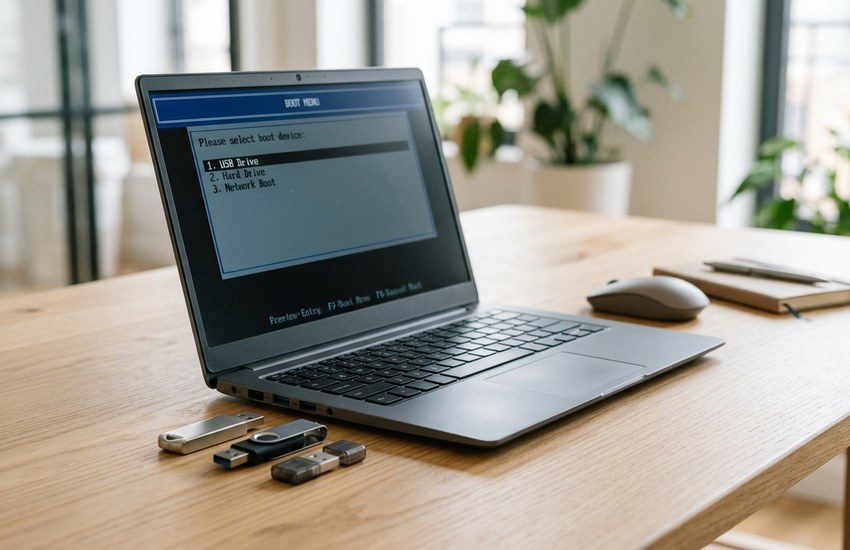
- Restart your PC, open the boot menu, and boot from the USB drive to test it.
If you have just completed the unetbootin download for pc above, you are ready to create your first bootable USB drive with the steps above.
UNetbootin Download for PC: Is It Free?
Yes. UNetbootin is completely free and open source, released under the GNU General Public License. There is no paid version, no trial, and no ads, so every feature is available to every user.
Frequently Asked Questions
Is UNetbootin safe to use?
Yes, when you download it from the official website. It is a long-running open-source project, and the official build contains no extra software.
Does UNetbootin work on Windows 11?
Yes. The current version runs on Windows 11 as well as Windows 10, 8, and 7.
Will UNetbootin erase my USB drive?
Yes. Creating a bootable drive formats the USB stick, so copy any important files off it first.
Can UNetbootin install Windows from a USB?
It is mainly made for Linux distributions. For Windows installers, a tool like Rufus is a better choice.
What is persistence in UNetbootin?
Persistence lets a live Linux USB save your files and settings between reboots, instead of starting fresh each time.
Conclusion: Start Your UNetbootin Download for PC Today
UNetbootin is the simplest way to get Linux onto a USB stick: free, portable, and able to download the distribution for you. Follow the steps above, keep your files backed up before you format a drive, and your bootable USB will be ready in minutes.
Related Guides
- Rufus for PC: How to Download & Install on Windows
- Ventoy for PC: How to Download & Install on Windows