 Posted by

Your PC will not boot, and the files on its drive are still inside, out of reach. This rescuezilla download for pc guide shows you how to get the free open-source rescue system, how to make a bootable USB stick on Windows 10 and Windows 11, and how to clone your first disk. Rescuezilla gives you a simple graphical menu, so you do not need to type commands to rescue a drive.
What Is Rescuezilla?
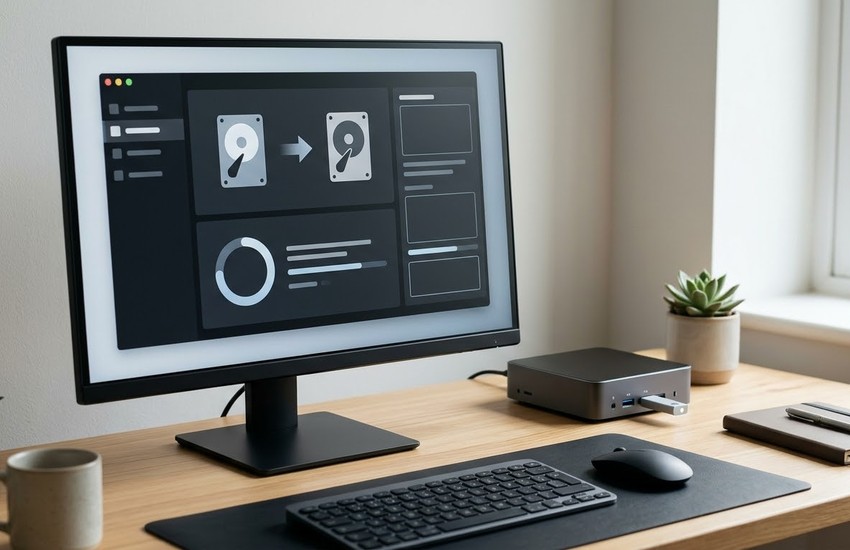
Rescuezilla is a free and open-source disk cloning and imaging tool that runs from a bootable USB stick. It is built on the same proven engine as Clonezilla, but it adds a friendly graphical interface that is easy to follow. You boot from the USB stick, and it can back up, restore, or clone whole disks and partitions.
It is made for rescue jobs: a failing drive, a move to a bigger SSD, or a PC that will not start. Because it runs from USB, it does not need Windows to work, and it can read drives that Windows cannot boot from. It is free for everyone, with no account and no paid version.
Key Features
- Disk cloning: copy a whole drive to another drive of the same size or larger.
- Disk imaging: save a drive as an image file you can restore later.
- Easy interface: a graphical menu guides you, with no commands to type.
- Clonezilla compatible: works with images made by Clonezilla, and the other way round.
- Bootable USB: runs from a USB stick, even when Windows will not start.
- File browsing: open a drive and copy single files off it before you clone.
- Open source: free forever, with no account and no paid upgrade.
System Requirements
- Operating system: Windows 10 or Windows 11 (64-bit) to make the USB stick
- Processor: any modern CPU
- RAM: 2 GB minimum; 4 GB is better
- Storage: a USB stick of 8 GB or more for the bootable drive
- Network: not needed, as Rescuezilla runs from USB
- Internet: only needed to download Rescuezilla
Rescuezilla Download for PC: Official Method
Always get the program from the official source so you receive the genuine, untouched software. Follow these steps:
- Open your browser and go to the Download Rescuezilla from the official website.
- On the official Rescuezilla site, open the download page and pick the latest ISO file.
- Save the ISO file to your Downloads folder.
- Wait for the download to finish before you open it.
Avoid third-party download sites that bundle extra software. The official website above is the only source you need.
The whole rescuezilla download for pc process usually takes only a few minutes on a normal broadband connection. Once the file is saved on your computer, you can make the bootable USB stick whenever you are ready.
Step-by-Step Installation
- Download a free USB writing tool, such as Rufus, from its official site.
- Plug in a USB stick of 8 GB or more, and back up anything on it first.
- Open Rufus and select the Rescuezilla ISO file you downloaded.
- Check that the correct USB stick is selected as the target device.
- Click Start and wait for Rufus to write the bootable stick.
- Keep the USB stick safe, and label it so you can find it later.
- To use it, restart the PC and boot from the USB stick.
- Wait for Rescuezilla to load, then pick your language on the first screen.
rescuezilla download for pc: How to Clone a Disk with Rescuezilla
Cloning copies every part of one drive to another, so the new drive can take over from the old one. Boot from your Rescuezilla USB stick, pick the clone option, and choose the source and the target drive with care. Then let the copy run, and check the result before you remove the old drive.
- Boot your PC from the Rescuezilla USB stick.
- On the main screen, click Clone to start the cloning wizard.
- Choose the source disk you want to copy from.
- Choose the target disk, which must be the same size or larger.
- Double-check both disks, because cloning erases the target disk.
- Click Start and wait for the clone to finish.
- Shut down, remove the old drive, and boot from the new one to test it.
rescuezilla download for pc: Is Rescuezilla Free? The Price Explained
Yes, Rescuezilla is completely free. It is open-source software, with no paid version, no ads, and no limit on how many disks you can clone. Every feature, including cloning, imaging, and restoring, is free from the first boot. The project is kept alive by volunteers and donations, but nothing is locked behind a payment. There is no trial clock on this rescuezilla download for pc, and no feature that stops working after a month.
Frequently Asked Questions
Is Rescuezilla safe to use?
Yes, when you download it from the official rescuezilla.com website. It is a well-known open-source project, and the official ISO contains no bundled software.
Does Rescuezilla install on Windows?
No. It is a bootable live system, so you write it to a USB stick and boot from it instead of installing it on Windows.
Can Rescuezilla clone to a bigger SSD?
Yes. The target drive must be the same size or larger than the source drive.
Does Rescuezilla work with Clonezilla images?
Yes. It can read and restore images made with Clonezilla, and Clonezilla can read its images.
Will cloning erase my target drive?
Yes. Cloning overwrites everything on the target disk, so back up anything on it first.
rescuezilla download for pc: Conclusion
Rescuezilla is a free, open-source rescue tool that clones and images whole disks from a bootable USB stick, with a simple graphical menu and no commands to type. It is the right tool when Windows will not start, or when you move to a bigger drive. Get it only from the official website linked in this guide, follow the steps above, and your bootable rescue stick will be ready today. For a safe rescuezilla download for pc, stick to the official link in this guide and ignore mirror sites that bundle extras.
Related Guides