 Posted by

Introduction
If you want to learn the compositing software used on feature films and television without paying thousands of dollars a year, Nuke Non-commercial is the free edition that does it. It is Foundry’s free, non-commercial version of Nuke, the node-based compositor at the centre of most visual effects pipelines, and it gives you the full Nuke, NukeX and Nuke Studio toolsets for personal projects, learning and experimenting. Version 17.1 is the current version, and it costs nothing to download from the official website. This guide shows you how to get it running on Windows.
This guide explains what Nuke Non-commercial is, what it can and cannot do, what your PC needs to run it, and how to download and install it from the official website only. You will also get a first-use walkthrough that takes you from installation to your first composited shot in a few minutes. By the end, you should be able to install Nuke Non-commercial on Windows and use it in a real learning project. The Nuke Non-commercial for PC download is free, although the official download needs a free Foundry account and a non-commercial entitlement first.
Nuke Non-commercial is best for students and hobbyists learning visual effects, compositors practising node-based workflows at home, and anyone curious about how film shots are put together. Because it is free and legitimate, you do not need a cracked copy or an unknown download site. The official website provides the download, and the free edition is a real, long-term tool once you have installed it, not a short trial.
What Is Nuke Non-commercial?
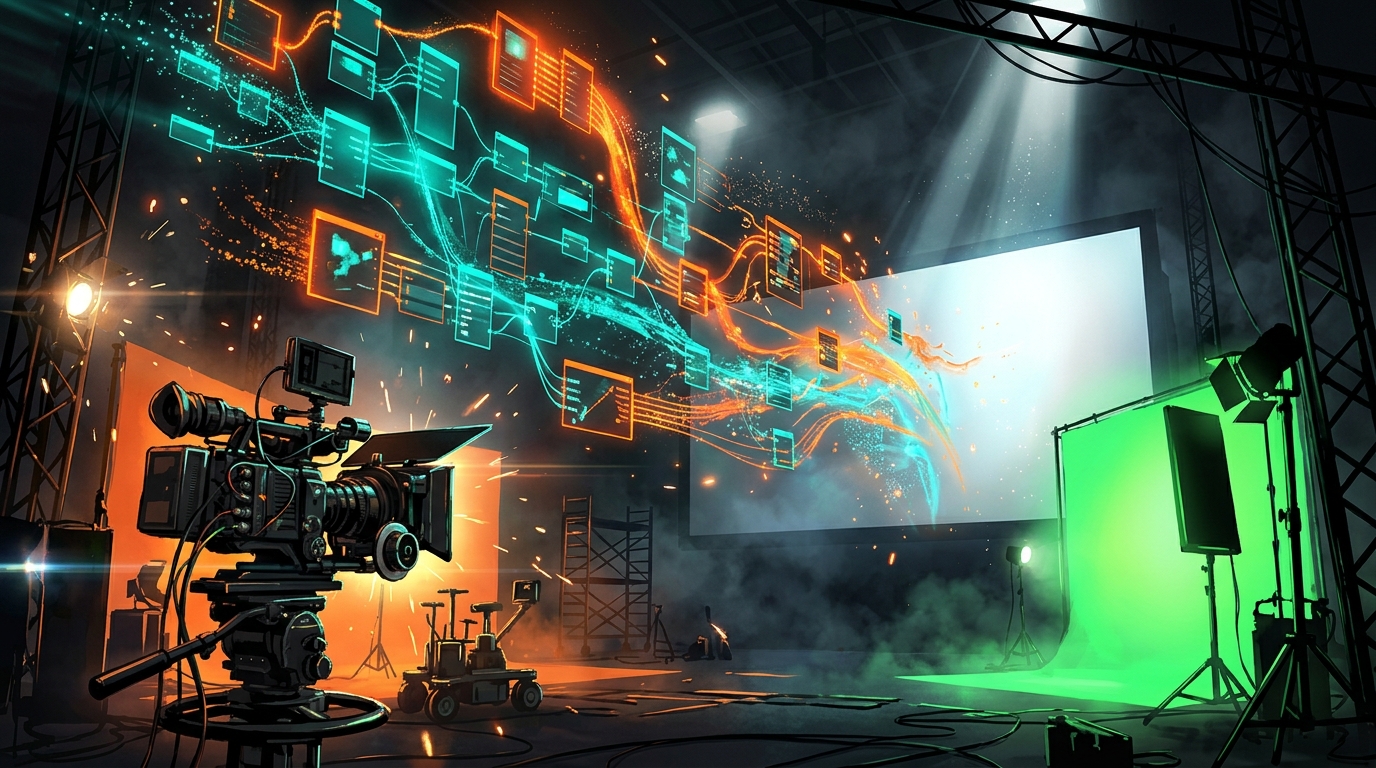
Nuke Non-commercial is the free, non-commercial edition of Foundry’s Nuke, the industry-standard node-based compositor. In simple terms, it is a program where you build a shot by connecting small processing blocks, called nodes, into a flow, so an image passes from a Read node through colour, keying, tracking and merge nodes to a Write node, and the result is a finished composite. It runs on Windows 11, 64-bit, and the non-commercial edition includes the Nuke, NukeX and Nuke Studio toolsets, with a 3D workspace, camera tracking, keying, rotoscoping and a multi-track editorial timeline in Studio mode.
What makes Nuke Non-commercial useful is how much of the real product it includes for free. Version 17.1, whose first build 17.1v1 shipped on 20 August 2026, adds native Gaussian splatting in the 3D viewport, a GeoSequencer node for animated splat sequences, and SplatRender relighting, alongside the established node graph, 3D system, and machine-learning tools such as CopyCat. The non-commercial edition is watermark-free, so your learning renders look clean. Three honest limits: the edition is for personal projects, learning and experimenting only, and it cannot be used at work or for any commercial project; output is capped at 1920 x 1080 resolution, so it cannot deliver professional-grade high-resolution work; and third-party plug-ins cannot be loaded, most Python API features are disabled, and the licence is a 30-day rolling licence that renews automatically while you stay eligible and connected to the internet.
Key Features
- Completely free: Completely free, with no payment at any point, and no watermark on your renders.
- Full Nuke toolset: The full Nuke toolset, including the node graph, 3D workspace, keying, tracking and rotoscoping, so you learn the real compositor used in production.
- NukeX and Nuke Studio included: NukeX and Nuke Studio functionality included, so advanced tools and the multi-track editorial timeline are available in the same free edition.
- Node-based compositing: A node-based workflow where every step is a visible block in a flow, so a shot can be understood, changed and reused one node at a time.
- Native Gaussian splatting: Native Gaussian splatting in the 3D viewport from version 17.0 onward, with GeoSequencer and SplatRender relighting in 17.1, so new 3D techniques can be explored.
- Machine-learning tools: Machine-learning tools such as CopyCat, so clean plates and other trained effects can be explored on a supported NVIDIA graphics card.
- Watermark-free output: Watermark-free output at up to 1920 x 1080 resolution, so practice shots and showreel pieces look clean.
- 30-day rolling licence: A 30-day rolling licence that renews automatically while you stay eligible and connected to the internet, so the free edition keeps working long term.
System Requirements
- Operating System: Windows 11, 64-bit
- Processor: x86-64 processor, such as Intel Core 2 Duo or newer
- RAM: At least 8 GB of RAM (16 GB or more recommended for heavier shots)
- Storage: At least 5.7 GB of free disk space for caching and temporary files
- Graphics: A graphics card with at least 512 MB of video memory and driver support for OpenGL 2.0
- Other: An internet connection and a free Foundry account for the non-commercial entitlement, plus a display with at least 1280 x 1024 resolution and 24-bit colour
These are the official minimum requirements published by Foundry for Nuke on Windows. The most important point is simple: these minimums will launch and run Nuke, but real compositing work with multi-pass EXR files and heavy node graphs benefits from much more RAM and a stronger graphics card.
How to Download Nuke Non-commercial (Official Method)
The only safe place to download Nuke Non-commercial is the official Foundry website. Do not download it from random file mirrors or “free download” portals, because those copies may be outdated or bundled with unwanted software. The official site is the source of truth for the current version, which is Nuke version 17.1.
Official download link: https://www.foundry.com/products/nuke-family/non-commercial
On the official Foundry site, open the Nuke Non-commercial page and request the free non-commercial entitlement. You create a free Foundry account, request the entitlement and accept its licence terms, then download the latest Nuke build and activate it with a Login Licence. The non-commercial edition itself is free: there is no payment, and the page also shows the paid commercial subscriptions for users who want to work professionally. If a site asks you to pay for the free version of Nuke Non-commercial, or offers a cracked version of it, leave that site and return to the official Foundry site.
Step-by-Step Installation
Follow these steps in order. Nuke Non-commercial is installed from the official Foundry website, so you request the entitlement first and then download the installer. The download is free with no payment, and there is no serial number involved at any point. Take your time with the account and licence choices, because those are the steps that most often cause Nuke to not start correctly.
- Open the official Nuke Non-commercial page — Open https://www.foundry.com/products/nuke-family/non-commercial in your browser. Do not use third-party download sites.
- Create a free Foundry account — Sign up for a free Foundry account with a valid email address, so you can request the non-commercial entitlement.
- Request the non-commercial entitlement — Request the Nuke Non-commercial entitlement in your Foundry account and accept its licence terms, so the free licence is added to your account.
- Download the Nuke installer — Download the latest Nuke 17.1 installer for Windows from the official site to your Downloads folder.
- Run the installer — Double-click the downloaded installer and follow the on-screen steps to install Nuke on your PC.
- Activate the non-commercial licence — Launch Nuke in Non-commercial mode, choose Login Licence, and authorise the device in your browser, so the 30-day rolling licence is installed. An internet connection is needed for this step.
- Open Nuke and test it — Open Nuke Non-commercial, create a new script, and check that the interface loads and the node graph responds without errors.
Tip: If Nuke asks for a licence every time you open it, check that the non-commercial entitlement is active in your Foundry account and that the device was authorised in the browser. If the installer reports a missing library on Windows, install the latest graphics drivers first, because Nuke needs a working OpenGL driver to start.
How to Composite Your First Shot with Nuke Non-commercial
This walkthrough is a simple first composite. It is not a full course, but it will help you see Nuke Non-commercial working on a real image and learn its main controls.
- Open Nuke Non-commercial — Open Nuke in Non-commercial mode from your Start menu, so the node graph and viewer are ready.
- Read an image into the graph — Create a Read node and load a photo or a rendered frame, so you have a plate to work on.
- Add a colour correction node — Add a Grade node after the Read node and adjust the lift, gain and gamma, so you see how a node changes the image passing through it.
- Add a second element — Read a second image, such as a logo or a sky photo, and connect it to a Merge node with your first image, so you see two pictures combined in one viewer.
- Try a keying node — Add a Keyer node to a green-screen style image if you have one, so you learn how Nuke separates a subject from its background.
- Preview the result in the viewer — Click through the nodes and watch the viewer update, so you understand that each node shows its own result and the last node shows the finished composite.
- Write the finished image — Add a Write node, set the output to a PNG file at up to 1920 x 1080, and render it, so you have a finished image saved to your PC.
Is Nuke Non-commercial Free?
Nuke Non-commercial is completely free from Foundry. You create a free Foundry account, request the non-commercial entitlement, download the latest Nuke build, activate it with a Login Licence, and use it without paying. There is no purchase and no trial period to worry about. Be aware of three honest limits: the edition is for personal projects, learning and experimenting only, and it cannot be used at work or for any commercial project; output is capped at 1920 x 1080 resolution, and third-party plug-ins cannot be loaded; and the licence is a 30-day rolling licence that renews automatically while you stay eligible and connected to the internet.
That free status is important for this guide. All the steps here use the official download only, and they do not involve cracks, activators or licence keys. If you ever see a site offering a paid or cracked version of Nuke Non-commercial, treat it as unsafe and return to the official site.
Frequently Asked Questions
Is Nuke Non-commercial safe to download? Yes, when you download it from the official website only. The official download is the version made by the developer. Avoid third-party sites that bundle extra software or ask for payment for a free edition.
Does Nuke Non-commercial work on my Windows PC? Yes, in most cases. Nuke Non-commercial works on Windows 11, 64-bit, and it needs at least 8 GB of RAM, 5.7 GB of free disk space and a graphics card with OpenGL 2.0 support. Check the official system requirements before installing, because heavier shots need more RAM and a stronger graphics card.
Is Nuke Non-commercial really free, or will it stop working? The free edition described in this guide is not a short trial. It stays usable long term through a 30-day rolling licence that renews automatically while you stay eligible and connected to the internet. You download it once from the official site, and the free edition keeps working with no payment, once you have created your free Foundry account and requested the entitlement.
Can I use Nuke Non-commercial for paid work? No. Nuke Non-commercial is for personal projects, learning and experimenting only. It cannot be used at work or for commercial projects, and output is capped at 1920 x 1080. For paid work you need a commercial Nuke licence from Foundry.
Conclusion
Nuke Non-commercial is a useful, free addition to a Windows setup because it is a free edition of the industry-standard compositor that gives you the full Nuke, NukeX and Nuke Studio toolsets, node-based compositing, native Gaussian splatting and watermark-free output up to 1920 x 1080, and it can be downloaded safely from the official site. Start with one image, learn one node at a time, and build your own compositing habits as you get comfortable.
To get started, download Nuke Non-commercial from the official website here: https://www.foundry.com/products/nuke-family/non-commercial Install it with the steps above, test it once, and then use it in your next learning project. With a little practice, it can become a regular part of your workflow.
Official download link: https://www.foundry.com/products/nuke-family/non-commercial
Related Guides
- Natron for PC: How to Download & Install on Windows
- DaVinci Resolve for PC: How to Download & Install on Windows