 Posted by

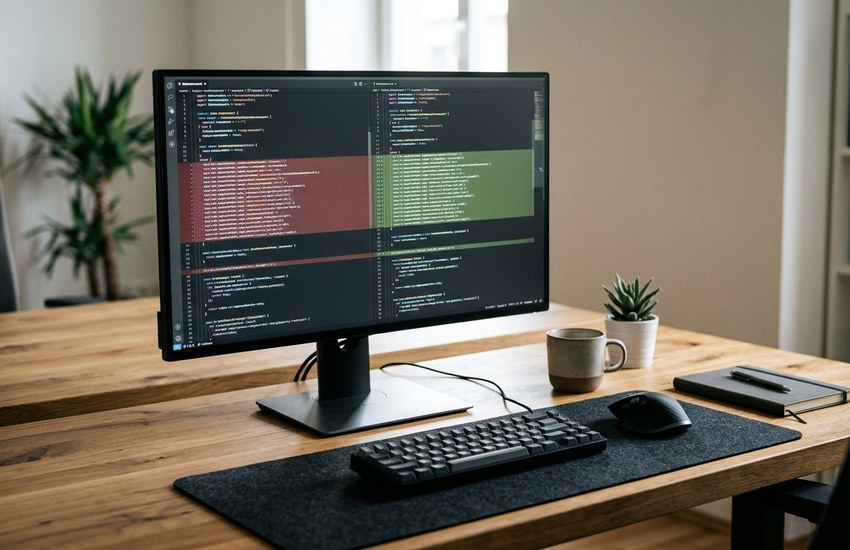
Comparing two versions of the same file by eye is slow, and it is easy to miss a small change that breaks everything. This meld download for pc guide shows you how to get a free visual diff and merge tool on Windows, how to install it on Windows 10 and Windows 11, and how to compare and merge your first pair of files. Meld shows the differences side by side with colour, so you can spot every change in seconds and merge only the parts you want.
What Is Meld?
Meld is a free and open-source visual diff and merge tool for files, folders, and version-controlled projects. It was first built for Linux, and the Windows version brings the same clean three-pane view to your PC. You open two or three files, and Meld lines them up side by side, highlights the changed lines, and lets you copy a change from one side to the other with a single click.
Meld is popular with programmers, writers, and anyone who works with text files. It also compares whole folders, so you can see which files changed between two copies of a project. It works with Git, Mercurial, and Subversion, and it can show the difference between your working files and the last committed version. For everyday use, though, its greatest strength is simple: it turns a confusing wall of text into a clear, colour-coded comparison.
Key Features
- Side-by-side file comparison: see two or three files at once with changes highlighted.
- Visual merging: copy a block from one side to the other with one click.
- Folder comparison: compare two directories and see which files differ, are new, or are missing.
- Version control support: works with Git, Mercurial, and Subversion repositories.
- Syntax highlighting: code in many languages is coloured for easier reading.
- Inline editing: fix a file inside Meld while you compare it.
- Text filters: ignore whitespace, blank lines, or comments to focus on real changes.
System Requirements
- Operating system: Windows 10 or Windows 11 (64-bit)
- Processor: any dual-core CPU or better
- RAM: 2 GB or more
- Storage: 200 MB free for Meld and its libraries
- Display: any screen resolution; a wide screen helps with side-by-side views
- Internet: only needed to download the installer
Meld Download for PC: Official Method
Always get the installer from the official source so you receive the genuine, untouched program. Follow these steps:
- Open your browser and go to the Download Meld from the official website.
- On the official site, find the Downloads section and choose Windows.
- Download the Windows installer file (it ends in .msi or .exe).
- Save the installer file to your Downloads folder and wait for it to finish.
Avoid third-party download sites that bundle extra software. The official website above is the only source you need.
The whole meld download for pc process usually takes only a few minutes on a normal broadband connection. The installer is modest in size, and once it is saved on your computer you can install it whenever you are ready.
Meld Download for PC: Step-by-Step Installation
- Open your Downloads folder and double-click the installer file.
- If Windows shows a security prompt, click Yes to allow the installation to continue.
- Read and accept the license agreement, then click Next.
- Keep the suggested install location, or browse to choose a different folder, then click Next.
- Choose whether to create a desktop shortcut, then click Install.
- Wait for the installation to finish, then click Finish.
- Launch the program from the desktop shortcut or the Start menu.
- When Meld opens, you will see the start screen with options for file, folder, and version control comparison.
How to Compare and Merge Files in Meld
Open Meld and choose File Comparison from the start screen. Pick the two files you want to compare, then click Compare. Meld lines them up and highlights every changed line in colour. Changed blocks are easy to spot, and arrows between the panes show which lines match.
- Open Meld and click File Comparison.
- Click the folder icon on the left pane and choose your first file.
- Click the folder icon on the right pane and choose the second file.
- Wait a moment while Meld compares the two files and highlights the differences.
- Click a highlighted block to see it clearly, then use the arrow buttons to copy a change from one side to the other.
- To merge the whole file, copy the blocks you want one by one, or use the arrows to push all changes in one direction.
- Press Ctrl + S to save the merged file when you are happy with the result.
If you have just completed the meld download for pc and installation above, try it with two copies of a text file. Change a few lines in one copy first, then compare them and watch Meld find every edit for you.
Meld Download for PC: Is It Free?
Yes. Meld is completely free and open source, released under the GPL license. There is no paid version, no subscription, and no feature locked behind payment. It is built and maintained by volunteers in the GNOME community, and it is free for personal and commercial use. There is no trial clock on this meld download for pc, and no feature that stops working after a month.
Frequently Asked Questions
Is Meld safe to install?
Yes, when you download it from the official website. It is open source, widely used, and the installer contains no bundled software.
Does Meld work on Windows 11?
Yes. The current Windows build runs on both Windows 10 and Windows 11.
Can Meld compare folders?
Yes. Choose Folder Comparison from the start screen, pick two folders, and Meld lists every file that differs, is new, or is missing.
Does Meld work with Git?
Yes. Meld can compare your working files against a Git repository, and you can set it as your Git diff and merge tool.
Can I edit files inside Meld?
Yes. Meld has a built-in text editor, so you can fix a line while comparing and save the file without opening another program.
Conclusion: Start Your Meld Download for PC Today
Meld turns the tedious job of comparing files into a quick visual task. It is free, open source, and it shows every difference in colour, so you can merge with confidence instead of guessing. Download it only from the official website linked in this guide, follow the installation steps above, and compare your first two files today. For a safe meld download for pc, stick to the official link in this guide and ignore mirror sites that bundle extras. It takes only a few minutes from download to first comparison.
Related Guides
- WinMerge for PC: How to Download and Install on Windows (2026 Guide)
- Notepad++ for PC: How to Download and Install on Windows (2026 Guide)