 Posted by

Introduction
If your mixes sound good but not loud enough, and your master bus clips when you push it, Limiter No6 is the free tool that mastering engineers have trusted for years. It is a free modular mastering limiter by Vladislav Goncharov (vladg/sound), with five separate modules — an RMS compressor, a peak limiter, a high-frequency limiter, a clipper and a true-peak limiter — that work together to make a mix louder without obvious distortion. There is no payment and no trial, and the official download, now hosted through Tokyo Dawn Labs, is the complete plugin.
This guide explains what Limiter No6 is, what it can and cannot do, what your PC needs to run it, and how to download and install it from the official website only. You will also get a first-use walkthrough that takes you from installation to a working result in a few minutes. By the end, you should be able to install Limiter No6 on Windows and use it in a real project.
Limiter No6 is best for mastering loudness, true-peak control and final polish on finished mixes. Because it is free and legitimate, you do not need a cracked copy or an unknown download site. The official website provides the installer, and the free version is a real, permanent tool, not a short trial.
What Is Limiter No6?
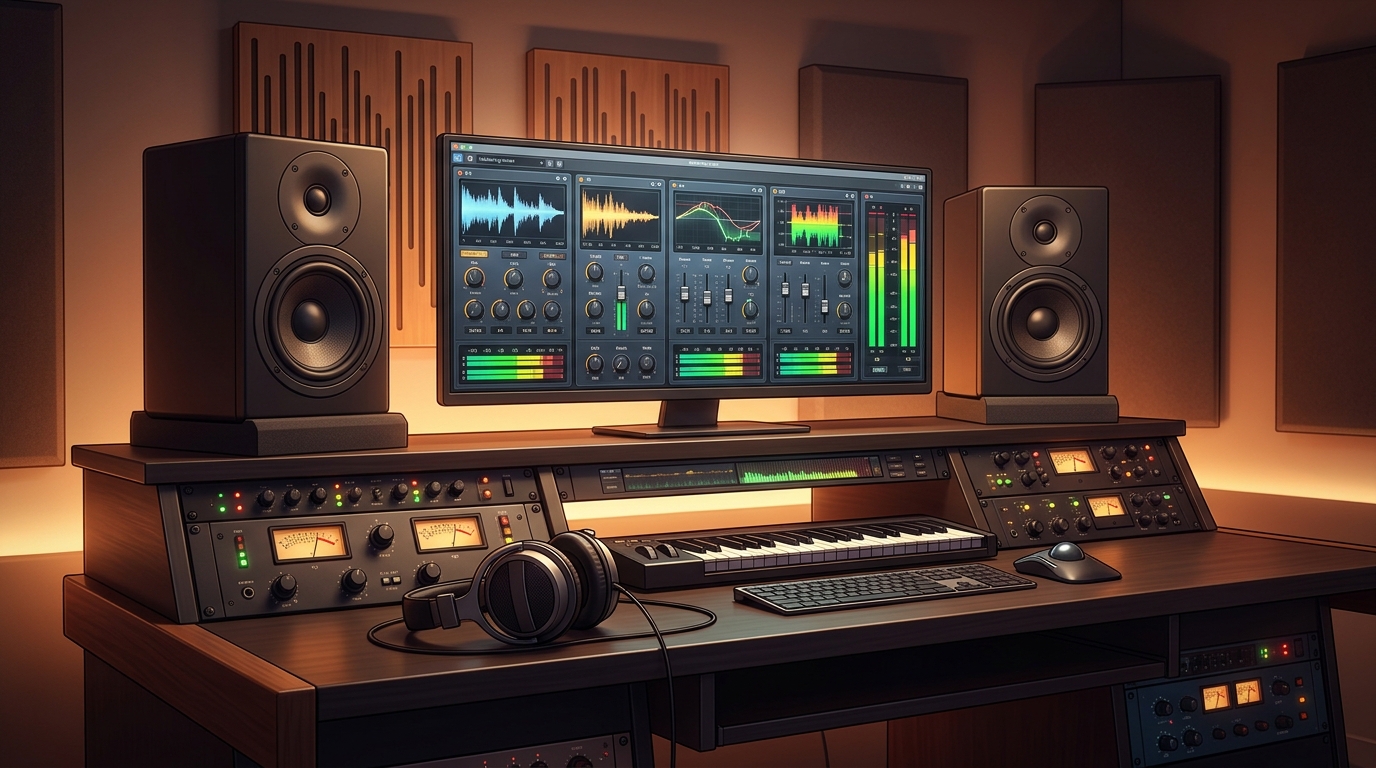
Limiter No6 is a freeware modular limiter designed for mastering. In simple terms, it is an effect that runs inside your DAW on your master bus, and it controls the loudest peaks of your finished mix so you can raise the overall volume safely. You load it last on the master channel, set the modules in order, and adjust the thresholds until the mix is loud and clean.
What makes Limiter No6 special is its five-module chain. The RMS compressor gently controls the overall level, the peak limiter catches fast peaks, the high-frequency limiter tames harsh highs without dulling the whole mix, the clipper shaves off the very tips of the waveform, and the true-peak limiter stops inter-sample peaks that normal meters miss. Each module can be switched in or out, and the peak limiter offers brickwall, soft, mid-side and multiband modes. Two different interfaces are included, and the detailed manual reads like a short course on limiting. One honest note: Limiter No6 is discontinued and unsupported, and it is a VST2 plugin only, so it needs a DAW that still loads 64-bit VST2 plugins. Cubase 14 and 15 turn VST2 off by default, but you can re-enable it in the plugin manager.
Key Features
- Five modules in one plugin: An RMS compressor, peak limiter, high-frequency limiter, clipper and true-peak limiter cover the whole mastering chain.
- True-peak limiting: The true-peak limiter catches inter-sample peaks that normal peak meters miss, so your master stays clean on streaming services.
- Four peak-limiter modes: Brickwall, soft, mid-side and multiband modes let you choose how the limiter behaves on different material.
- High-frequency limiter: A dedicated HF limiter tames harsh highs without dulling the whole mix.
- Optional 4x oversampling: Oversampling improves the limiting quality on fast peaks, at the cost of more CPU use.
- Two interface styles: Two different GUIs are included, so you can choose the layout you find easiest to read.
- Analog-style metering: Clear meters show gain reduction and levels the way classic mastering hardware does.
- Free donationware: The full plugin is free, with no account, serial or licence manager.
System Requirements
- Operating System: Windows 10 or Windows 11, 64-bit
- Processor: A modern dual-core processor or better
- RAM: At least 4 GB of RAM for basic use
- Storage: Around 20 MB of free disk space for the installer
- DAW: A DAW that loads 64-bit VST2 plugins on Windows, such as Reaper, FL Studio, Ableton Live or an older Cubase version (Cubase 14 and 15 need VST2 re-enabled in the plugin manager)
- Other: A stable internet connection for the download, and speakers or headphones to hear your mixes
These are practical, modern Windows guidelines, not a word-for-word copy of an official specification table. The most important point is simple: Limiter No6 is designed for normal Windows PCs, and a modest modern computer is enough to start.
How to Download Limiter No6 (Official Method)
The only safe place to download Limiter No6 is the official website. Do not download it from random file mirrors or “free download” portals, because those copies may be outdated or bundled with unwanted software. The official site is the source of truth for the current version.
Official download link: https://www.tokyodawn.net/vladg-limiter-n6/
The official download for Limiter No6 is hosted through Tokyo Dawn Labs. Open the official page, download the Windows installer to your Downloads folder, and do not use third-party download sites. There is no account, serial number or payment involved at any point. Because the plugin is discontinued, the official page is the only source you should trust for a clean copy.
Step-by-Step Installation
Follow these steps in order. Take your time with the format and folder choices, because those are the steps that most often cause a plugin to not appear in a DAW.
- Download the installer from the official site — Open https://www.tokyodawn.net/vladg-limiter-n6/ in your browser and download the Windows installer for Limiter No6. Do not use third-party download sites.
- Run the installer — Double-click the downloaded installer file and follow the on-screen prompts on your Windows PC.
- Choose the plugin formats — When asked, select the formats you need, such as VST2 (32-bit and 64-bit), so your DAW can find the plugin.
- Choose the install location — Keep the default VST folder unless your DAW uses a custom folder, then note that folder for later.
- Finish the installation — Wait for the installer to finish, then close it and restart your DAW if it was already open.
- Rescan plugins in your DAW — Open your DAW plugin manager and rescan, so the new plugin appears in the list.
- Load the plugin once to test it — Insert Limiter No6 on a test track and confirm it opens without an error before you use it in a real project.
Tip: If your DAW cannot find the plugin after installation, check the plugin folder path in your DAW settings first, then rescan. Most missing-plugin problems are a folder or rescan issue, not a broken installer.
How to Master Your First Track with Limiter No6
This walkthrough is a simple first project. It is not a full course, but it will help you hear Limiter No6 working in a real track and learn its main controls.
- Finish your mix first — Complete your mix and make sure it sounds good without any limiter on the master bus.
- Insert Limiter No6 last on the master bus — Add the plugin as the final effect on your master channel.
- Start with the peak limiter only — Switch on the peak limiter module first and leave the other modules off for now.
- Set a gentle threshold — Lower the threshold slowly until the gain reduction meter shows just 1 to 3 dB on the loudest peaks.
- Add the true-peak limiter — Switch on the true-peak limiter and set its ceiling to minus 1 dB, which is a safe level for streaming.
- Listen for distortion — Play the loudest part of the song and listen for pumping or distortion, then back off the threshold if you hear it.
- Export and check loudness — Export the track and check its loudness with a free meter, such as Youlean Loudness Meter, before you release it.
Is Limiter No6 Free?
Limiter No6 is freeware (donationware) by Vladislav Goncharov. You download it from the official Tokyo Dawn page, install it, and use it without paying and without a time limit. There is no paid version of Limiter No6 itself. Be aware of two honest limits: the plugin is discontinued and unsupported, and it is VST2 only, so it will not load in a DAW that has dropped VST2 support entirely.
That free status is important for this guide. All the steps here use the official download only, and they do not involve cracks, activators or licence keys. If you ever see a site offering a paid or cracked version of the free plugin, treat it as unsafe and return to the official site.
Frequently Asked Questions
Is Limiter No6 safe to download?
Yes, when you download it from the official website only. The official installer is the version made by the developer. Avoid third-party sites that bundle extra software or ask for payment for a free plugin.
Does Limiter No6 work on my Windows PC?
Yes, in most cases. Limiter No6 works as VST2 (32-bit and 64-bit) on Windows, and it loads in major DAWs that support those formats, such as Reaper, FL Studio, Ableton Live, Cubase and others. Check your DAW plugin list after installation and rescan if needed.
Is Limiter No6 really free, or will it stop working?
The free version described in this guide is not a short trial. It stays usable after installation. There is no paid edition of Limiter No6 itself, but it is discontinued and VST2 only.
Do I need a powerful PC to run Limiter No6?
No, not for basic use. A modern Windows 10 or 11 PC with 4 GB of RAM or more can run it for simple projects. Larger projects with many tracks and plugins will benefit from more RAM and a faster processor, but you can start and learn on a normal home PC.
Conclusion
Limiter No6 is a useful, free addition to a Windows setup because it is a free mastering limiter with five modules for loud, clean final masters, and it can be downloaded safely from the official site. Start with presets, learn one control at a time, and build your own sounds as you get comfortable.
To get started, download Limiter No6 from the official website here: https://www.tokyodawn.net/vladg-limiter-n6/ Install it with the steps above, test it once, and then use it in your next project. With a little practice, it can become a regular part of your workflow.
Official download link: https://www.tokyodawn.net/vladg-limiter-n6/
Related Guides
- Youlean Loudness Meter 2 for PC: How to Download & Install on Windows
- TDR Kotelnikov for PC: Download & Install on Windows