 Posted by

Introduction
If you want professional CAD for your 3D printing or hobby CNC projects, Autodesk Fusion 360 is the free way to get it for personal use. It is a cloud-based CAD, CAM, CAE and PCB platform from Autodesk that covers the whole product design process, from sketching and parametric modelling to toolpaths and rendering, in one program. The personal-use licence is free for qualifying home-based, non-commercial users, and it is a real licence, not a trial. There is a catch to watch for: the big Free Trial button on the Autodesk site is a 30-day trial of the paid version, not the personal-use licence, so you must choose the personal-use option instead. The download comes from Autodesk only, after you sign in with a free Autodesk account.
This guide explains what Autodesk Fusion 360 is, what it can and cannot do, what your PC needs to run it, and how to download and install it from the official website only. You will also get a first-use walkthrough that takes you from installation to a working result in a few minutes. By the end, you should be able to install Autodesk Fusion 360 on Windows and use it in a real project.
Autodesk Fusion 360 is best for 3D printing, hobby CNC, and parametric CAD for home projects. Because it is free and legitimate, you do not need a cracked copy or an unknown download site. The official website provides the installer, and the free version is a real, permanent tool, not a short trial.
What Is Autodesk Fusion 360?
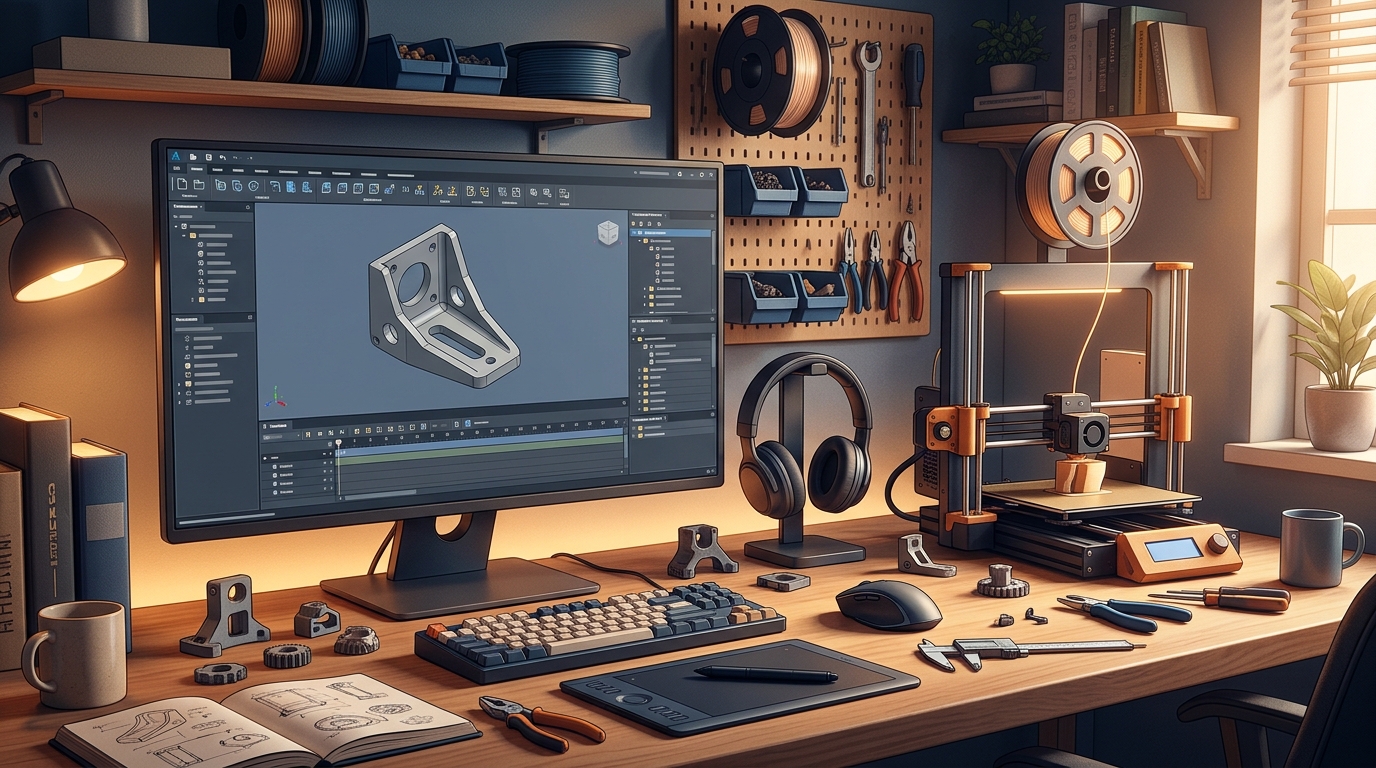
Autodesk Fusion 360, now called Autodesk Fusion, is a free-for-personal-use 3D design program that you install on your PC. In simple terms, it is a program where you sketch a shape, turn it into a solid 3D model with parametric features, assemble parts together, and then export the result for 3D printing or generate toolpaths for a CNC machine. It also includes electronics design, sheet metal, simulation and local rendering, so one program covers most of a home maker’s needs. You sign in with your Autodesk account, open a project, and model in the cloud-connected workspace.
What makes Fusion 360 useful is how much it includes for free. The personal-use licence gives you standard design and 3D modelling, 2.5 and 3-axis milling, turning, FFF additive manufacturing, fabrication and local rendering, which is enough for most home projects. It is free for 1 year for qualifying non-commercial users, and it renews automatically, as long as you generate less than 1,000 US dollars in annual revenue and use it only for home-based, non-commercial design, manufacturing and fabrication. Three honest notes: the personal-use licence is limited to 10 editable documents, some advanced tools are missing compared with the paid subscription, and Fusion is cloud-based, so you need an internet connection and an Autodesk account for most features. It needs Windows 11 version 23H2 or newer.
Key Features
- Parametric 3D modelling: Sketch-based parametric modelling with a full history timeline, so you can change any step later.
- Assemblies and joints: Assemble parts together with joints and motion, so you can test how a mechanism moves.
- CAM toolpaths built in: Generate 2.5 and 3-axis milling, turning and FFF additive toolpaths without leaving the program.
- 3D print export: Export models as STL and other formats, ready for your 3D printer or slicer.
- Electronics and PCB design: Design circuit boards alongside your mechanical parts in the same project.
- Local rendering: Render realistic images of your model locally, for sharing or for checking the design.
- Cloud storage and versioning: Projects are stored in the cloud with version history, so you can work from any PC.
- Free personal-use licence: A free personal-use licence for qualifying non-commercial users, with no payment and no trial clock.
System Requirements
- Operating System: Windows 11 version 23H2 or newer, 64-bit
- Processor: A modern quad-core processor or better
- RAM: At least 8 GB of RAM for basic use, 16 GB or more recommended for large assemblies
- Storage: Around 4 GB of free disk space for the download and program, plus room for your projects
- Graphics: A graphics card with at least 1 GB of dedicated memory, for smooth 3D modelling
- Other: A free Autodesk account, a stable internet connection, and a mouse for working in 3D
These are practical, modern Windows guidelines, not a word-for-word copy of an official specification table. The most important point is simple: Autodesk Fusion 360 is designed for normal Windows PCs, and a modest modern computer is enough to start.
How to Download Autodesk Fusion 360 (Official Method)
The only safe place to download Autodesk Fusion 360 is the official website. Do not download it from random file mirrors or "free download" portals, because those copies may be outdated or bundled with unwanted software. The official site is the source of truth for the current version.
Official download link: https://www.autodesk.com/campaigns/fusion-360-for-hobbyists
On the official Autodesk Fusion for personal use page, select the personal-use option and download the Fusion Client Downloader to your Downloads folder. Do not click the 30-day free trial button by mistake: the trial is the full paid version for 30 days, while the personal-use licence is the free, limited version for home projects. You need a free Autodesk account to complete the download and activation. If a site asks you to pay for the personal-use licence, or offers a cracked version of Fusion, leave that site and return to the official Autodesk page.
Step-by-Step Installation
Follow these steps in order. Take your time with the install location and component choices, because those are the steps that most often cause problems later.
- Create a free Autodesk account — Open https://www.autodesk.com/campaigns/fusion-360-for-hobbyists in your browser and create a free Autodesk account, or sign in if you already have one.
- Choose the personal-use option — On the page, find the personal-use section and select Get Autodesk Fusion for personal use. Do not choose the 30-day free trial by mistake.
- Download the Fusion Client Downloader — Click Download Now to activate the personal-use licence and save the Fusion Client Downloader, about 12.7 MB, to your Downloads folder.
- Run the downloader — Double-click the downloaded file and let it download and install Fusion, which is around 4 GB in total.
- Sign in with your Autodesk account — Sign in with the same Autodesk account when Fusion asks, so it opens with your personal-use licence.
- Wait for the licence to activate — Allow up to 30 minutes after the download for Autodesk to grant the licence, then restart Fusion if it still shows a trial.
- Confirm the first launch — Fusion opens with its modelling workspace. Click through any welcome screens and confirm you can start a new design.
Tip: The 30-day free trial and the personal-use licence are two different things. Choose personal use for your free home licence, and allow up to 30 minutes after downloading for Autodesk to grant it. If Fusion still shows a trial after that, sign out and sign back in with the same Autodesk account.
First-Use Walkthrough: Your First 3D-Printed Bracket
This walkthrough is a simple first project. It is not a full course, but it will help you see Autodesk Fusion 360 working on a real project and learn its main tools.
- Open Fusion and start a new design — Open Fusion, sign in, and create a new design from the home screen.
- Sketch the bracket shape — Draw a simple L-shaped sketch on a plane, with two holes for screws.
- Extrude the sketch into a solid — Use the Extrude tool to turn the sketch into a solid bracket of the thickness you want.
- Add fillets to the edges — Use the Fillet tool to round the sharp edges, so the printed part is stronger and safer to handle.
- Check the measurements — Use the Measure tool to confirm the holes and the thickness match your plan.
- Export the model as STL — Export the finished bracket as an STL file, ready for your slicer and 3D printer.
- Save your design — Save the design to your cloud projects, keeping in mind the 10 editable document limit on the personal-use licence.
Is Autodesk Fusion 360 Free?
Autodesk Fusion 360 is free for personal use under Autodesk’s terms. You create a free Autodesk account, choose the personal-use option, download Fusion, and use it without paying, as long as you generate less than 1,000 US dollars in annual revenue and use it only for home-based, non-commercial design, manufacturing and fabrication projects. The licence is free for 1 year and renews automatically. Be aware of three honest limits: the personal-use licence is limited to 10 editable documents, some advanced tools are missing compared with the paid subscription, and Fusion is cloud-based, so you need an internet connection and an Autodesk account. Commercial work needs a paid subscription.
That free status is important for this guide. All the steps here use the official download only, and they do not involve cracks, activators or licence keys. If you ever see a site offering a paid or cracked version of the free program, treat it as unsafe and return to the official site.
Frequently Asked Questions
Is Autodesk Fusion 360 safe to download?
Yes, when you download it from the official website only. The official installer is the version made by the developer. Avoid third-party sites that bundle extra software or ask for payment for a free program.
Does Autodesk Fusion 360 work on my Windows PC?
Yes, in most cases. Autodesk Fusion runs on Windows 11 version 23H2 or newer, but it is a heavy program, so the system requirements above cover a modern PC with at least 8 GB of RAM. Check the official site for the exact current version if your PC is older.
Is Autodesk Fusion 360 really free, or will it stop working?
The personal-use licence described in this guide is not a short trial. It stays usable for 1 year and renews, as long as you stay within the non-commercial limits. Commercial work needs a paid subscription.
Do I need a powerful PC to run Autodesk Fusion 360?
No, not for basic use. A modern Windows 10 or 11 PC with 4 GB of RAM or more can run it for simple projects. Larger projects with many objects and effects will benefit from more RAM and a faster processor, but you can start and learn on a normal home PC.
Conclusion
Autodesk Fusion 360 is a useful, free addition to a Windows setup because it is a free-for-personal-use cloud CAD, CAM and CAE platform for 3D design and making, and it can be downloaded safely from the official site. Start with a small first project, learn one tool at a time, and build from there.
To get started, download Autodesk Fusion 360 from the official website here: https://www.autodesk.com/campaigns/fusion-360-for-hobbyists Install it with the steps above, test it once, and then use it in your next project. With a little practice, it can become a regular part of your workflow.
Official download link: https://www.autodesk.com/campaigns/fusion-360-for-hobbyists
Related Guides
- FreeCAD for PC: How to Download & Install on Windows
- Dune 3D for PC: How to Download & Install on Windows