 Posted by

Wondershare PDFelement 13 for PC: How to Download & Install on Windows 10/11
Do you need to edit a PDF, but your current reader only lets you view it? That is a common problem for students, office workers, and small business owners in the United States. A wondershare pdfelement download for pc solves it, because PDFelement lets you edit text, images, and pages directly in a PDF file. This guide shows you how to download and install Wondershare PDFelement 13 on Windows 10 and Windows 11 from the official Wondershare site, with no third-party download site involved.
1. What Is Wondershare PDFelement?
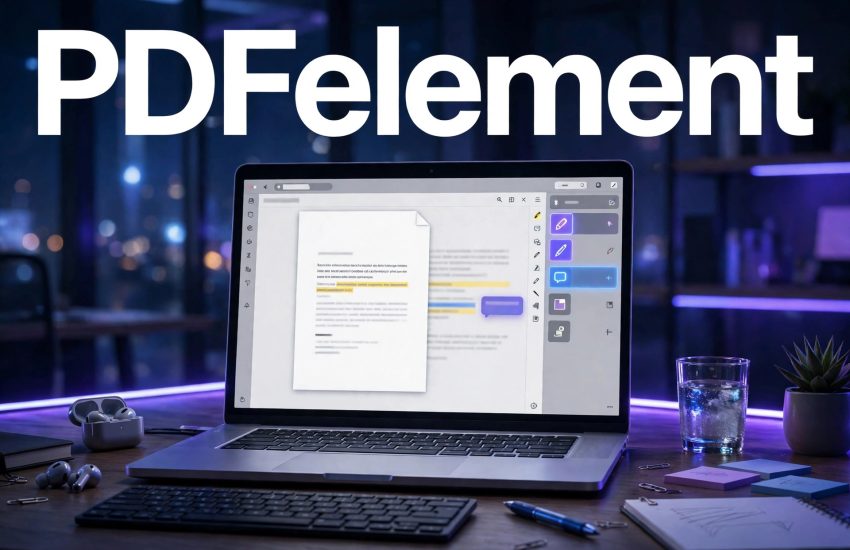
Wondershare PDFelement is an AI-powered PDF editor for Windows, Mac, mobile, and the web. The Windows version covered here is PDFelement 13, also shown on the official site as PDFelement V13. It works as a full PDF editor, not just a reader. Therefore, you can open a PDF, change text, replace an image, add a signature, and save the file in its original layout.
PDFelement also handles conversion, forms, and document organisation. For example, you can convert a PDF to Word, Excel, or PowerPoint, fill in a form, merge several PDFs into one file, or split a long PDF into smaller files. In addition, its AI tools can summarise a document, explain a passage, and help you work through a long report more quickly. As a result, it suits homework, contracts, invoices, and business reports alike.
2. Key Features of Wondershare PDFelement
PDFelement combines editing, conversion, and AI help in one Windows app. First, you can edit text and images directly, add links, watermarks, headers, and footers, and reorder, delete, or extract pages. Second, OCR (optical character recognition) turns a scanned PDF into searchable, editable text, which is useful for scanned contracts and old documents.
Third, you can convert PDFs to and from Office formats, images, HTML, and more, while keeping the layout intact. Fourth, you can fill, create, and sign forms, request signatures, and protect a file with a password or redaction. Finally, the AI knowledge base and AI assistant help you summarise, translate, and question a document. Together, these features make PDFelement a strong choice when a basic reader is not enough.
3. Why Choose Wondershare PDFelement Download for PC?
A wondershare pdfelement download for pc gives you a Windows app that works offline for core editing tasks, with cloud features when you are online. It is easier to learn than a heavy professional suite, yet it covers the tasks most people actually need: editing, converting, signing, and organising PDFs. Moreover, one app replaces a separate converter, form filler, and signature tool.
For US users, the Windows pricing page is clearly labelled for Windows, and the download centre lists Windows first among the supported platforms. The app also supports batch conversion of Office documents, although Microsoft Office 2010 or later is required for that specific task. If you handle PDFs every week, the time saved on editing and conversion quickly adds up.
4. System Requirements for Windows
Before you install PDFelement, check that your PC meets the official Windows requirements. The official tech specs list Windows 11, 10, 8.1, 8, and 7 (64-bit operating system only), a 1 GHz processor or faster, 512 MB of RAM (1 GB recommended), and 1 GB of free disk space (2 GB recommended). You also need a screen resolution of 1366 x 768 or higher.
An internet connection is required for activation, help resources, translation, cloud features, and live updates. Most modern Windows 10 and Windows 11 PCs meet these requirements easily. If your PC runs Windows 11 or Windows 10 in 64-bit, you can proceed with the download below.
5. How to Download Wondershare PDFelement for PC from the Official Site
Use only the official Wondershare site for the wondershare pdfelement download for pc. First, open the official PDFelement page in your browser. You will find the link in the download section of this guide. Next, look for the Free Download button for Windows and click it. The Windows installer will then download to your PC.
Do not download PDFelement from a random file site, because those copies can be old, altered, or bundled with unwanted software. The official download centre also lists Mac, iOS, Android, web, and cloud versions, so make sure you choose the Windows download. Once the installer file has finished downloading, keep it in your Downloads folder and move on to the installation steps.
6. Step-by-Step Installation on Windows 10/11
Installing PDFelement on Windows is straightforward. First, double-click the downloaded installer file. Second, if Windows shows a User Account Control prompt, click Yes to allow the installer to run. Third, follow the setup wizard, accept the licence agreement, and choose the install location if the wizard offers one. Fourth, click Install and wait for the progress bar to finish.
Fifth, click Finish or Launch when the wizard completes, and PDFelement will open on your desktop. Sixth, sign in with your Wondershare account or create one if you do not have one yet. Activation and cloud features need an internet connection, as noted in the system requirements. Finally, open a test PDF and try a simple edit to confirm the app works before you start real work.
7. How to Edit Your First PDF with PDFelement
Start with a simple first task so you learn the layout. Open PDFelement, click Open File, and choose any PDF on your PC. Then click the Edit tab at the top. Click the text you want to change, type the new wording, and press Enter. To replace an image, click the image, then choose Replace or delete it and insert a new one.
Next, try the Convert tab: choose To Word, pick a save location, and click Convert. Open the Word file to check that the layout survived. After that, try the Comment tab to highlight text or add a sticky note. These three actions — edit, convert, and comment — cover most everyday PDF work, and each one takes less than a minute once you know where the buttons are.
8. Is Wondershare PDFelement Free? Price and Plans
PDFelement offers a free download from the official site, and paid plans unlock the full feature set. Prices change during promotions, so always check the live pricing page before you buy. At the time of writing, the Windows pricing page showed a Black Friday promotion, with the sale running from 4 November to 5 December 2026 according to the promotion terms on the official site.
On that page, the single-platform yearly plan was US$63.99 per year, reduced from US$129, with auto-renewal. The single-platform perpetual plan was US$103.99, reduced from US$159. The cross-platform perpetual plan was US$111.99, reduced from US$695. These are sale prices shown live on 23 November 2026, so confirm the current price on the official pricing page before checkout, because the promotion will end.
9. FAQs About Wondershare PDFelement Download for PC
Is Wondershare PDFelement free? A free download is offered on the official site. Paid plans unlock the full feature set, so check the plan comparison before you buy.
Does PDFelement work on Windows 11? Yes. The official specs list Windows 11 and Windows 10, both 64-bit, plus older Windows versions.
Can PDFelement edit scanned PDFs? Yes, with OCR. OCR turns scanned pages into searchable, editable text.
Can I convert a PDF to Word with PDFelement? Yes. Use the Convert tab, choose To Word, and save the result.
Can I sign a PDF in PDFelement? Yes. You can create a signature, sign a document, and request signatures from others.
Does PDFelement work on Mac too? Yes, but this guide covers the Windows version. Choose the Mac download on the official download centre if you need it.
Do I need the internet to use PDFelement? Core editing works offline, but activation, cloud features, translation, and updates need an internet connection.
Where should I download PDFelement safely? Only from the official Wondershare PDFelement site linked in this guide. Avoid third-party download sites.
10. Conclusion
Wondershare PDFelement 13 is a practical PDF editor for Windows users who need more than a reader. It edits text and images, converts files, handles forms and signatures, and adds OCR and AI help in one app. Download it only from the official site, install it with the steps above, and try one edit and one conversion on your first day. That quick test will show you whether the paid plan is worth it for your work.
Related Guides:
- Todoist for PC — Download & Install on Windows 10/11
- TickTick for PC — Download & Install on Windows 10/11
- Simplenote for PC — Download & Install on Windows 10/11
Official download: Download Wondershare PDFelement from the official Wondershare site