 Posted by

Introduction
If you make game art and need realistic textures such as brick, wood, metal or fabric, TextureLab is the free tool that builds them for you. It is a free, open-source procedural texture generator by njbrown that works with a node graph, like the paid Substance 3D Designer: you connect nodes, each node creates or transforms a texture, and the result is a set of PBR maps you can export to your game engine. There is no payment for the download, and the compiled versions are free from the developer’s itch.io page. One honest note: the project is updated infrequently, so do not expect new features every month, but the current build is complete and usable.
This guide explains what TextureLab is, what it can and cannot do, what your PC needs to run it, and how to download and install it from the official website only. You will also get a first-use walkthrough that takes you from installation to a working result in a few minutes. By the end, you should be able to install TextureLab on Windows and use it in a real project.
TextureLab is best for making game textures such as brick, wood and metal, and exporting PBR maps for Unity. Because it is free and legitimate, you do not need a cracked copy or an unknown download site. The official website provides the installer, and the free version is a real, permanent tool, not a short trial.
What Is TextureLab?
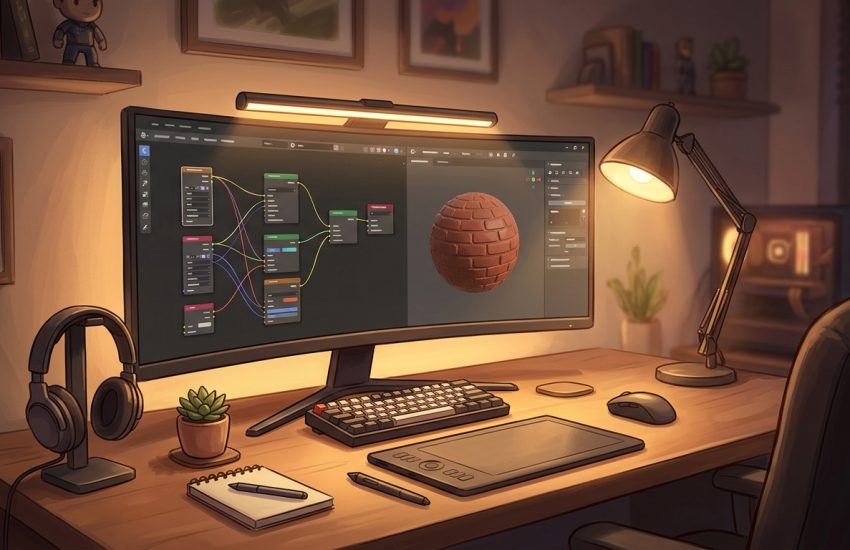
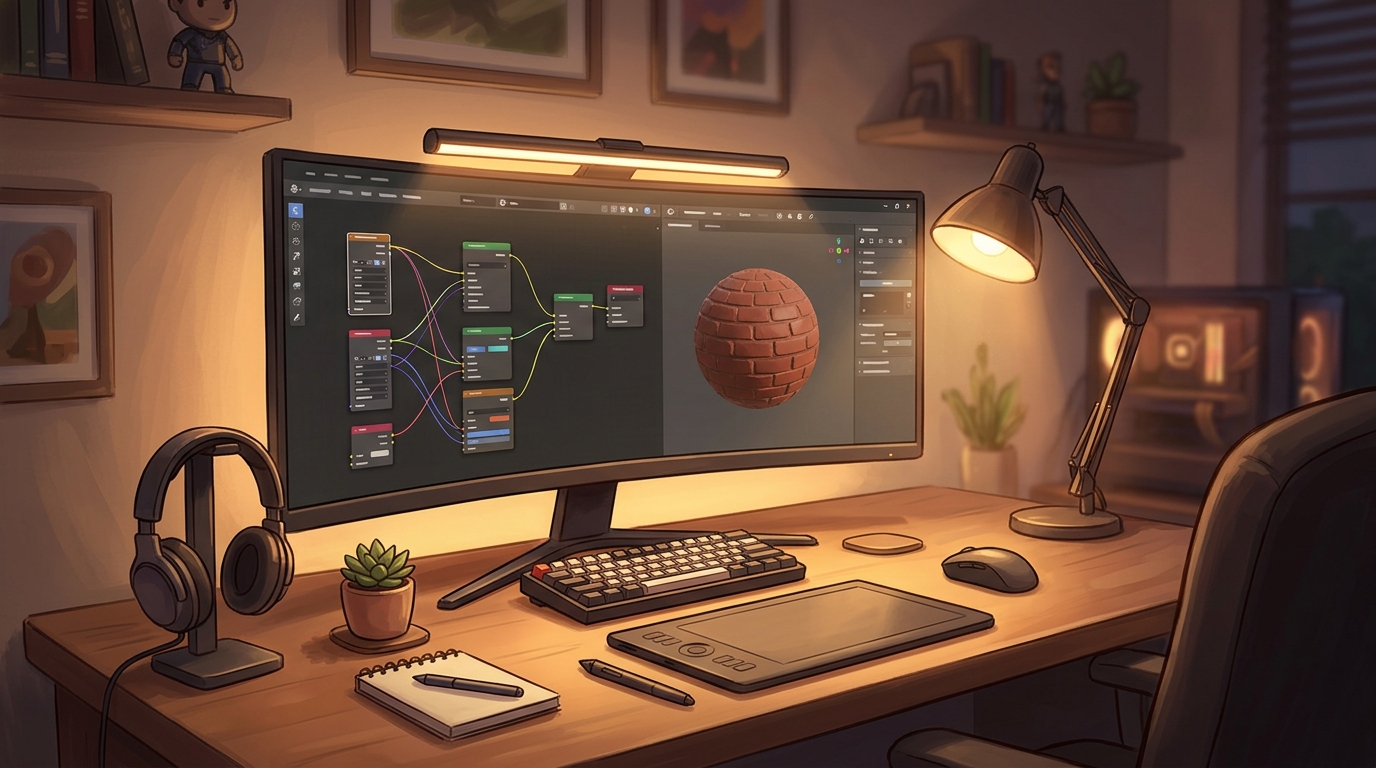
TextureLab is a free desktop application for designing procedural textures. In simple terms, it is a program where you build a texture as a graph of nodes: a generator node creates a pattern, filter nodes change it, and output nodes produce the albedo, normal, roughness and other maps your game engine needs. Because the texture stays a graph, you can change any node later and the whole texture updates, instead of repainting a flat bitmap. It is GPU-accelerated and cross-platform, and it can export materials directly for Unity.
What makes TextureLab useful is that it is a genuinely capable free alternative to paid texture tools. It gives you node-based procedural generation, live preview, and standard PBR map export that works in Unity, Unreal, Godot and Blender, all without a subscription. Two honest notes: the project is updated infrequently, with long gaps between releases, and it is a smaller tool than the paid alternatives, so it has fewer built-in nodes and less polish in places. The download is free from the developer’s itch.io page, where you can choose to support the developer with a donation if you want to.
Key Features
- Node-based texture graphs: Build textures as graphs of generators, filters and transforms that stay editable.
- PBR map export: Export albedo, normal, roughness and other maps for Unity, Unreal, Godot and Blender.
- GPU-accelerated preview: GPU acceleration keeps the preview fast as you change the graph.
- Live 3D preview: Preview your texture on a 3D model in real time as you change the graph.
- Unity material output: Export materials directly in a form Unity can use, for fast game art workflows.
- Procedural generation: Generate textures from algorithms, so they stay sharp at any resolution.
- Cross-platform: TextureLab runs on Windows, macOS and Linux, with the same graphs on each system.
- Free and open source: TextureLab is free and open source, so it stays free forever.
System Requirements
- Operating System: Windows 10 or Windows 11, 64-bit
- Processor: A modern dual-core processor or better
- RAM: At least 4 GB of RAM for basic use, 8 GB or more recommended for large textures
- Storage: Around 200 MB of free disk space for the program and your projects
- Graphics: A graphics card that supports GPU acceleration, which almost every modern PC has
- Other: A stable internet connection for the download, and a mouse for working with node graphs
These are practical, modern Windows guidelines, not a word-for-word copy of an official specification table. The most important point is simple: TextureLab is designed for normal Windows PCs, and a modest modern computer is enough to start.
How to Download TextureLab (Official Method)
The only safe place to download TextureLab is the official website. Do not download it from random file mirrors or "free download" portals, because those copies may be outdated or bundled with unwanted software. The official site is the source of truth for the current version.
Official download link: https://njbrown.itch.io/texturelab
On the official TextureLab itch.io page, download the Windows version to your Downloads folder. The page may ask for a donation first, and if you do not want to pay anything, look for the free download link to reach the downloads. If a site asks you to pay for the free download of TextureLab, or offers a cracked version of it, leave that site and return to the official itch.io page.
Step-by-Step Installation
Follow these steps in order. Take your time with the install location and component choices, because those are the steps that most often cause problems later.
- Download from the official itch.io page — Open https://njbrown.itch.io/texturelab in your browser and download the Windows version. If asked for a donation, use the free download link.
- Extract the download — Right-click the downloaded ZIP file and choose Extract All, then open the extracted folder.
- Run TextureLab — Double-click the TextureLab executable in the extracted folder to launch it.
- Confirm the first launch — TextureLab opens with its node graph editor and a preview. Click through any welcome screens.
- Open an example texture — Load one of the example textures to see how a finished node graph looks.
- Check the export options — Open the export menu and confirm you can see the PBR map outputs for your game engine.
- Save a test texture — Save the example as a project in your projects folder, so you know where your work goes.
Tip: On the itch.io page, use the free download link if you do not want to donate. The project is updated infrequently, so check the page for the latest build and do not expect a new release every month.
First-Use Walkthrough: Your First Brick Texture
This walkthrough is a simple first project. It is not a full course, but it will help you see TextureLab working on a real project and learn its main tools.
- Open TextureLab and start a new texture — Open the program and create a new empty texture project.
- Add a brick generator — Add a brick generator node to the graph to create the basic pattern.
- Connect it to the outputs — Connect the generator output to the albedo and roughness outputs.
- Tune the brick size — Change the generator settings, such as brick size and mortar width, and watch the preview update.
- Add a normal map — Add a normal-map node so the bricks gain depth and relief in the preview.
- Preview on a 3D model — Switch the preview to a 3D model and check how the texture looks from different angles.
- Export the texture maps — Export the finished texture as PBR maps, ready for Unity, Unreal, Godot or Blender.
Is TextureLab Free?
TextureLab is free and open source. You download it from the official itch.io page, install it, and use it without paying and without a time limit. There is no paid version of the program itself. Be aware of one honest limit: the project is updated infrequently, with long gaps between releases, so the current build is complete but new features arrive slowly.
That free status is important for this guide. All the steps here use the official download only, and they do not involve cracks, activators or licence keys. If you ever see a site offering a paid or cracked version of the free program, treat it as unsafe and return to the official site.
Frequently Asked Questions
Is TextureLab safe to download?
Yes, when you download it from the official website only. The official installer is the version made by the developer. Avoid third-party sites that bundle extra software or ask for payment for a free program.
Does TextureLab work on my Windows PC?
Yes, in most cases. TextureLab runs on Windows 10 and 11 (64-bit), and the system requirements above cover a normal modern PC. Check the official site for the exact current version if your PC is older.
Is TextureLab really free, or will it stop working?
The free version described in this guide is not a short trial. It stays usable after installation. There is no paid edition of TextureLab itself.
Do I need a powerful PC to run TextureLab?
No, not for basic use. A modern Windows 10 or 11 PC with 4 GB of RAM or more can run it for simple projects. Larger projects with many objects and effects will benefit from more RAM and a faster processor, but you can start and learn on a normal home PC.
Conclusion
TextureLab is a useful, free addition to a Windows setup because it is a free open-source node-based tool for creating procedural PBR textures, and it can be downloaded safely from the official site. Start with a small first project, learn one tool at a time, and build from there.
To get started, download TextureLab from the official website here: https://njbrown.itch.io/texturelab Install it with the steps above, test it once, and then use it in your next project. With a little practice, it can become a regular part of your workflow.
Official download link: https://njbrown.itch.io/texturelab
Related Guides
- Material Maker for PC: How to Download & Install on Windows
- xNormal for PC: How to Download & Install on Windows