 Posted by

Introduction
If you like the idea of designing 3D models by writing code, and you want a modern, powerful kernel behind it, CadQuery is the free tool built exactly for that. It is a free, open-source Python library for building parametric 3D CAD models, built on the OpenCASCADE modelling kernel, and it lets you describe a part in a few lines of Python and export it as a precise STEP, STL or DXF file. It is a favourite of engineers, developers and makers who need exact dimensions, and it is free with no subscription and no feature tiers. There is no payment and no account, and the download comes from the official CadQuery documentation and the Python package index.
This guide explains what CadQuery is, what it can and cannot do, what your PC needs to run it, and how to download and install it from the official website only. You will also get a first-use walkthrough that takes you from installation to a working result in a few minutes. By the end, you should be able to install CadQuery on Windows and use it in a real project.
CadQuery is best for precise 3D-printed parts, parametric designs, and CAD models written in Python. Because it is free and legitimate, you do not need a cracked copy or an unknown download site. The official website provides the installer, and the free version is a real, permanent tool, not a short trial.
What Is CadQuery?
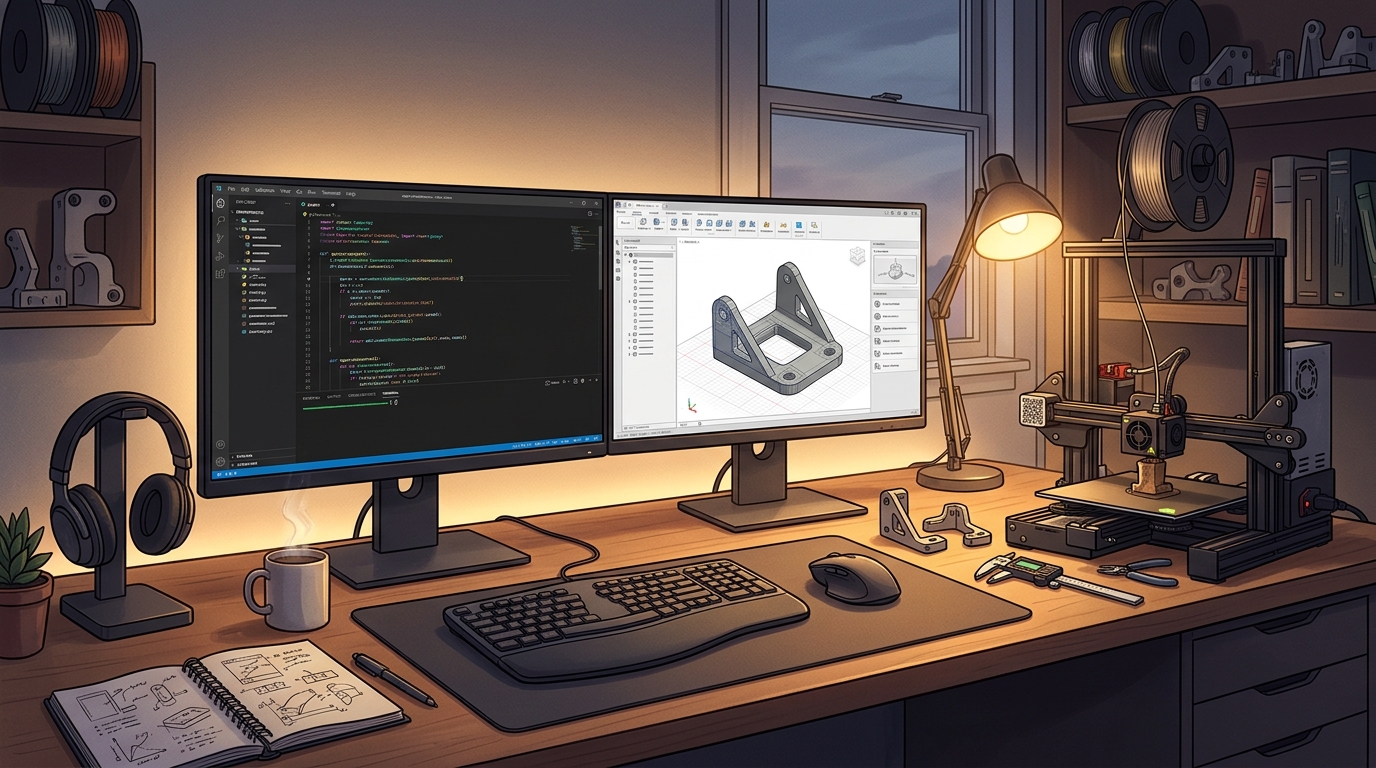
CadQuery is a free CAD library that you install on your PC as a Python package. In simple terms, it is a library where you write a script, such as a box of a certain size with a hole through it, and CadQuery builds the exact solid object from that description, which you can preview, export as an STL file for 3D printing, or export as a STEP file for other CAD programs. Because the model is code, you can use variables and parameters, so changing one number, such as a wall thickness, updates the whole design.
What makes CadQuery popular is its fluent API and its kernel. Its code reads almost like a description of the part, with chained operations such as box, hole and fillet, and its OpenCASCADE kernel is much more powerful than the CGAL kernel used by OpenSCAD, so it handles complex shapes, fillets and assemblies well. It also supports Jupyter notebooks, so you can build models interactively. Two honest notes: CadQuery is a library, not a program with a built-in GUI, so you need the separate CQ-editor for a graphical view, and installing it needs Python 3.9 to 3.12, with the conda installation being the better tested option. The current version is v2.6.0, released in October 2025.
Key Features
- Fluent Python API: Write models in a few lines of readable Python, with chained operations such as box, hole and fillet.
- Parametric by design: Models are driven by variables, so changing one number updates the whole design.
- Powerful OpenCASCADE kernel: The OpenCASCADE kernel handles complex shapes, fillets, chamfers and assemblies accurately.
- STEP, STL and DXF export: Export high-quality STEP, DXF, STL, AMF and 3MF files for printing and for other CAD programs.
- CQ-editor GUI available: The separate CQ-editor gives you a graphical view and an editor for your scripts.
- Jupyter notebook support: Build and preview models interactively in Jupyter notebooks, out of the box.
- Assemblies and selectors: Build assemblies from parts and select faces, edges and vertices by name or by position.
- Free and open source: CadQuery is free and open source under the Apache 2.0 licence, so it stays free forever.
System Requirements
- Operating System: Windows 10 or Windows 11, 64-bit
- Other software: Python 3.9 to 3.12, plus pip or conda for the install
- Processor: A modern dual-core processor or better
- RAM: At least 4 GB of RAM for basic use, 8 GB or more recommended for large models
- Storage: Around 1 GB of free disk space for Python, CadQuery and your projects
- Other: A stable internet connection for the download, and a code editor or the CQ-editor
These are practical, modern Windows guidelines, not a word-for-word copy of an official specification table. The most important point is simple: CadQuery is designed for normal Windows PCs, and a modest modern computer is enough to start.
How to Download CadQuery (Official Method)
The only safe place to download CadQuery is the official website. Do not download it from random file mirrors or "free download" portals, because those copies may be outdated or bundled with unwanted software. The official site is the source of truth for the current version.
Official download link: https://cadquery.readthedocs.io/en/latest/
On the official CadQuery documentation site, follow the installation guide and install CadQuery with pip or conda. The library itself is free from the Python package index, and the documentation is the source of truth for the current version. There is no account, serial number or payment involved at any point. If a site asks you to pay for CadQuery, or offers a cracked version of it, leave that site and return to the official CadQuery documentation.
Step-by-Step Installation
Follow these steps in order. Take your time with the install location and component choices, because those are the steps that most often cause problems later.
- Install Python 3.12 — Download and install Python 3.12 from python.org if you do not already have it, because CadQuery supports Python 3.9 to 3.12.
- Open a terminal or command prompt — Open a terminal, or the Anaconda prompt if you use conda, on your Windows PC.
- Install CadQuery with pip — Run pip install cadquery in the terminal and wait for the install to finish. For the better tested install, use mamba install -c conda-forge cadquery instead.
- Verify the install — Run python -c "import cadquery" in the terminal and confirm it prints no error.
- Install the CQ-editor — Install the CQ-editor from the CadQuery documentation if you want a graphical view of your models.
- Write your first script — Create a file called bracket.py and write a short CadQuery script that makes a box with a hole in it.
- Run the script and export — Run the script and export the result as an STL file, ready for 3D printing or for other 3D programs.
Tip: CadQuery is a library, not a program with a built-in GUI, so install the CQ-editor as well if you want to see your models while you work. The conda installation is the better tested option, so use it if the pip install gives you trouble.
First-Use Walkthrough: Your First Parametric Bracket
This walkthrough is a simple first project. It is not a full course, but it will help you see CadQuery working on a real project and learn its main tools.
- Open a terminal and check Python — Open a terminal and run python –version to confirm Python 3.9 to 3.12 is installed.
- Install CadQuery — Run pip install cadquery and wait for the install to finish.
- Write a bracket script — Create a file called bracket.py and write a script that makes an L-shaped bracket with two holes.
- Run the script — Run the script with Python and confirm it builds the bracket without an error.
- Preview it in the CQ-editor — Open the script in the CQ-editor and look at the bracket in 3D.
- Change a parameter — Change the wall thickness variable in the script and run it again, to see the whole design update.
- Export the bracket as STL — Export the finished bracket as an STL file, ready for your slicer and 3D printer.
Is CadQuery Free?
CadQuery is free and open source under the Apache 2.0 licence. You install it from the Python package index or conda-forge, and use it without paying and without a time limit. There is no paid version of CadQuery itself. Be aware of two honest limits: it is a library with no built-in GUI, so you need the separate CQ-editor for a graphical view, and it needs Python 3.9 to 3.12, with the conda installation being the better tested option.
That free status is important for this guide. All the steps here use the official download only, and they do not involve cracks, activators or licence keys. If you ever see a site offering a paid or cracked version of the free program, treat it as unsafe and return to the official site.
Frequently Asked Questions
Is CadQuery safe to download?
Yes, when you download it from the official website only. The official installer is the version made by the developer. Avoid third-party sites that bundle extra software or ask for payment for a free program.
Does CadQuery work on my Windows PC?
Yes, in most cases. CadQuery runs on Windows 10 and 11 (64-bit), but it needs Python 3.9 to 3.12 installed first, and the conda installation is the better tested option. Check the official site for the exact current version if your PC is older.
Is CadQuery really free, or will it stop working?
The free version described in this guide is not a short trial. It stays usable after installation. There is no paid edition of CadQuery itself, but it needs Python.
Do I need a powerful PC to run CadQuery?
No, not for basic use. A modern Windows 10 or 11 PC with 4 GB of RAM or more can run it for simple projects. Larger projects with many objects and effects will benefit from more RAM and a faster processor, but you can start and learn on a normal home PC.
Conclusion
CadQuery is a useful, free addition to a Windows setup because it is a free open-source Python library for building parametric 3D CAD models from code, and it can be downloaded safely from the official site. Start with a small first project, learn one tool at a time, and build from there.
To get started, download CadQuery from the official website here: https://cadquery.readthedocs.io/en/latest/ Install it with the steps above, test it once, and then use it in your next project. With a little practice, it can become a regular part of your workflow.
Official download link: https://cadquery.readthedocs.io/en/latest/
Related Guides
- OpenSCAD for PC: How to Download & Install on Windows
- Dune 3D for PC: How to Download & Install on Windows