 Posted by

Introduction
If you have ever wanted to paint in the air, with brush strokes that hang in 3D space around you, OpenBrush is the free app that makes it real. It is a free, open-source virtual reality painting app from the Icosa Foundation, built as a community-led fork of Google’s Tilt Brush, and it lets you paint coloured strokes in 3D space that work as both paint and geometry. There is no payment, and the download from the official Steam page is the complete app.
This guide explains what OpenBrush is, what it can and cannot do, what your PC needs to run it, and how to download and install it from the official website only. You will also get a first-use walkthrough that takes you from installation to a working result in a few minutes. By the end, you should be able to install OpenBrush on Windows and use it in a real project.
OpenBrush is best for painting in 3D space with a VR headset, and making VR art and game assets. Because it is free and legitimate, you do not need a cracked copy or an unknown download site. The official website provides the installer, and the free version is a real, permanent tool, not a short trial.
What Is OpenBrush?
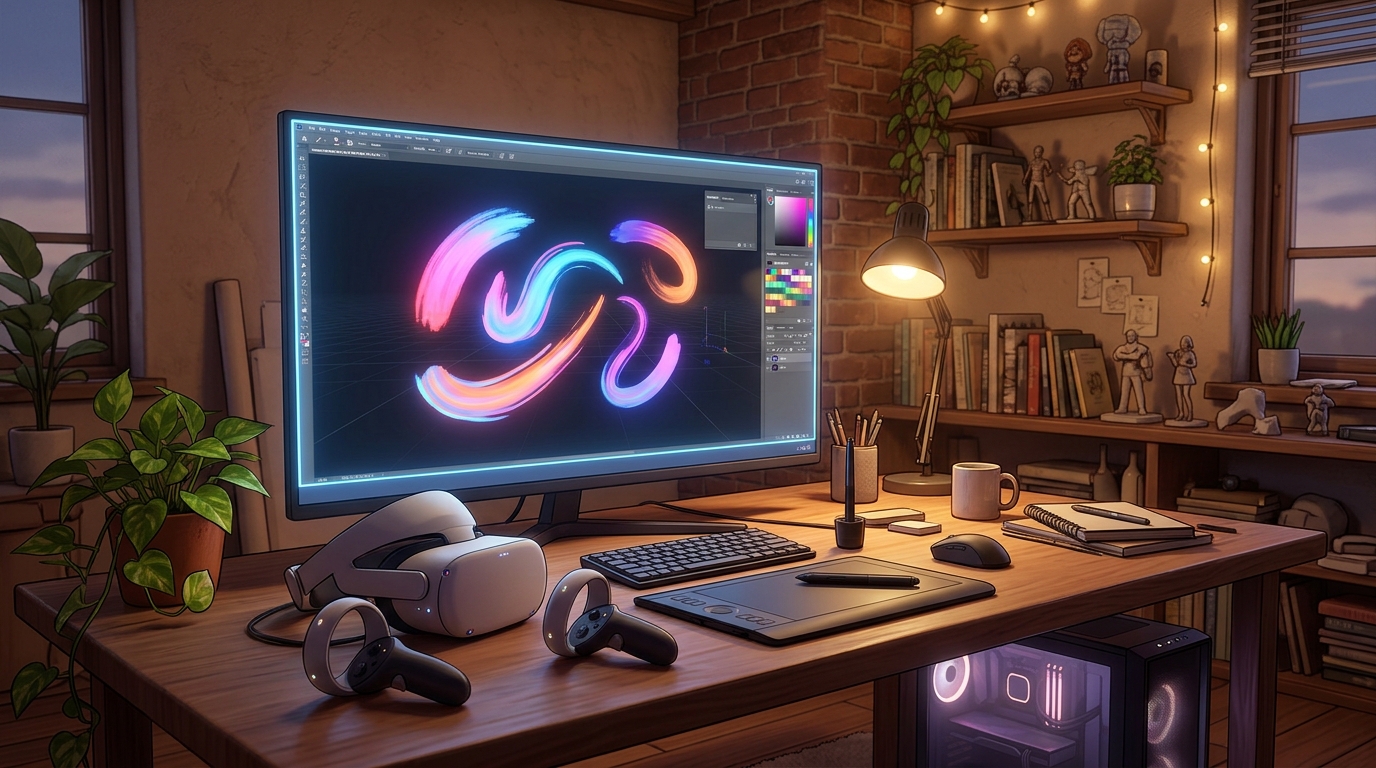
OpenBrush is a free, open-source room-scale 3D painting app for virtual reality. In simple terms, you put on a VR headset, pick a brush, and paint in the air around you: your strokes become glowing ribbons, fire, stars, smoke or solid shapes that exist in 3D space, and you can walk around them, through them and inside them. You can paint a forest, a creature or a whole scene, then save it, share it or export it for use in a game engine.
What makes OpenBrush special is that it is the community-powered evolution of Tilt Brush, the pioneering VR painting app Google open-sourced in 2021 after stopping commercial development. The Icosa Foundation maintains it as a free project under the Apache 2.0 licence, and version 2.0 added layers, pressure sensitivity, mixed reality support and OpenXR compatibility. It also has a Unity SDK, so sketches can be used directly as VR assets in game engines. One honest note: the full experience needs a SteamVR-compatible VR headset, but a limited monoscopic mode lets you view and paint on a normal desktop, although it is clunky compared with VR.
Key Features
- Paint in 3D space: Brush strokes exist as 3D geometry in the room around you, so you can walk around and inside your art.
- Many brush types: Brushes include light, fire, stars, smoke, ink, chrome and more, each with its own look and behaviour.
- Layers in version 2.0: Layers let you organise a painting into separate parts, hide and lock them, and build complex scenes.
- Pressure sensitivity: Pressure-sensitive brushes respond to how hard you press, for natural, expressive strokes.
- Mixed reality mode: Mixed reality support lets you paint in your real room, with your art floating in the space around you.
- Export your sketches: Save and export your sketches to share online or bring into other programs.
- Unity SDK for game assets: A dedicated Unity SDK lets you use OpenBrush sketches directly as VR assets in game engines.
- Free and open source: OpenBrush is free forever under the Apache 2.0 licence, maintained by the community.
System Requirements
- Operating System: Windows 10 or Windows 11, 64-bit (Windows 7 SP1 or newer is listed on Steam)
- VR headset: A SteamVR-compatible VR headset for the full experience, such as HTC Vive, Valve Index or Meta Quest via Link
- Processor: A modern dual-core processor or better
- RAM: At least 4 GB of RAM for basic use
- Storage: Around 1 GB of free disk space for the app
- Other: A Steam account, a stable internet connection for the download, and motion controllers for VR painting
These are practical, modern Windows guidelines, not a word-for-word copy of an official specification table. The most important point is simple: OpenBrush is designed for normal Windows PCs, and a modest modern computer is enough to start.
How to Download OpenBrush (Official Method)
The only safe place to download OpenBrush is the official website. Do not download it from random file mirrors or “free download” portals, because those copies may be outdated or bundled with unwanted software. The official site is the source of truth for the current version.
Official download link: https://store.steampowered.com/app/1634870/Open_Brush
On the official OpenBrush Steam page, add OpenBrush to your Steam library and download it through the Steam client. It is free, so there is no payment step. You need a free Steam account and the Steam client installed on your PC. If a site asks you to pay for OpenBrush, or offers a cracked version of it, leave that site and return to the official Steam page. OpenBrush is also available free on itch.io and from its GitHub releases page.
Step-by-Step Installation
Follow these steps in order. Take your time with the install location and component choices, because those are the steps that most often cause problems later.
- Install Steam first — Download and install the Steam client from steampowered.com if you do not already have it.
- Open the OpenBrush Steam page — Open https://store.steampowered.com/app/1634870/Open_Brush in your browser or in the Steam client.
- Add OpenBrush to your library — Click the free install button to add OpenBrush to your Steam library. There is no payment step.
- Download and install through Steam — Let Steam download and install OpenBrush on your PC.
- Set up SteamVR if needed — If you have a VR headset, make sure SteamVR is installed and your headset is connected and tracked.
- Launch OpenBrush — Launch OpenBrush from your Steam library and put on your headset, or use the monoscopic desktop mode.
- Complete the first-run setup — Follow the on-screen setup, choose your painting space, and confirm the controllers are tracked.
Tip: The full painting experience needs a VR headset with motion controllers. If you do not have a headset, use the limited monoscopic desktop mode to view and paint, but expect it to feel clunky compared with VR. Check that SteamVR is running before you launch OpenBrush in VR mode.
First-Use Walkthrough: Your First 3D Painting
This walkthrough is a simple first project. It is not a full course, but it will help you see OpenBrush working on a real project and learn its main tools.
- Launch OpenBrush and put on your headset — Open OpenBrush from Steam, put on your VR headset, and confirm your controllers are tracked.
- Pick a brush — Choose a brush from the palette, such as the light brush, and pick a colour.
- Paint your first stroke — Hold the trigger and move your hand through the air to paint a glowing stroke in 3D space.
- Walk around your stroke — Step around the stroke you painted and look at it from different sides to see it in 3D.
- Try a second brush — Switch to a different brush, such as fire or stars, and paint a second element in your scene.
- Add a layer — Create a new layer and paint the background on it, so you can hide or edit it separately.
- Save and export your painting — Save your sketch, then export it to share online or bring into a game engine.
Is OpenBrush Free?
OpenBrush is free and open source under the Apache 2.0 licence. You download it from Steam, itch.io or GitHub, install it, and use it without paying and without a time limit. There is no paid version of OpenBrush itself. Be aware of one honest limit: the full experience needs a VR headset, and the desktop monoscopic mode is limited.
That free status is important for this guide. All the steps here use the official download only, and they do not involve cracks, activators or licence keys. If you ever see a site offering a paid or cracked version of the free program, treat it as unsafe and return to the official site.
Frequently Asked Questions
Is OpenBrush safe to download?
Yes, when you download it from the official website only. The official installer is the version made by the developer. Avoid third-party sites that bundle extra software or ask for payment for a free program.
Does OpenBrush work on my Windows PC?
OpenBrush runs on Windows 10 and 11 (64-bit), but the full painting experience needs a SteamVR-compatible VR headset with motion controllers. A limited monoscopic mode lets you view and paint on a normal desktop, although it is clunky compared with VR. Check the official site for the exact current version if your PC is older.
Is OpenBrush really free, or will it stop working?
The free version described in this guide is not a short trial. It stays usable after installation. There is no paid edition of OpenBrush itself, but VR needs a headset.
Do I need a powerful PC to run OpenBrush?
No, not for basic use. A modern Windows 10 or 11 PC with 4 GB of RAM or more can run it for simple projects. Larger projects with many objects and effects will benefit from more RAM and a faster processor, but you can start and learn on a normal home PC.
Conclusion
OpenBrush is a useful, free addition to a Windows setup because it is a free, open-source VR painting app for creating 3D art in virtual reality, and it can be downloaded safely from the official site. Start with a small first project, learn one tool at a time, and build from there.
To get started, download OpenBrush from the official website here: https://store.steampowered.com/app/1634870/Open_Brush Install it with the steps above, test it once, and then use it in your next project. With a little practice, it can become a regular part of your workflow.
Official download link: https://store.steampowered.com/app/1634870/Open_Brush
Related Guides
- PlayCanvas for PC: How to Download & Install on Windows
- SketchUp Free for PC: How to Download & Install on Windows