 Posted by

Vectary is a popular online 3D design tool that lets you create 3D models, product visuals, and interactive scenes without installing a large desktop program. It is built for designers, marketers, product teams, students, and hobbyists who want to make clean 3D content quickly, share it online, and show it in a browser or in augmented reality. If you have ever wanted to try 3D design but felt put off by complex software, heavy downloads, or expensive licences, Vectary is worth understanding, because it lowers many of those barriers.
There is one important fact to understand before you start. Vectary is web-based. It runs entirely in the browser, and there is no Windows installer and nothing to download. You do not install Vectary on your PC in the usual sense. Instead, you create a free account on the official website, open the online studio in a modern browser, and start designing there. Your projects are saved to your account, and you can open them from any computer with internet access. This guide explains what Vectary is, what it can do, what your computer needs to run it smoothly, and how to get started step by step, without pretending that there is a desktop installer to download.
Because Vectary is freemium, you can start with a free account and explore the core design tools before you decide whether a paid Pro plan is useful for you. The free plan is a genuine way to learn the interface, build simple projects, and test exports and sharing. The Pro plan adds higher limits and extra features for professional use. This guide will explain that difference clearly, so you can choose the right plan for your needs and avoid paying for features you do not yet need. It will also show you how to make your first project, how to import and export models, and how to share your work as an interactive viewer or an augmented reality experience.
What Is Vectary?
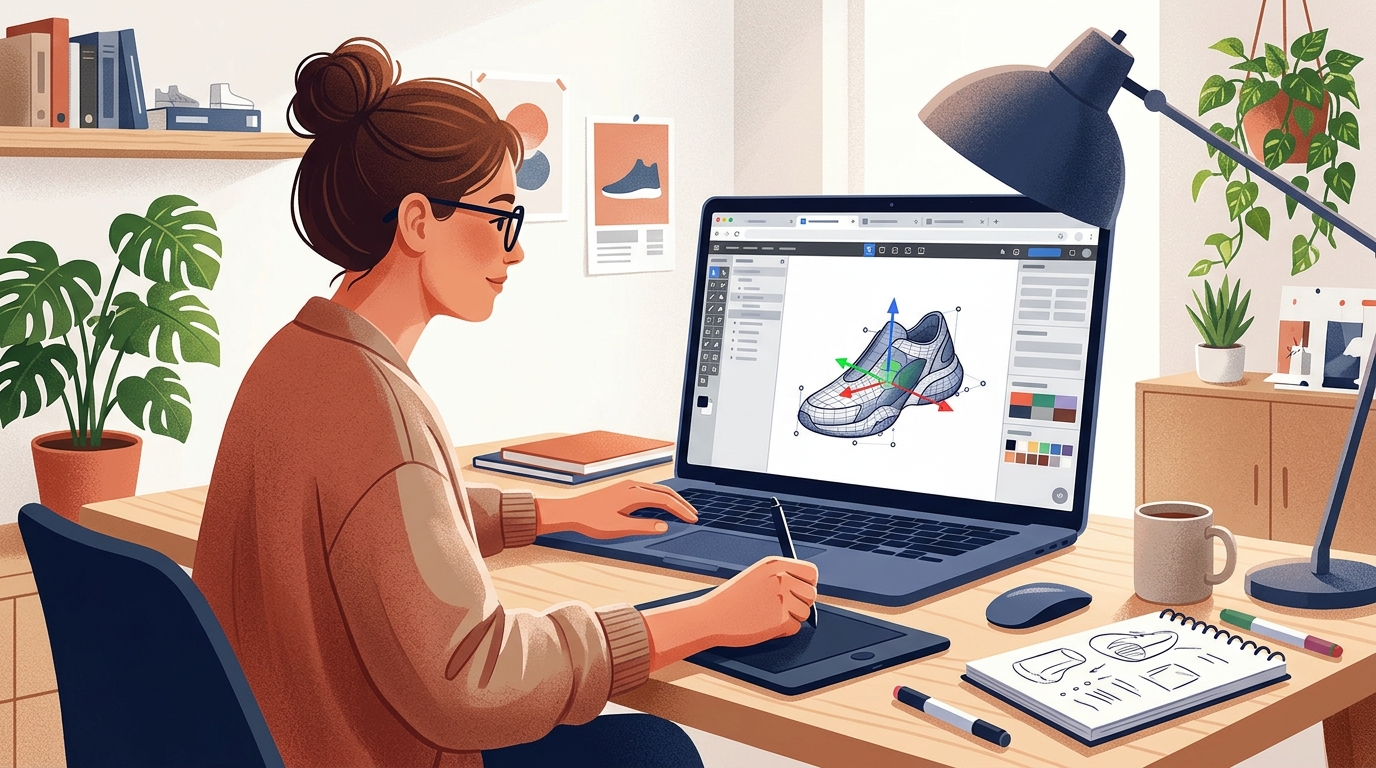
Vectary is an online 3D design platform that runs in a web browser. It was designed to make 3D creation accessible to people who are not full-time 3D artists, while still offering enough depth for professional product and marketing work. You can build a model from basic shapes, import a model made elsewhere, apply materials and colours, add lighting, and render a realistic image, all from the same online workspace. You can also create interactive 3D viewers that other people can rotate and explore on a website, and you can prepare models for augmented reality viewing on a phone.
The platform is especially useful for product design and e-commerce. A designer can model a product, such as a chair, a bottle, a shoe, or a piece of electronics, place it in a clean scene, and produce a photorealistic render for a website or a presentation. A marketing team can then embed the same model as an interactive viewer, so a customer can turn it around, zoom in, and see details that a flat photo cannot show.
Vectary is not a replacement for every desktop 3D program. It does not try to be a full animation studio, a sculpting tool, or a heavy engineering CAD system. Its strength is in fast, clean, browser-based 3D design, rendering, and sharing. If you need advanced sculpting, complex character animation, or detailed engineering work, you may still need a desktop program alongside it. For many everyday 3D tasks, however, Vectary is a practical and approachable choice, and because it runs online, you can start using it in minutes.
Key Features
- Online 3D design studio: Vectary runs entirely in your browser, so you can design, edit, and save projects without installing a Windows program.
- Drag-and-drop library: You can start from ready-made shapes, objects, and materials, drag them into your scene, and adjust them to fit your design.
- Real-time photorealistic rendering: The studio shows your scene with realistic lighting and materials as you work, so you can preview the final look before you export.
- AR and WebAR support: You can prepare models for augmented reality, letting viewers place a 3D object in their real space through a phone or browser.
- Interactive 3D viewers and embeds: You can publish a model as an interactive viewer that visitors can rotate, zoom, and explore on a website.
- Wide import support: Vectary can import GLTF, GLB, OBJ, STL, FBX, DAE, STEP, and IGES files, so you can bring in models made in other programs.
- Flexible export options: You can export your work as PNG, STL, OBJ, GLTF, FBX, or DAE, depending on whether you need an image, a 3D print file, or a model for another tool.
- Collaboration tools: You can share projects with teammates, review changes together, and keep your work organised in one online workspace.
System Requirements
Because Vectary is web-based, there is no Windows installer to check against a traditional system requirement list. Instead, you need a modern browser, a stable internet connection, and a computer that can handle WebGL 3D graphics smoothly. The figures below are practical modern Windows guidance for using Vectary and similar browser-based 3D tools, because the exact official specification may change as the web platform is updated.
For practical use on a modern Windows PC, aim for Windows 10 or Windows 11, a dual-core processor or better, at least 4 GB of RAM, and at least 8 GB if you plan to work with larger scenes or many imported models. Use an up-to-date version of Chrome, Edge, or Firefox, with hardware acceleration turned on. A graphics card that supports WebGL is needed for the 3D viewport, and a screen resolution of 1280 by 720 or higher will make the studio panels easier to use.
How to Download Vectary (Official Method)
Vectary is web-based, so there is no Windows installer to download. The official website is:
https://www.vectary.com/
To get started, visit that official link in your browser and create a free account. Do not search for a Vectary installer, a Vectary setup file, or a cracked version, because no official Windows installer exists and any file offered under that name is not legitimate. The only official way to use Vectary is through the website, in your browser, with an account.
When you visit the official site, look for the sign-up or start button and create your account with a valid email address. Use a strong password, and keep your account details safe. Once your account is ready, you can open the online studio directly from the website and start a new project. There is nothing else to download, install, or update on your PC. Your browser will load the latest version of the studio each time you open it, so you always use the current version without manual updates.
Step-by-Step Installation
Vectary has no installation process, because it runs in the browser. The steps below show you how to set up your account, open the web app, and start your first project. Follow them in order, and do not look for a Windows installer at any point.
- Open Chrome, Edge, or Firefox on your Windows PC and go to the official Vectary website given in the download section above.
- Click the sign-up or start button, enter your name and email address, and create a strong password for your free Vectary account.
- Confirm your email address if Vectary sends you a verification message, then sign in to your new account.
- From your dashboard, click to create a new project or open the online studio, and wait for the 3D workspace to load in your browser.
- Choose a starting option, such as a blank scene or a template, and explore the toolbar, the object library, and the properties panel.
- Add a simple shape to the scene, move it into place, change its material, and save the project to your account so you can return to it later.
- When you are ready, try exporting a PNG image or sharing the project as an interactive viewer, using the export and share options in the studio.
Tip: Keep your first project small and save it early. Add one shape, one material, and one light, then export a test image. That short test will confirm that the studio runs well in your browser and that you understand the basic workflow, before you spend time on a larger scene.
Getting Started with Vectary: Your First Project
Open the Vectary studio and start a blank project. You will see a 3D viewport in the centre, with a grid floor, a toolbar, and panels for objects, materials, and settings. Take a minute to look around before you add anything. On one side you will find the library of shapes and objects, and on the other side you will find the properties for the object you have selected. Learning where those panels are will make the rest of the work much easier.
Add a simple shape, such as a cube or a cylinder, by dragging it from the library into the viewport. Click on it to select it, then use the move, rotate, and scale controls to place it where you want it. Change its material by choosing a colour or a preset, such as plastic, metal, or wood, and watch how the light affects it. Add a second shape, such as a sphere on top of the cube, and adjust its size so the two forms look balanced. This kind of simple stacking is a good way to learn how objects relate to each other in 3D space.
Next, adjust the lighting and the camera. Move the camera to a clear angle that shows your model well, and try changing the light direction or intensity to see how shadows and highlights change. When you are happy with the view, use the render preview to see a more realistic version of the scene. Save the project, then export a PNG image to check the result.
Is Vectary Free?
Yes, Vectary offers a free account, and it uses a freemium model. The free plan lets you create an account, open the online studio, build projects, and explore the core design, rendering, and sharing tools without paying. It is a genuine way to learn Vectary and to make simple 3D projects for study, portfolio work, or small personal use, subject to the limits of the free plan, such as storage, export, or viewer limits.
Pro is a paid plan for users who need higher limits and extra professional features. If you are working on client work, large product catalogues, or frequent rendering and sharing, Pro may be worth considering. Before you upgrade, check the current pricing page on the official Vectary website, compare the free and Pro limits, and make sure the paid features match what you actually need. Do not pay for Vectary through any other site, and do not trust offers of free Pro keys, activators, or cracked access, because those are not legitimate and can put your account and computer at risk.
Frequently Asked Questions
Is Vectary safe to download?
Vectary is safe to use through its official website, because there is nothing to download. You use it in your browser with an account on vectary.com. Do not download any file that claims to be a Vectary installer, because no official Windows installer exists and such files are not legitimate.
Do I need to install Vectary on Windows?
No. Vectary runs entirely in the browser, so there is no Windows installer and nothing to install. You only need a modern browser, a stable internet connection, and a free Vectary account to open the studio.
Can I use Vectary for commercial work?
Vectary can be used for product visualisation, marketing, and other professional 3D work, subject to the terms of the plan you are on. Check the current pricing and terms on the official site before you use it for client or commercial projects, so you know which limits and rights apply to your plan.
What file types can I import and export in Vectary?
Vectary can import GLTF, GLB, OBJ, STL, FBX, DAE, STEP, and IGES files, and it can export PNG, STL, OBJ, GLTF, FBX, and DAE files. That range makes it useful for bringing in models from other tools and for sending your work to rendering, printing, or web projects.
Conclusion
Vectary is a practical, browser-based way to start 3D design on Windows without installing a large program. Its online studio, drag-and-drop library, real-time photorealistic rendering, AR support, interactive viewers, wide import and export support, and collaboration tools make it useful for product design, marketing, learning, and simple creative projects. The free account lets you explore the core workflow before you decide whether Pro is right for you.
The key point to remember is that Vectary is web-based. There is no Windows installer and nothing to download. You create a free account on the official site, open the studio in your browser, and start designing there. If you keep your first projects small, save often, and learn the basic tools properly, you will be able to make clean 3D visuals and interactive models in a short time. To get started, visit the official website:
https://www.vectary.com/
Related Guides
- Blender for PC: How to Download & Install on Windows
- LuxCoreRender for PC: How to Download & Install on Windows