 Posted by

WeChat is the messaging app that over a billion people use to chat, call and share their day. Its Windows desktop app lets you continue those conversations on your PC with a full keyboard, easy file transfers and proper video calls on a big screen. This guide shows you how to download WeChat for PC from the official source, install it safely on Windows 11 or Windows 10, and log in with the QR code for your first chat.
What Is WeChat?
WeChat is a free messaging and calling app published by Tencent. On mobile it is also a social feed (Moments), a payments platform and a home for mini programs, but the Windows desktop app focuses on the communication core: text and group chats, voice and video calls, file sharing, and backing up your chat history. One important thing to know: the desktop app does not create an account. You sign up on the mobile app first, then log in on PC by scanning a QR code with your phone — which also keeps your account secure.
Top Features of WeChat
- Full chat on desktop — one-to-one and group chats with text, voice messages, stickers and photos.
- Voice and video calls — clear calls to other WeChat users, including group video calls.
- Easy file transfer — send documents, photos and videos between your phone and PC without cables.
- Chat backup and restore — back up your mobile chat history to your computer and restore it to a new phone.
- Screenshot tool — capture and annotate parts of your screen and drop them straight into a chat.
- Moments viewing — browse your friends’ Moments feed from the desktop app.
- Secure QR login — no password typing on PC; you approve each login on your phone.
System Requirements for WeChat on PC
- Operating system — Windows 11 or Windows 10 (the app also runs on Windows 8 and 7).
- Processor — any modern dual-core CPU is more than enough.
- RAM — 2 GB minimum; the app is light.
- Storage — around 500 MB for the app, plus space for chat files and backups you save.
- Internet — a broadband connection for messaging, calls and file transfers.
- Mobile account — an existing WeChat account on your phone is required to log in on PC.
- Permissions — administrator rights for installation; a camera/microphone helps for calls.
How to Download and Install WeChat on PC
- Open the official WeChat website (wechat.com) and go to the download page for the Windows version.
- Download the Windows installer from the official site — avoid third-party messaging app download pages.
- Run the downloaded installer file and approve the Windows permission prompt.
- Choose your language and read the setup screens before continuing.
- Keep the default installation folder unless you have a reason to change it.
- Click Install and wait a few seconds for setup to finish.
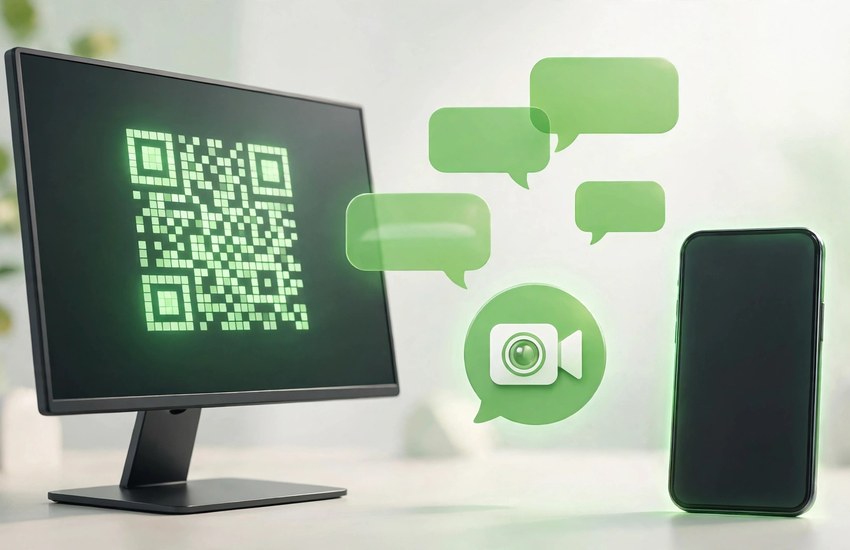
- Launch WeChat from the desktop shortcut or the Start menu — a QR code login screen will appear.
Getting Started with WeChat
- Open WeChat on your phone, tap the + icon, and choose Scan.
- Point your phone camera at the QR code on your PC screen.
- Confirm the login on your phone when prompted.
- Pick a chat and try sending a message, photo or file from your PC.
- Use the backup feature in Settings to save your phone’s chat history to the PC.
- Set the file save folder in Settings so received files are easy to find.
Is WeChat Free?
Yes. WeChat is free to download and use, and the Windows desktop app is free as well — messaging, calls and file transfers do not cost anything. Some services inside the mobile app, such as certain stickers or payment features, are separate, but nothing in this guide requires payment. Only download the desktop app from the official WeChat website, because look-alike installers on other sites are a known source of malware.
Frequently Asked Questions
Is WeChat safe to download for PC?
Yes, when you download it from the official WeChat website (wechat.com). That is the only source this guide recommends. The QR code login also adds safety: nobody can log in to your account on a PC without your phone approving it. Avoid installers from random download sites.
Can I create a WeChat account on my PC?
No. Accounts are created in the mobile app. The Windows app is a companion: you must already have WeChat on your phone, and you log in on PC by scanning the QR code shown on screen. Your chats then sync between phone and PC.
Can I use WeChat on PC without my phone nearby?
You need your phone for the first QR login and to confirm new logins. After that, the desktop app works on its own while it stays logged in, but your phone should remain connected to the internet for full syncing.
Does WeChat work on Windows 11?
Yes. The official Windows app installs and runs on Windows 11 as well as Windows 10, and the login and chat experience is the same on both.
Related Guides
- WhatsApp for PC Download and Install on Windows
- Telegram Desktop for PC Download and Install on Windows