 Posted by

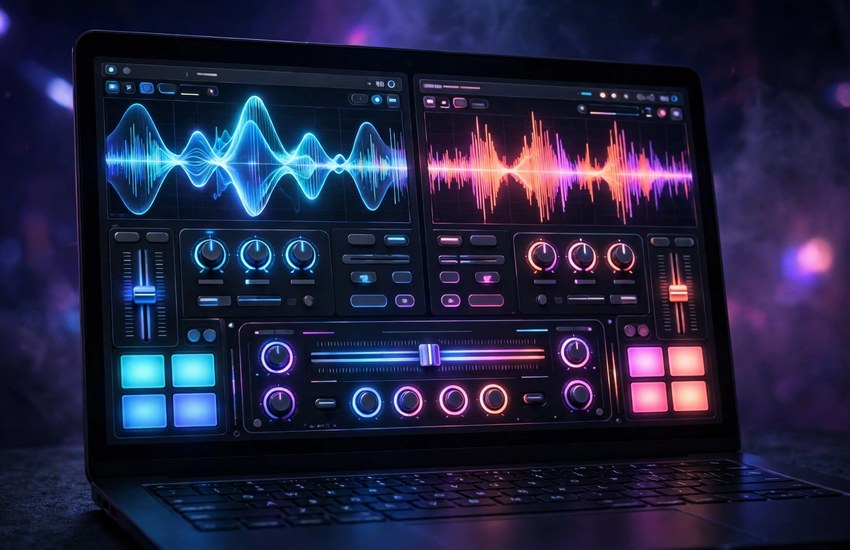
Virtual DJ is the DJ software that turns your PC into a mixing desk. It has been used by beginners and professional DJs for more than twenty years, and the free Home version already includes two decks, effects, a sampler and automatic mixing. This guide shows you how to download Virtual DJ for PC from the official source, install it safely on Windows 11 or Windows 10, and play your first mix.
What Is Virtual DJ?
Virtual DJ is a DJ mixing program published by Atomix Productions. It replaces turntables and a mixer with software: you load tracks onto virtual decks, match their beats, crossfade between them and add effects, all from your keyboard or a DJ controller. The Home version is free for non-commercial use, while the Pro version adds professional features such as controller support for more hardware and use in clubs. The program also handles video mixing and karaoke, and it can separate a track into stems — vocals, instruments and beats — in real time.
Top Features of Virtual DJ
- Two mixing decks — load a track on each deck and crossfade between them like a real DJ.
- Automatic beat matching — Virtual DJ syncs the tempo of two tracks so they stay in time.
- Sampler — trigger sound effects, loops and drops from the sampler pads.
- Real-time stems — separate vocals, drums and instruments from a track while it plays.
- Video mixing — mix music videos and add visual effects to your set.
- Automix — let the program mix a playlist for you when you just want background music.
- Controller support — plug in a DJ controller and the decks, jog wheels and pads map automatically.
System Requirements for Virtual DJ on PC
- Operating system — Windows 11 or Windows 10 (64-bit).
- Processor — Intel Core i3 or better; a faster CPU helps with stems and video mixing.
- RAM — 4 GB minimum; 8 GB is recommended for video mixing.
- Storage — a few hundred MB for the app, plus free space for your music library.
- Internet — a broadband connection for installation and updates.
- Display — 1280 × 1024 or higher; a second screen helps for video mixing.
- Permissions — administrator rights for installation.
How to Download and Install Virtual DJ on PC
- Open the official Virtual DJ website and choose the Windows download.
- Run the downloaded installer file and approve the Windows permission prompt.
- Read each installer screen carefully and decline any optional extra software offers.
- Keep the default installation folder unless you have a reason to change it.
- Choose the Home version when the installer asks which edition you want.
- Wait a few seconds for the setup to finish.
- Launch Virtual DJ from the desktop shortcut or the Start menu.
Getting Started with Virtual DJ
- Point Virtual DJ at your music folder so it can build your library.
- Load one track on each deck by dragging them from the browser.
- Press Sync on the second deck so both tracks play at the same tempo.
- Practise your first crossfade with the crossfader in the middle of the screen.
- Try the sampler pads and one or two effects on your next mix.
- Save your best mix as a playlist so you can play it again any time.
Is Virtual DJ Free?
The Home version is free for non-commercial use — for practice, parties at home and learning to DJ. The Pro version is paid and adds professional features such as use in clubs and support for more DJ controllers. Download it only from the official Virtual DJ website, because installers from random download sites can be modified and unsafe.
Frequently Asked Questions
Is Virtual DJ safe to download for PC?
Yes, when you get it from the official Virtual DJ website. Installers from random download sites are the risky ones, because they can bundle unwanted software. Download from the official source and keep the program updated.
Can I use Virtual DJ for free forever?
Yes, the Home version is free with no time limit for non-commercial use. You only need the paid Pro version if you DJ professionally or want support for more controllers.
Do I need a DJ controller to use Virtual DJ?
No. You can mix entirely with your mouse and keyboard. A controller makes it feel more like real decks, but it is optional — many people learn on the software alone first.
Does Virtual DJ work on Windows 11?
Yes. The current Virtual DJ builds install and run on Windows 11 as well as Windows 10, and the interface and settings are the same on both.
Related Guides