 Posted by

Ample Percussion Cloudrum for PC: How to Download & Install on Windows
Introduction
If you want the calm, bell-like sound of a steel tongue drum in your music, Ample Percussion Cloudrum gives it to you for free. It is a free sample-based steel tongue drum instrument from Ample Sound, with four articulations, two microphone positions and a three-octave range, and it sounds like a real hand-played tongue drum, not a synth imitation. There is no payment for the free plugin, and the download from the official Ample Sound site is the complete instrument.
This guide explains what Ample Percussion Cloudrum is, what it can and cannot do, what your PC needs to run it, and how to download and install it from the official website only. You will also get a first-use walkthrough that takes you from installation to a working result in a few minutes. By the end, you should be able to install Ample Percussion Cloudrum on Windows and use it in a real project.
Ample Percussion Cloudrum is best for meditative melodies, cinematic percussion, and calm ambient tracks. Because it is free and legitimate, you do not need a cracked copy or an unknown download site. The official website provides the installer, and the free version is a real, permanent tool, not a short trial.
What Is Ample Percussion Cloudrum?
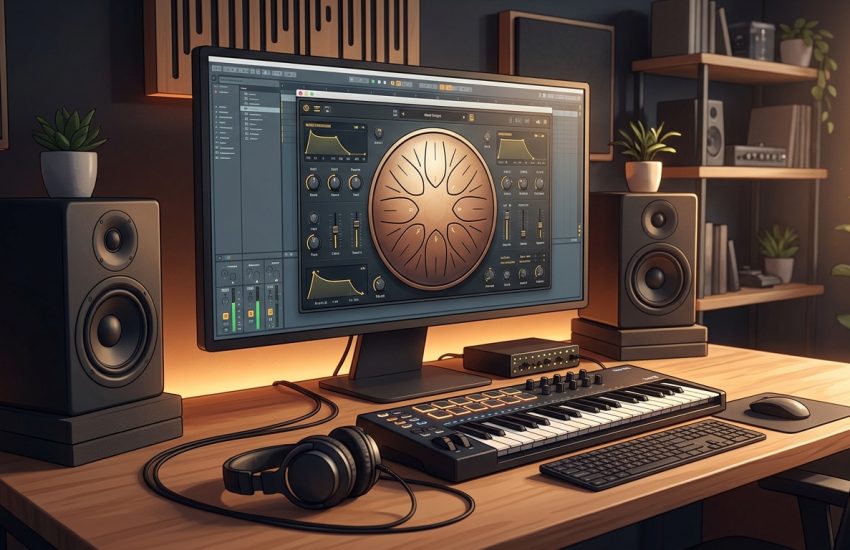
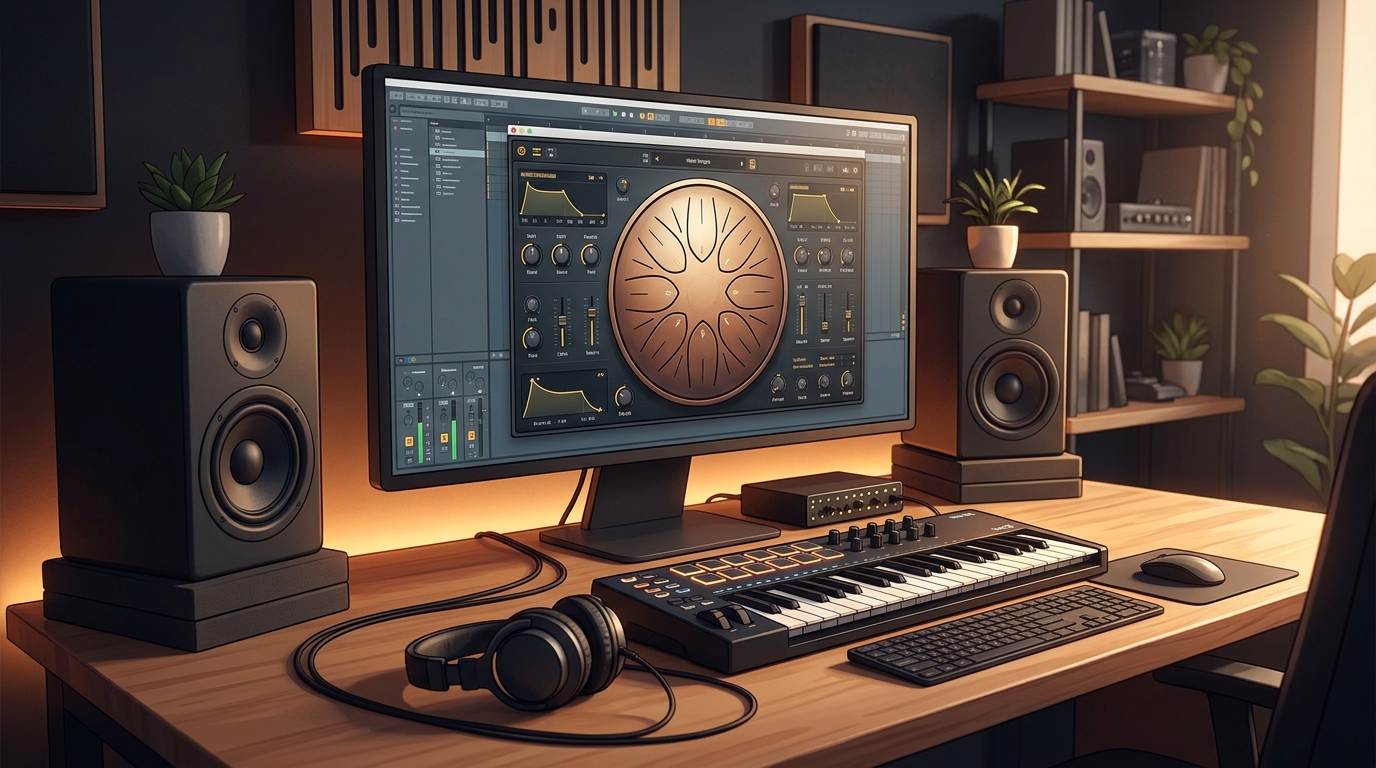
Ample Percussion Cloudrum is a free virtual percussion instrument that runs inside your DAW or as a standalone app. In simple terms, it is a plugin that loads on an instrument track, and it plays a sampled steel tongue drum when you play notes from your MIDI keyboard: soft, resonant tones with long, blooming decays that suit meditation music, film scores and ambient tracks. You load it on a track, choose a scale, and play slow, spaced-out melodies.
What makes Cloudrum useful is its sound quality and its simplicity. It offers four articulations, Open, Mute, Opened Release and Muted Release, two microphone positions with stereo and mono modes for each, a three-octave range, and direct-from-disk sample streaming so it uses very little RAM, plus a customised parameters control that lets you map any MIDI CC or automation to its controls. Two honest notes: Cloudrum is a single-instrument plugin, so it only plays the steel tongue drum and nothing else, and its sound is gentle and meditative by nature, so it will not cut through a loud rock or dance mix without help from compression and EQ.
Key Features
- Sampled steel tongue drum: A carefully sampled steel tongue drum gives you the real bell-like tone of the instrument.
- Four articulations: Open, Mute, Opened Release and Muted Release articulations shape every note from bright to damped.
- Two microphone positions: Two microphone positions, each with stereo and mono modes, let you choose a close or roomy sound.
- Three-octave range: A three-octave range covers low, warm tones and high, bell-like notes.
- Direct-from-disk streaming: Samples stream direct from disk, so the plugin uses very little RAM even in big projects.
- Custom parameter control: A customised parameters control maps any MIDI CC or automation to the plugin controls.
- Built-in effects: Built-in effects add space and warmth to the drum without extra plugins.
- Standalone and plugin: Runs as a VST, AU or AAX plugin in your DAW, or as a standalone app for practising.
System Requirements
- Operating System: Windows 10 or Windows 11, 64-bit
- Processor: A modern dual-core processor or better
- RAM: At least 4 GB of RAM for basic use
- Storage: Around 1 GB of free disk space for the plugin and its 465 MB sample library
- DAW: Any DAW that supports VST, AU or AAX plugins on Windows, such as Reaper, FL Studio, Ableton Live, Cubase or Studio One
- Other: A stable internet connection for the download, and speakers or headphones to hear your percussion
These are practical, modern Windows guidelines, not a word-for-word copy of an official specification table. The most important point is simple: Ample Percussion Cloudrum is designed for normal Windows PCs, and a modest modern computer is enough to start.
How to Download Ample Percussion Cloudrum (Official Method)
The only safe place to download Ample Percussion Cloudrum is the official website. Do not download it from random file mirrors or "free download" portals, because those copies may be outdated or bundled with unwanted software. The official site is the source of truth for the current version.
Official download link: https://www.amplesound.net/en/download.asp
On the official Ample Sound download page, download Ample Percussion Cloudrum for Windows to your Downloads folder. The free plugin does not require payment or registration. If a site asks you to pay for Cloudrum, or offers a cracked version of it, leave that site and return to the official Ample Sound page.
Step-by-Step Installation
Follow these steps in order. Take your time with the format and folder choices, because those are the steps that most often cause a plugin to not appear in a DAW.
- Download the installer from the official site — Open https://www.amplesound.net/en/download.asp in your browser and download the Windows installer for Ample Percussion Cloudrum. Do not use third-party download sites.
- Run the installer — Double-click the downloaded installer file and follow the on-screen prompts on your Windows PC.
- Choose the plugin formats — When asked, select the formats you need, such as VST, AU and AAX, so your DAW can find the plugin.
- Choose the install location — Keep the default VST folder unless your DAW uses a custom folder, then note that folder for later.
- Finish the installation — Wait for the installer to finish, then close it and restart your DAW if it was already open.
- Rescan plugins in your DAW — Open your DAW plugin manager and rescan, so the new plugin appears in the list.
- Load the plugin once to test it — Insert Ample Percussion Cloudrum on a test track and confirm it opens without an error before you use it in a real project.
Tip: If your DAW cannot find the plugin after installation, check the plugin folder path in your DAW settings first, then rescan. Most missing-plugin problems are a folder or rescan issue, not a broken installer.
How to Play Your First Melody with Cloudrum
This walkthrough is a simple first project. It is not a full course, but it will help you hear Ample Percussion Cloudrum working in a real track and learn its main controls.
- Create an instrument track — Add a new MIDI track in your DAW for the steel tongue drum.
- Load Cloudrum on the track — Insert Cloudrum from your VST plugin list.
- Play a few slow notes — Play notes slowly on your MIDI keyboard and listen to the long, bell-like decays.
- Try the mute articulation — Switch to the Mute articulation and hear how the notes become short and soft.
- Change the microphone position — Switch between the two microphone positions and hear the drum move from close to roomy.
- Add a little reverb — Turn up the built-in reverb and hear the drum gain space and calm.
- Record a short melody — Record a slow, simple melody and play it back to hear how the drum sings.
Is Ample Percussion Cloudrum Free?
Ample Percussion Cloudrum is freeware from Ample Sound. You download it from the official Ample Sound site, install it, and use it without paying and without a time limit. There is no paid version of Cloudrum itself. Be aware of two honest limits: it is a single-instrument plugin that only plays the steel tongue drum, and its gentle sound will not cut through a loud mix without help from compression and EQ.
That free status is important for this guide. All the steps here use the official download only, and they do not involve cracks, activators or licence keys. If you ever see a site offering a paid or cracked version of the free plugin, treat it as unsafe and return to the official site.
Frequently Asked Questions
Is Ample Percussion Cloudrum safe to download?
Yes, when you download it from the official website only. The official installer is the version made by the developer. Avoid third-party sites that bundle extra software or ask for payment for a free plugin.
Does Ample Percussion Cloudrum work on my Windows PC?
Yes, in most cases. Ample Percussion Cloudrum works as VST, AU and AAX on Windows, and it loads in major DAWs that support those formats, such as Reaper, FL Studio, Ableton Live, Cubase and others. Check your DAW plugin list after installation and rescan if needed.
Is Ample Percussion Cloudrum really free, or will it stop working?
The free version described in this guide is not a short trial. It stays usable after installation. There is no paid edition of Cloudrum itself.
Do I need a powerful PC to run Ample Percussion Cloudrum?
No, not for basic use. A modern Windows 10 or 11 PC with 4 GB of RAM or more can run it for simple projects. Larger projects with many tracks and plugins will benefit from more RAM and a faster processor, but you can start and learn on a normal home PC.
Conclusion
Ample Percussion Cloudrum is a useful, free addition to a Windows setup because it is a free sample-based steel tongue drum with four articulations and two microphone positions, and it can be downloaded safely from the official site. Start with presets, learn one control at a time, and build your own sounds as you get comfortable.
To get started, download Ample Percussion Cloudrum from the official website here: https://www.amplesound.net/en/download.asp Install it with the steps above, test it once, and then use it in your next project. With a little practice, it can become a regular part of your workflow.
Official download link: https://www.amplesound.net/en/download.asp
Related Guides
- Spitfire LABS for PC: How to Download & Install on Windows
- MT Power Drum Kit for PC: How to Download & Install on Windows