 Posted by

Introduction
If you want to turn a real object or a whole room into a 3D model using only your phone, Polycam is the free platform that does it. It is a 3D scanning and reality-capture app that uses photogrammetry and LiDAR to turn photos, video and room scans into measured 3D models, floor plans and Gaussian splats, and you can use its free web photogrammetry tool from your Windows PC browser too. There is no payment for the Free plan, and you start from the official Polycam website.
This guide explains what Polycam is, what it can and cannot do, what your PC needs to run it, and how to start using it from the official website only. You will also get a first-use walkthrough that takes you from signing up to a finished 3D capture in a few minutes. By the end, you should be able to use Polycam on Windows and in a real project.
Polycam is best for scanning real objects and rooms, quick photogrammetry from photos, and sharing 3D captures on the web. Because the Free plan is free and legitimate, you do not need a cracked copy or an unknown download site. The official website is the only place to sign up, and the free plan is a real, permanent plan, not a short trial.
What Is Polycam?
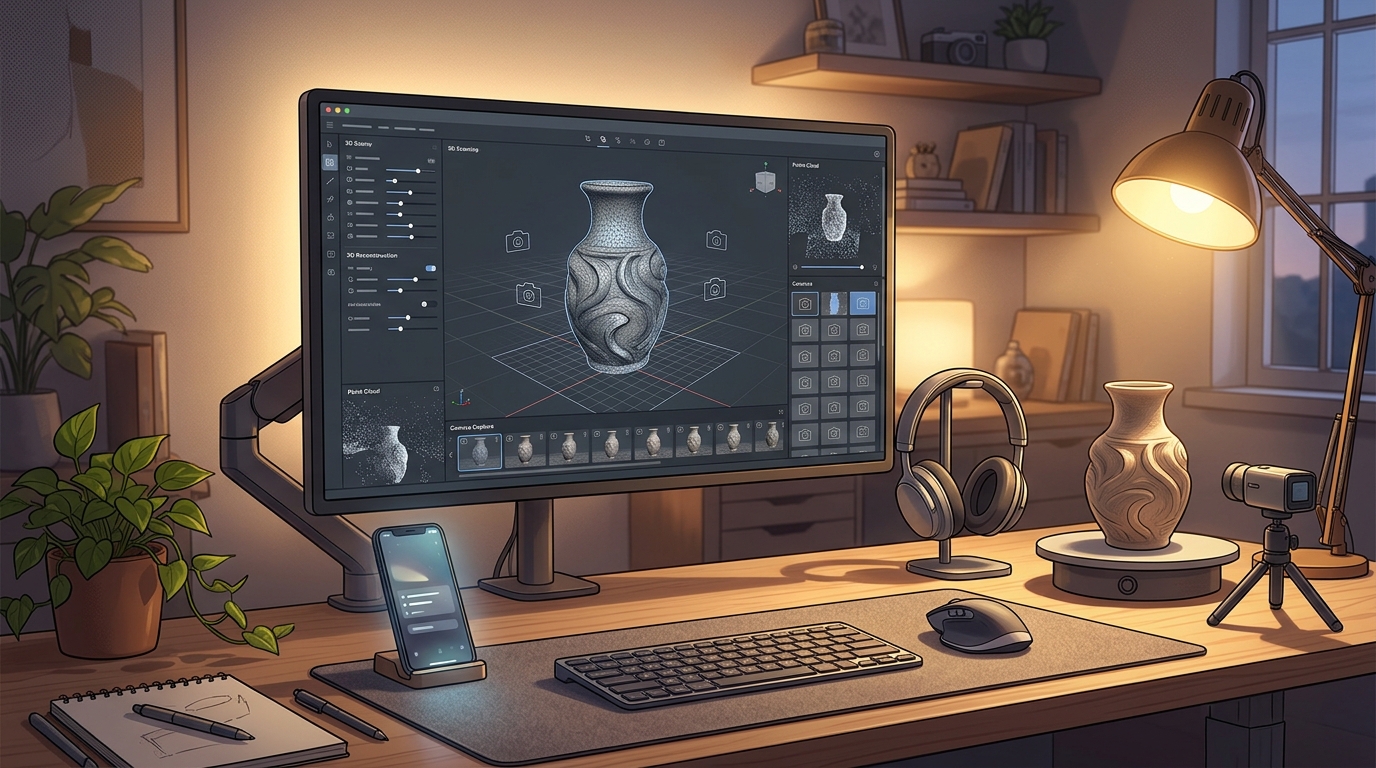
Polycam is a free 3D scanning and photogrammetry platform that you use on your phone and in your web browser. In simple terms, it is an app that turns the real world into 3D: point your phone camera at an object and Polycam reconstructs it from photos, or use a LiDAR-equipped iPhone or iPad to scan a whole room in real time, and the result is a 3D model you can view, measure, edit and share from the cloud. From your Windows PC, you can open the free web photogrammetry tool, upload photos or a video, and create the same kind of 3D model in your browser.
What makes Polycam useful is its speed and its range. It handles object scans, room scans, drone footage and 360 photos, it creates Gaussian splats and AI-generated captures, and its models can be measured and turned into floor plans on the paid plans. Three honest notes: there is no Windows desktop app, so on a PC you use the web tool or the mobile app; LiDAR room scanning needs a compatible iPhone or iPad Pro, while Android and web users rely on photogrammetry; and the Free plan limits how many captures you can make, exports GLTF only, and puts a watermark on media, so other export formats need the Basic plan.
Key Features
- Photogrammetry from photos: Turn overlapping photos or a video into a 3D model, from your phone or the web tool.
- LiDAR room scanning: Scan whole rooms in real time on a compatible iPhone or iPad Pro with LiDAR.
- Gaussian splats: Create Gaussian splat captures for smooth, realistic 3D views of a scene.
- AI-generated captures: Generate 3D captures with AI tools, on top of the normal photo workflow.
- Measurements built in: Measure distances on your captures, for remodelling, surveying and planning.
- Cloud library: Your captures sync to a cloud library, so you can view and share them from any device.
- Free web photogrammetry: The free web tool creates 3D models from uploaded photos, with no phone needed.
- Free plan to start: The Free plan costs nothing and lets you test the whole capture workflow.
System Requirements
- Operating System: Windows 10 or Windows 11, 64-bit, for the web tool; iOS or Android for the mobile app
- Browser: A modern browser such as Chrome, Edge or Firefox, for the web photogrammetry tool
- Processor: A modern dual-core processor or better
- RAM: At least 4 GB of RAM for basic use
- Storage: Almost no disk space needed on a PC, because captures are processed in the cloud
- Other: A phone camera for capturing, a stable internet connection, and a free Polycam account
These are practical, modern Windows guidelines, not a word-for-word copy of an official specification table. The most important point is simple: Polycam is designed for normal Windows PCs, and a modest modern computer is enough to start.
How to Download Polycam (Official Method)
The only safe place to use Polycam is the official website. Do not download it from random file mirrors or “free download” portals, because there is no official Windows installer to download, and those copies may be bundled with unwanted software. The official site is the source of truth for the current version.
Official download link: https://poly.cam/
On the official Polycam website, create a free account and open the free web photogrammetry tool, or install the Polycam app on your iPhone or Android phone. There is no Windows desktop app to download: on a PC you use the web tool in your browser. There is no payment for the Free plan. If a site offers you a Polycam installer for Windows, or a cracked version of it, leave that site and return to the official Polycam page.
Step-by-Step Installation
Polycam has no Windows desktop app, so these steps take you from signing up to your first capture in the web tool. Work carefully through them in order, and remember that the Free plan limits captures and exports GLTF only.
- Create a free Polycam account — Open https://poly.cam/ in your browser and create a free Polycam account with your email address. No credit card is needed.
- Open the web photogrammetry tool — From the Polycam website, open the free photogrammetry tool in your browser on your Windows PC.
- Install the mobile app (optional) — Install the Polycam app from the App Store or Google Play on your phone, if you want to capture with the camera.
- Sign in on all devices — Sign in with the same Polycam account on the web and on your phone, so your captures sync to one library.
- Take or choose your photos — Take at least 20 overlapping photos of an object, or choose photos you already have on your PC.
- Upload and create a capture — Upload the photos in the web tool and create a capture, then wait for the cloud to reconstruct the model.
- Open your finished model — Open the finished 3D model in the Polycam viewer and confirm it looks like your object.
Tip: Take at least 20 overlapping photos with even lighting for a good reconstruction, and keep the object still while you walk around it. The Free plan exports GLTF only, so plan for that format if you need the model elsewhere.
First-Use Walkthrough: Your First Polycam Capture
This walkthrough is a simple first project. It is not a full course, but it will help you see Polycam working on a real project and learn its main tools.
- Choose a small object — Pick a small, still object with clear details, such as a shoe or a vase, for your first capture.
- Take overlapping photos — Walk around the object and take at least 20 photos from different angles, with plenty of overlap.
- Upload the photos — Open the Polycam web tool on your PC and upload the photos you took.
- Create the capture — Create a capture from the photos and wait for the cloud to reconstruct the 3D model.
- View the finished model — Open the finished model in the viewer and rotate it to check that the whole object was captured.
- Measure a distance — Use the measurement tool to measure the object in the model and confirm the scale looks right.
- Export your model — Export the finished model as a GLTF file, ready to share on the web or open in another program.
Is Polycam Free?
Polycam Free is free from Polycam. You sign up on the official Polycam site and use it without paying and without a time limit. There is no paid version of the Free plan itself, but it limits how many space, object and AI captures you can make, exports GLTF only, and puts a watermark on media. Be aware of two more honest limits: there is no Windows desktop app, so on a PC you use the web tool, and LiDAR room scanning needs a compatible iPhone or iPad Pro.
That free status is important for this guide. All the steps here use the official download only, and they do not involve cracks, activators or licence keys. If you ever see a site offering a paid or cracked version of the free program, treat it as unsafe and return to the official site.
Frequently Asked Questions
Is Polycam safe to download?
Yes, when you use it from the official website only. The official Polycam site is the version made by Polycam. Avoid third-party sites that offer a Polycam installer for Windows, because no official Windows app exists.
Does Polycam work on my Windows PC?
Yes, in most cases. Polycam’s web tool runs in any modern browser on Windows 10 and 11, and the mobile app runs on iOS and Android. LiDAR room scanning needs a compatible iPhone or iPad Pro. Check the official site for the exact current version if your PC is older.
Is Polycam really free, or will it stop working?
The free plan described in this guide is not a short trial. It stays usable, but captures are limited and exports are GLTF only.
Do I need a powerful PC to run Polycam?
No, not for basic use. A modern Windows 10 or 11 PC with 4 GB of RAM or more can run it for simple projects. Larger projects with many objects and effects will benefit from more RAM and a faster processor, but you can start and learn on a normal home PC.
Conclusion
Polycam is a useful, free addition to a Windows setup because it is a free 3D scanning and photogrammetry platform that turns phone photos and LiDAR scans into 3D models, and it can be downloaded safely from the official site. Start with a small first project, learn one tool at a time, and build from there.
To get started, download Polycam from the official website here: https://poly.cam/ Install it with the steps above, test it once, and then use it in your next project. With a little practice, it can become a regular part of your workflow.
Official download link: https://poly.cam/
Related Guides
- RealityScan for PC: How to Download & Install on Windows
- Meshroom for PC: How to Download & Install on Windows