 Posted by

Introduction
If you want professional parametric CAD without buying an expensive licence or installing a heavy program, Onshape is the free tool that gives it to you in a browser tab. It is a cloud-based CAD program from PTC, the company behind the engineers who created SolidWorks, and it runs entirely in Chrome, Edge or Firefox on your Windows PC, with real-time collaboration, built-in version control and full parametric modelling. There is no installer to download and no payment for the Free plan, and you start from the official Onshape website.
This guide explains what Onshape is, what it can and cannot do, what your PC needs to run it, and how to start using it from the official website only. You will also get a first-use walkthrough that takes you from signing up to a finished part in a few minutes. By the end, you should be able to open Onshape on Windows and use it in a real project.
Onshape is best for professional parametric CAD, team design work, and learning engineering modelling without an install. Because the Free plan is free and legitimate, you do not need a cracked copy or an unknown download site. The official website is the only place to sign up, and the free plan is a real, permanent plan, not a short trial.
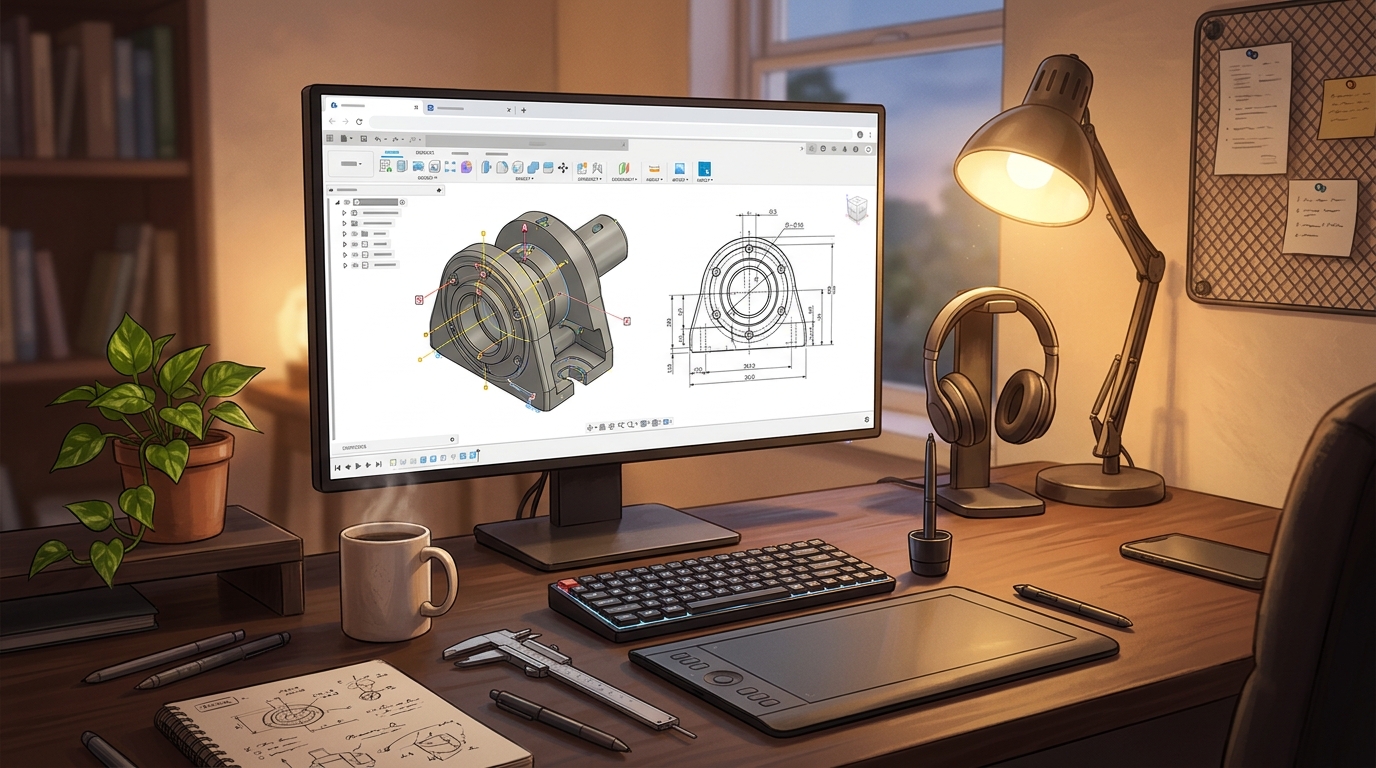
What Is Onshape?
Onshape is a free browser-based CAD program that you use on your PC for designing mechanical parts and assemblies. In simple terms, it is a program that opens in your web browser, where you sketch a 2D profile, extrude or revolve it into a 3D part, add holes, fillets and patterns, and assemble parts together with mates, exactly like desktop CAD, but with nothing installed and your files stored in the cloud. You can also create 2D drawings from your parts, and share a document with a link so a teammate can edit it live.
What makes Onshape special is its collaboration and its version control. Several people can edit the same document at the same time and see each other’s changes live, and every change is saved as a version you can branch and restore, like code in Git, so you never lose work and never wonder which file is the latest. It runs on the Parasolid modelling kernel, the same core used by professional CAD systems, and it includes sheet metal tools, FeatureScript for custom features, and mobile apps for viewing and editing on the go. Two honest notes: the Free plan costs nothing and never expires, but every document you create on it is public, so anyone can find, view and copy your work, and the licence is for non-commercial use only; and there is no offline mode, so you need an internet connection to use it.
Key Features
- Full parametric CAD: Sketch, extrude, revolve and pattern parts with constraints and dimensions, like desktop CAD.
- Real-time collaboration: Several people can edit the same document at the same time and see each other’s changes live.
- Built-in version control: Every change is saved as a version you can branch and restore, so you never lose work.
- Assemblies with mates: Assemble parts together with mates and check how mechanisms move before you build them.
- 2D drawings: Create dimensioned 2D drawings from your 3D parts, ready for a workshop or a 3D printer.
- Sheet metal tools: Sheet metal tools let you design folded parts and flatten them for cutting.
- FeatureScript custom features: FeatureScript lets you write your own custom modelling features and share them.
- Free plan, no install: The Free plan costs nothing and runs in any modern browser, with nothing to install.
System Requirements
- Operating System: Windows 10 or Windows 11, 64-bit
- Browser: A modern browser such as Chrome, Edge or Firefox, with WebGL enabled
- Processor: A modern dual-core processor or better
- RAM: At least 4 GB of RAM for basic use, 8 GB or more recommended for large assemblies
- Storage: Almost no disk space needed, because your files are stored in the cloud
- Other: A stable internet connection, which Onshape needs at all times, and a mouse for working in 3D
These are practical, modern Windows guidelines, not a word-for-word copy of an official specification table. The most important point is simple: Onshape is designed for normal Windows PCs, and a modest modern computer is enough to start.
How to Download Onshape (Official Method)
The only safe place to use Onshape is the official website. Do not download it from random file mirrors or “free download” portals, because there is no official installer to download, and those copies may be bundled with unwanted software. The official site is the source of truth for the current version.
Official download link: https://www.onshape.com/
On the official Onshape website, sign up for the Free plan and open Onshape in your browser. There is no installer to download and no setup file for Windows: you sign up at onshape.com, open cad.onshape.com, and you are modelling. There is no payment for the Free plan and no credit card is needed. If a site offers you an Onshape installer to download, or a cracked version of it, leave that site and return to the official Onshape page.
Step-by-Step Installation
Onshape runs entirely in your browser, so these steps take you from signing up to opening your first document. Work carefully through them in order, and remember that the Free plan is for non-commercial use, with all documents public.
- Create a free Onshape account — Open https://www.onshape.com/ in your browser and sign up for the Free plan with your email address. No credit card is needed.
- Confirm your email address — Open the confirmation email from Onshape and confirm your account, so you can sign in.
- Open Onshape in your browser — Go to cad.onshape.com and sign in with your new account. Onshape opens in the browser, with nothing to install.
- Install Onshape as a browser app (optional) — In Edge or Chrome, use the browser menu to install Onshape as an app, so it opens in its own window like a desktop program.
- Create your first document — Click Create and choose a document, then give it a name, such as My First Part.
- Look at the editor layout — Look at the sketch tools, the feature toolbar and the parts list, and confirm the empty document opens.
- Open an example document — Open one of Onshape’s public example documents to see a finished assembly and how it was built.
Tip: Onshape needs an internet connection at all times, because there is no offline mode. If your connection drops, the workspace freezes until it returns. Remember that every document on the Free plan is public, so do not model anything confidential on it.
First-Use Walkthrough: Your First Onshape Part
This walkthrough is a simple first project. It is not a full course, but it will help you see Onshape working on a real project and learn its main tools.
- Create a document and start a sketch — Create a new document in Onshape and start a sketch on the top plane.
- Draw a rectangle — Draw a rectangle in the sketch and add dimensions to set its size.
- Extrude the sketch into a part — Extrude the sketch into a solid block and check the 3D part in the viewport.
- Add a hole — Add a hole through the block using the Hole tool, and position it in the middle.
- Add a fillet — Add a fillet to the top edges of the block to round them off.
- Create a drawing — Create a 2D drawing from your part and check that the dimensions appear correctly.
- Export your part — Export the finished part as an STL file, ready for 3D printing or for another program.
Is Onshape Free?
Onshape Free is free from PTC. You sign up on the official Onshape site and use it without paying and without a time limit. There is no paid version of the Free plan itself, but it is limited to non-commercial use, and every document you create on it is public. Be aware of two more honest limits: private documents need the Standard plan, which costs 1,500 US dollars per user per year, and there is no offline mode, so you need an internet connection to use Onshape.
That free status is important for this guide. All the steps here use the official download only, and they do not involve cracks, activators or licence keys. If you ever see a site offering a paid or cracked version of the free program, treat it as unsafe and return to the official site.
Frequently Asked Questions
Is Onshape safe to download?
Yes, when you use it from the official website only. The official Onshape site is the version made by PTC. Avoid third-party sites that offer an Onshape installer to download, because no official installer exists.
Does Onshape work on my Windows PC?
Yes, in most cases. Onshape runs in any modern browser on Windows 10 and 11, such as Chrome, Edge or Firefox, and the system requirements above cover a normal modern PC. Check the official site for the exact current version if your PC is older.
Is Onshape really free, or will it stop working?
The free plan described in this guide is not a short trial. It stays usable as long as you use it for non-commercial work, but every document on it is public.
Do I need a powerful PC to run Onshape?
No, not for basic use. A modern Windows 10 or 11 PC with 4 GB of RAM or more can run it for simple projects. Larger projects with many objects and effects will benefit from more RAM and a faster processor, but you can start and learn on a normal home PC.
Conclusion
Onshape is a useful, free addition to a Windows setup because it is a free browser-based parametric CAD program with real-time collaboration and version control, and it can be downloaded safely from the official site. Start with a small first project, learn one tool at a time, and build from there.
To get started, download Onshape from the official website here: https://www.onshape.com/ Install it with the steps above, test it once, and then use it in your next project. With a little practice, it can become a regular part of your workflow.
Official download link: https://www.onshape.com/
Related Guides
- FreeCAD for PC: How to Download & Install on Windows
- LibreCAD for PC: How to Download & Install on Windows