 Posted by

CloudCompare for PC: Download & Install on Windows (2026)
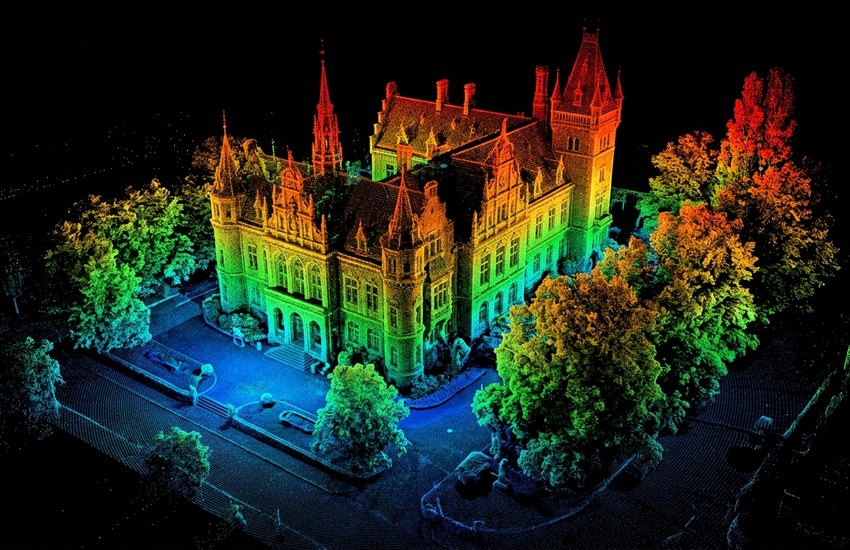
A single laser scanner survey can produce hundreds of millions of points, and ordinary 3D viewers cannot open a file that size, let alone measure how far it moved since the last scan. This cloudcompare download for pc guide covers CloudCompare — the free, open source program built for dense 3D point clouds and triangular meshes, used for comparison, registration and analysis.
This guide covers the official download, the Windows install steps, and how to compare your first point clouds. The stable release recommended here is version 2.13.2, and the software is completely free under the GNU General Public License, for personal, educational and business use.
What Is CloudCompare?
CloudCompare is free, open-source 3D point cloud and triangular mesh processing software, originally created by Daniel Girardeau-Montaut, with its source on GitHub. It was originally designed to compare two dense 3D point clouds — for example, two laser scanner surveys of the same site — or a point cloud against a triangular mesh, using a dedicated octree structure that makes distance calculations fast even on very large data.
Since then it has grown into a general point-cloud processor. Its toolset covers registration and alignment of separate scans, resampling, handling of colour, normals and scalar fields, statistics, segmentation and display enhancement. Scalar fields are central to its workflow: values such as distance, density or roughness are stored per point and shown as colour gradients, so change becomes visible at a glance instead of hiding in raw numbers.
CloudCompare loads a wide range of data: open formats such as ASCII, LAS and E57, manufacturer formats including DP, Riegl and FARO, meshes such as OBJ, PLY, STL and FBX, polylines and polygons in SHP and DXF, plus some structure-from-motion formats. A light companion viewer, ccViewer, is included for quickly inspecting clouds without the full editing toolset.
Key Features
- Point cloud comparison: Measure distances between two dense point clouds, or between a point cloud and a triangular mesh, powered by a dedicated octree structure.
- Registration and alignment: Align separate scans and clouds to each other so surveys from different positions form one consistent dataset.
- Scalar field tools: Compute, edit and display per-point values such as distance and density as clear colour maps for analysis.
- Colour and normals handling: Manage point colours and normals, with tools to compute, convert and use them in shading and further processing.
- Resampling and segmentation: Thin out oversized clouds, crop regions of interest and split data into meaningful segments.
- Wide format support: Open LAS, E57 and ASCII point clouds, OBJ, PLY, STL and FBX meshes, plus SHP and DXF linework and manufacturer formats.
- ccViewer companion: A light viewer for fast inspection of clouds and meshes when you do not need the full editing environment.
System Requirements
- Operating System: Windows 64-bit; current Windows builds are 64-bit only
- Processor: A modern 64-bit processor; no official minimum table is published by the project
- RAM: No official minimum is published; larger point clouds need more memory, so more RAM is strongly recommended
- Storage: Enough free space for the program plus your point cloud and mesh project files, which can be large
- Graphics: An OpenGL-capable graphics setup for the Qt and OpenGL-based interface and 3D display
- Internet: Only needed for the download and for checking for newer releases
- Also available: macOS and Linux builds, alongside the Windows installer and archive versions
How to Download CloudCompare (Official Method)
CloudCompare is free under the GPL, so the official project site is the only source you should trust. Third-party portals often carry outdated builds, and for software that reads specialist scanner formats, an old version can mean missing format support and already-fixed bugs. The official release page linked below lists stable version 2.13.2 “Kharkiv” as a Windows 64-bit installer and as a 7-Zip archive, and lists the newer 2.14 beta separately for testers — for everyday work, choose the stable release.
Official Website: Download CloudCompare from the official website
Step-by-Step Installation
- Open the official CloudCompare release page linked above.
- Find the stable release 2.13.2 section and choose the Windows 64-bit Unified build.
- Download the installer file, CloudCompare_v2.13.2_setup_x64.exe, or the .7z archive if you prefer a portable-style copy.
- Save the installer to your Downloads folder.
- Double-click the installer and approve the Windows permission prompt.
- Follow the setup wizard, keeping the default options and installation location.
- Click Finish, then launch CloudCompare from the Start menu; ccViewer is installed alongside it.
Tip: If you work on a PC where you cannot install software, download the .7z archive version instead of the installer — extract it with 7-Zip and run CloudCompare from the extracted folder, keeping in mind that the latest Windows installer is the build that also includes the Python plugin and 3DFin plugin noted on the release page.
How to Compare Two Point Clouds in CloudCompare
- Launch CloudCompare and open your two point clouds with File > Open — for example LAS or E57 files from two laser scanner surveys.
- Select both clouds in the DB Tree panel on the left, so the comparison tools know which datasets to use.
- If the clouds are not already aligned, use the registration tools to align them into the same coordinate space first.
- Go to Tools > Distances and choose Cloud/Cloud Distance to start the comparison.
- Keep the octree-based computation settings, run the calculation, and wait while distances are computed point by point.
- Read the result as a scalar field: the cloud is coloured by distance, and the histogram shows how much of the surface changed and by how far.
Is CloudCompare Really Free? The Honest Picture
Yes — completely, and in the full open-source sense. CloudCompare is released under the GNU General Public License (GPL) and is free for any purpose, including business and education, with no paid version, no subscription and no licence key. The features described in this guide — comparison, registration, resampling, segmentation and scalar-field analysis — are all in the free build from the official site.
The honest caveats are about support and polish, not price. The project website asks professional users to consider donating, because development depends on community support — but that is a request, not a payment wall. CloudCompare is also a specialist tool: its interface assumes you understand point clouds and scalar fields, so new users face a learning curve, and there is no commercial help desk, only documentation and the community. For survey, LiDAR and engineering work, that trade-off is widely accepted, because the processing power itself costs nothing.
Frequently Asked Questions
Is CloudCompare safe to download?
Yes, from the official CloudCompare website linked above, which publishes the Windows installer and archive itself. Avoid third-party download sites, which may offer outdated builds or bundle the program with unwanted extras.
Is CloudCompare free?
Yes, entirely. CloudCompare is free and open source under the GNU General Public License, for personal, educational and commercial use. There is no paid version; the project simply invites professional users to donate or contribute.
Which version of CloudCompare should I install?
Install the stable release, version 2.13.2 “Kharkiv,” for everyday work. The release page also lists a 2.14 beta build, but a beta is a development version for testing — choose it only if you specifically want to try its newest changes.
Which file formats can CloudCompare open?
It loads open point-cloud formats such as ASCII, LAS and E57, manufacturer formats including DP, Riegl and FARO, meshes such as OBJ, PLY, STL and FBX, and linework in SHP and DXF, among others.
Conclusion
CloudCompare turns a Windows PC into a serious point-cloud workstation: octree-powered comparison, registration, scalar-field analysis and broad format support, all free under the GPL. Download the stable 2.13.2 build from the official release page, open your first LAS or E57 cloud, and let the colour map show what changed between scans.
Download CloudCompare from the Official Website
Related Guides
- MeshLab for PC: How to Download and Install on Windows (2026 Guide)
- Meshroom for PC: Download & Install on Windows (2026)