 Posted by

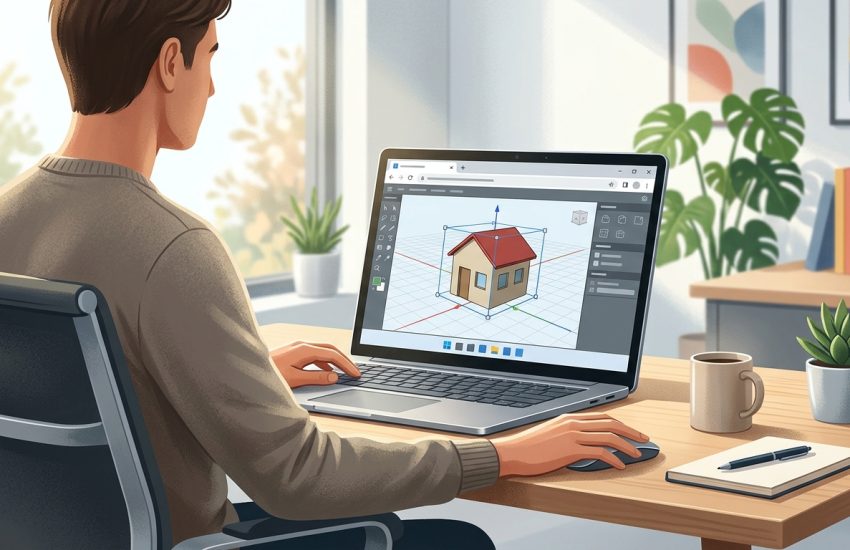
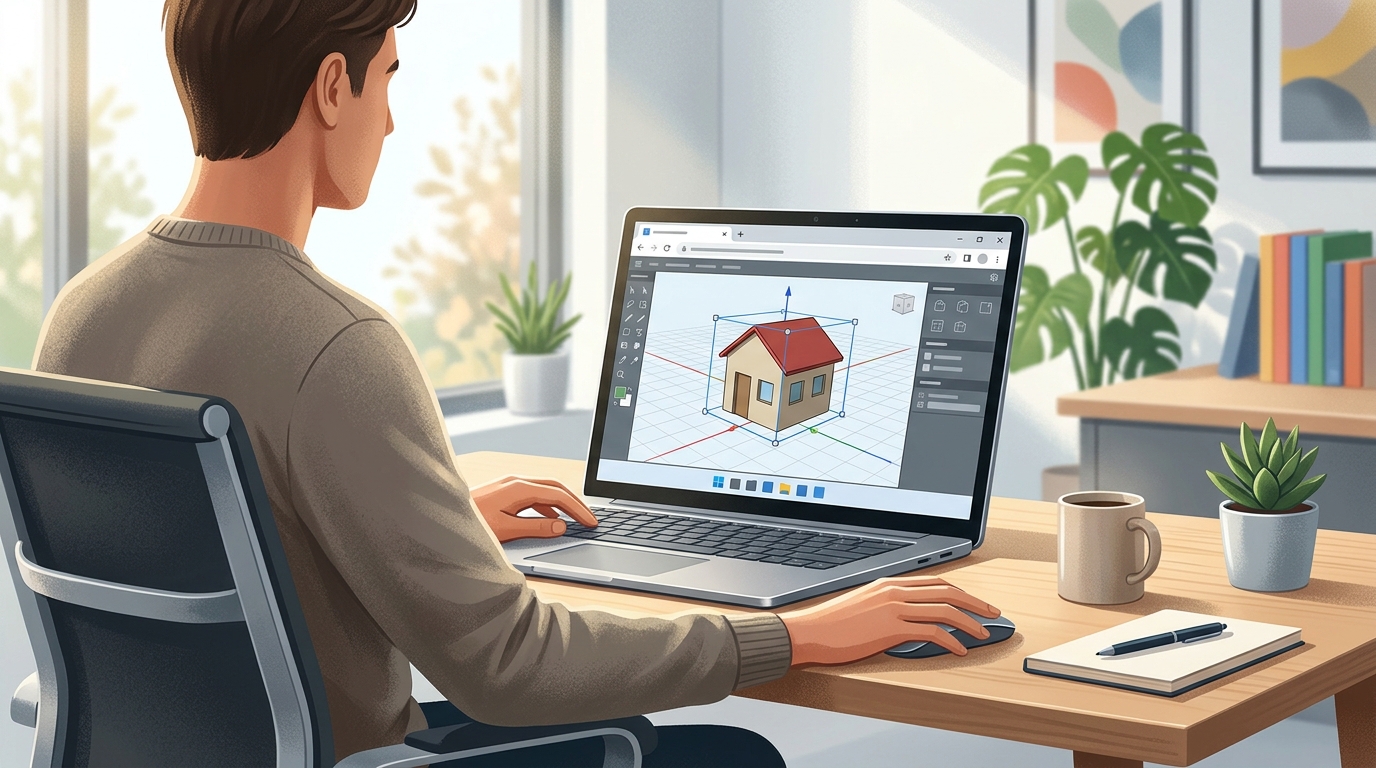
If you want to try 3D modeling on a Windows PC without paying for expensive software or installing a large program, SketchUp Free is one of the easiest places to start. It is the free version of the well-known SketchUp 3D modeler, and it is designed for hobbyists, students, homeowners planning a room, and anyone who wants to learn how 3D design works. Before you look for a download button, there is one important fact to understand clearly: SketchUp Free is web-based. It runs entirely in your web browser. There is no Windows installer to download, no setup file to run, and nothing to install on your computer in the traditional sense. You open it in Chrome, Edge, Firefox, or another modern browser, sign in with a free Trimble account, and you can start modeling straight away.
What Is SketchUp Free?
SketchUp Free is the free, browser-based version of SketchUp, the 3D modeling software developed by Trimble. SketchUp has been popular for many years with architects, interior designers, woodworkers, hobbyists, and makers because it uses a simple push-and-pull approach to 3D modeling. Instead of learning complex menus first, you draw a flat shape, such as a rectangle or a circle, and then pull it upward to turn it into a three-dimensional object. That idea makes it much easier to learn than many professional CAD programs.
The free version gives you the core SketchUp modeler in the browser. You can draw, measure, move, rotate, scale, and edit 3D objects. You can build a room, a house, a piece of furniture, a garden layout, or a simple product concept. You can change the camera view, orbit around your model, zoom in for detail, and add colours and materials to make the model easier to understand. For personal, non-commercial learning and hobby projects, that core toolset is often enough to get real results.
One more piece of history helps avoid confusion. SketchUp Make was an older free desktop version of SketchUp. It was discontinued in 2017 and is no longer the current free option. You should not search for SketchUp Make as a current download, and you should not trust websites that present it as a new or supported product. The current free option from Trimble is SketchUp Free in the browser, and that is the version covered in this guide.
Key Features
- Browser-based core 3D modeler: The main modeling tools run in your web browser, so you can draw, push, pull, move, and edit 3D shapes without installing desktop software. The interface is clean, and the basic tools are visible on the left and top of the screen.
- Push-and-pull modeling: Draw a rectangle, circle, or other flat shape and pull it into a solid. This simple idea makes it easy to create walls, boxes, tables, shelves, and buildings without learning advanced CAD commands first.
- 10 GB Trimble Connect cloud storage: Your models are saved online with 10 GB of storage on the free plan. You can organize projects into folders, reopen them from another PC, and avoid losing work when you change computers.
- 3D Warehouse access: Search a large library of user-shared models and components. You can add furniture, plants, fixtures, and other ready-made objects to your scene, which is useful for interior layouts and quick concept models.
- Import and export options: On the free plan, you can import SKP files and JPG and PNG images, and you can export your work as SKP, PNG, and STL files. The STL export is especially useful if you want to send a simple model toward 3D printing.
- Measuring and precision tools: You can type exact measurements while drawing, use guides and dimensions, and snap objects to useful positions. This helps you make a room to real size instead of guessing proportions.
- Materials and colours: Apply colours and simple materials to faces and objects so you can show wood, paint, glass, or other surfaces. This makes a model easier to read and more pleasant to present.
- Orbit, pan, and zoom navigation: Move around your model freely to check it from different angles. You can switch between perspective and parallel views, zoom into small details, and return to a clear overview when needed.
System Requirements
Because SketchUp Free runs in the browser, there is no traditional Windows installer and no official desktop system specification to follow in the usual way. The figures below are practical modern Windows guidance, not an official Trimble specification table, and they describe what generally gives a smooth experience.
You will need a Windows 10 or Windows 11 PC with a modern web browser such as Google Chrome, Microsoft Edge, or Mozilla Firefox, kept up to date. A stable internet connection is required, because the app and your saved models are online. For comfortable use, aim for at least 8 GB of memory, a reasonably modern processor, and a display of at least 1366 by 768 resolution, although a Full HD display is more comfortable for the toolbars and the modeling area. Integrated graphics are usually enough for simple models, but a dedicated graphics card helps if you build large scenes with many components from 3D Warehouse.
How to Download SketchUp Free (Official Method)
There is no Windows installer to download for SketchUp Free, and that is by design. The official way to use it is to open the web app in your browser and sign in. Do not download a file called SketchUp Free from a third-party download site, and do not trust a site that offers a cracked or unlocked installer under this name. The only official link you need is the one below.
Official link: https://app.sketchup.com/
That link opens the SketchUp for Web app. From there, you can sign in with a Trimble ID or create one for free if you do not have one yet. Once signed in, the app loads in the browser and you can create a new model. If you are looking for the paid desktop versions, those are sold separately through Trimble and SketchUp channels, and they are not part of this free browser guide. For this guide, the web app is the product, and the link above is the only download or access link you need.
Step-by-Step Installation
Because SketchUp Free is web-based, these steps replace a traditional installation. Follow them in order, and you will go from no account to your first open model in a few minutes.
- Open the official web app: Open Chrome, Edge, or Firefox on your Windows PC and go to https://app.sketchup.com/. Bookmark this page so you can return to it easily later.
- Create a free Trimble ID: If you do not have a Trimble account, choose the option to create one. Enter your name, email address, and a secure password, then complete the verification step sent to your email. Keep your login details safe.
- Sign in to SketchUp for Web: Return to the web app and sign in with your new Trimble ID. The first sign-in may ask you to confirm a few basic details about how you plan to use SketchUp. Choose the personal or learning option that matches your use.
- Choose the free plan: When you are offered plan choices, select SketchUp Free. Do not enter payment details for the free plan. If a page asks for payment, you are on a paid plan page, so go back and choose the free option.
- Start a new model: On the home screen, choose to create a new model. You will usually be asked to pick a template, such as millimetres, centimetres, or feet and inches. Pick the unit system you are most comfortable with.
- Allow the app to load fully: Wait for the modeling workspace to load completely before you click tools. The toolbar, drawing area, and panels should all be visible. If the page looks incomplete, refresh once and sign in again.
- Save your first project: Use the save option, give your model a clear name, and save it to Trimble Connect. Check that it appears in your recent models list so you know your cloud save is working.
Tip: Use the same Trimble ID every time. If you create a second account by mistake, your models may appear to be missing, when they are simply saved under the other account. Keep one account, use a password manager if you use one, and sign out properly on shared computers.
Getting Started: Your First Project in SketchUp Free
A good first project is a simple room or a small table, because it teaches the main tools without becoming confusing. Start a new model with your chosen template, then look at the toolbar. The Select tool lets you click objects, the Line tool lets you draw edges, and the Rectangle tool lets you draw a flat floor or tabletop quickly. Click the Rectangle tool, click once in the drawing area, move the mouse, and click again to set the size. You can also type a size such as 1200,800 and press Enter for a more exact shape, depending on your unit template.
Now try the Push/Pull tool, which is the heart of SketchUp. Click the tool, click on the rectangle you just drew, move the mouse upward, and click again to give it height. You have just turned a flat shape into a box. Use the Orbit tool to drag around the model and see it from the side. Use the Tape Measure tool if you want to check a distance, and use the Move tool to shift the box to a better position.
Is SketchUp Free Really Free?
Yes, SketchUp Free is free for personal, non-commercial use, as long as you use the official web app and a free Trimble ID. There is no need to pay to open the modeler, save to Trimble Connect within the 10 GB limit, or browse 3D Warehouse. You should not pay a third-party site for access to the free version, and you should not download a supposed free installer that asks for payment or asks you to disable security software.
The free plan does have limits, and it is honest to name them. It is not licensed for commercial use, so you should not use it for paid client work or for a business. It does not include extensions, and it does not include the full desktop Pro features such as advanced import and export formats, LayOut, or the desktop-only professional tools. The paid SketchUp Pro and SketchUp Studio plans exist for users who need those features and a commercial licence. If you only want to learn, plan a home project, or practise 3D modeling as a hobby, the free plan is a legitimate and useful option.
Frequently Asked Questions
Is SketchUp Free safe to download?
SketchUp Free is safe to use through the official web app at https://app.sketchup.com/ when you sign in with a Trimble ID. There is no installer to download, so be careful with any other site that offers a SketchUp Free installer, crack, or activator. Those files are not official, and they can contain unwanted software. Use the official link only, keep your browser updated, and use a strong, unique password for your Trimble account.
Do I need to install SketchUp Free on Windows?
No. SketchUp Free runs entirely in a modern web browser. You do not need to install it on Windows, and you do not need to download a setup file. You only need a browser, an internet connection, and a free Trimble account. This also means you can open your saved models on another computer by signing in with the same account.
Can I use SketchUp Free for commercial work?
No. The free plan is for personal, non-commercial use only. If you need SketchUp for paid work, a business, or commercial projects, you need a paid plan such as SketchUp Pro or SketchUp Studio, which includes a commercial licence and the desktop tools. Using the free plan for commercial work would break the licence terms.
Can I export my SketchUp Free models for 3D printing?
Yes, in a basic way. SketchUp Free supports STL export, which is a common format for 3D printing, along with SKP and PNG export. For a printable model, keep the design solid and watertight, avoid very thin walls, check the size in your slicer software, and test with a small print first. More advanced export formats are part of the paid desktop versions.
Conclusion
SketchUp Free is a practical, legal way to start 3D modeling on a Windows PC without buying software or installing a large program. Because it is web-based, you can open it in your browser, sign in with a free Trimble ID, and start with the core push-and-pull modeler, 10 GB of Trimble Connect storage, and access to 3D Warehouse. It is best for learning, hobby projects, and personal home planning, and it is not a replacement for the paid Pro or Studio versions if you need commercial use, extensions, or desktop professional tools.
If you remember one thing from this guide, let it be the access method: there is no Windows installer for SketchUp Free. Open the official web app, create your free Trimble account, and work in the browser. Start small, save often, practise the basic tools, and build up to a room or house layout when you feel ready. You can begin here with the official link: https://app.sketchup.com/
Related Guides
- Blender for PC: How to Download & Install on Windows
- Meshroom for PC: How to Download & Install on Windows